 TaleArt docs
Roles and permissions
Every person has a role in each project: Viewer, Editor, Publisher or Admin. The role decides what they can see and change there. An admin of the project sets it from Settings > Team, can give it an end date, and can read who changed what. The people and sign-in side is in Projects, team and sign-in.
To see every role at work without building a team, the demo data of the Docker quick try adds four members (a Publisher, two Editors and a Viewer, one with an access that has ended) and two pending invitations.
The four roles
Each role includes everything the one before it can do.
- Viewer reads. They see the project, its zones, tale groups and tales, and the analytics. They change nothing.
- Editor works on content. They create and edit tale groups and tales and save drafts, but cannot make anything live.
- Publisher makes content live. They publish what editors saved, set visibility and schedules, and manage zones and their displays.
- Admin runs the project. They also reveal and rotate zone keys and the site key, and manage the team: invite people, change roles, remove access.
A person can have a different role in each project: Publisher in one, Viewer in another. Projects they are not in are not shown to them at all.
What each role can do
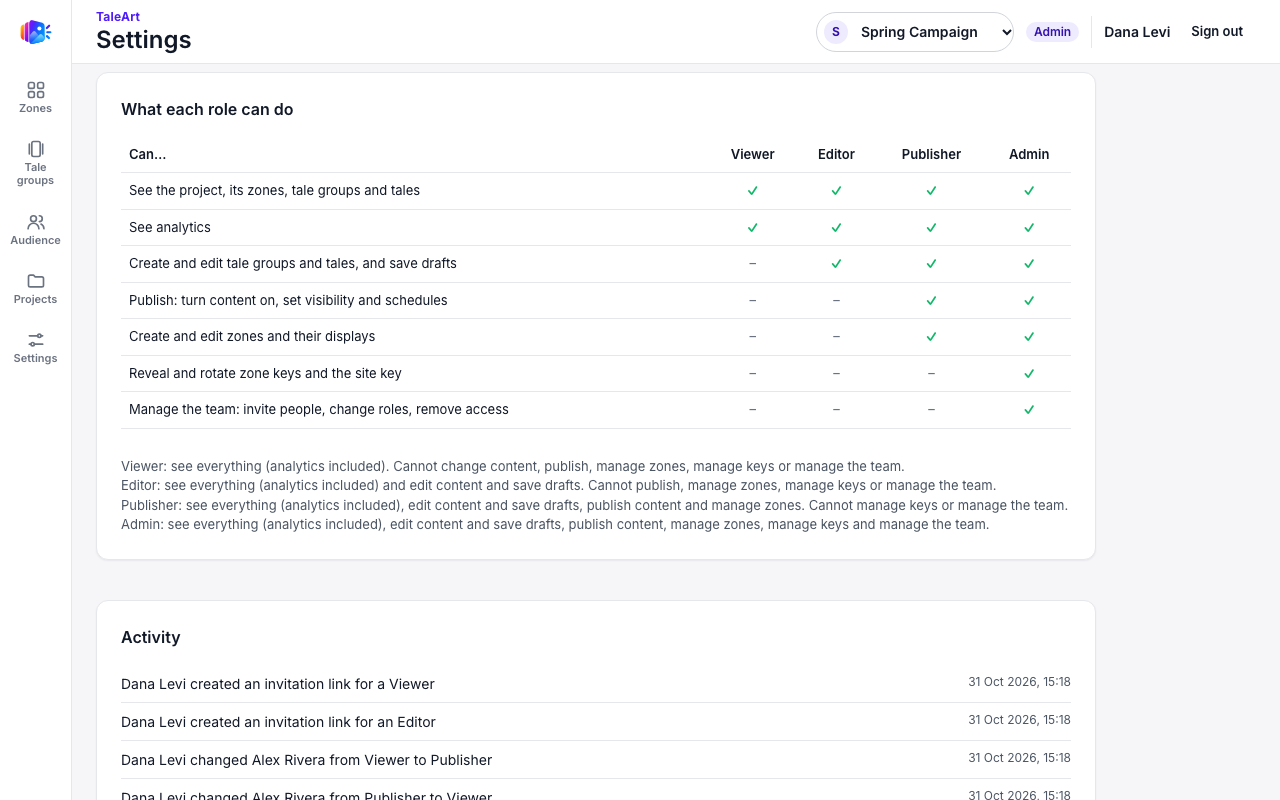
This is the table the dashboard shows under What each role can do, and the one the API enforces on every project request. A dash means the role cannot do it.
| Can | Viewer | Editor | Publisher | Admin |
|---|---|---|---|---|
| See the project, its zones, tale groups and tales | Yes | Yes | Yes | Yes |
| See analytics | Yes | Yes | Yes | Yes |
| Create and edit tale groups and tales, and save drafts | No | Yes | Yes | Yes |
| Publish: turn content on, set visibility and schedules | No | No | Yes | Yes |
| Create and edit zones and their displays | No | No | Yes | Yes |
| Reveal and rotate zone keys and the site key | No | No | No | Yes |
| Manage the team: invite people, change roles, remove access | No | No | No | Yes |
Install admins
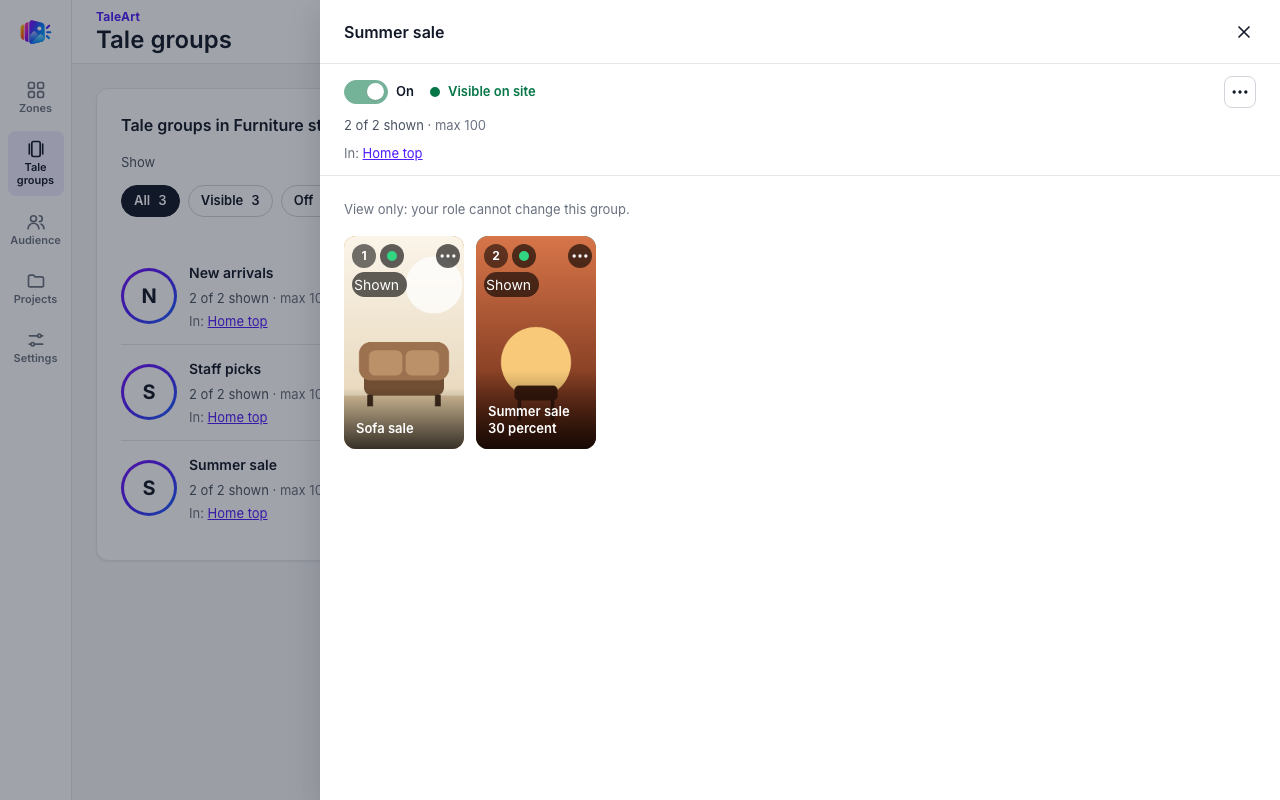
The admin of the whole install (the person who set TaleArt up, and anyone made an admin under Settings > Users) is an Admin in every project, whether or not they are listed as a member. They appear in a project's member list only when someone added them there, marked Install admin. Everyone else is a content manager, and their power comes from the role they hold in each project.
Editors save drafts, publishers make them live
The split between Editor and Publisher works like an approval step. An editor can build and change tales and save the changes as a draft, which does not change what visitors see. A publisher reviews the draft and makes it live. Give people who write content the Editor role, and give the people who answer for what visitors see the Publisher role.
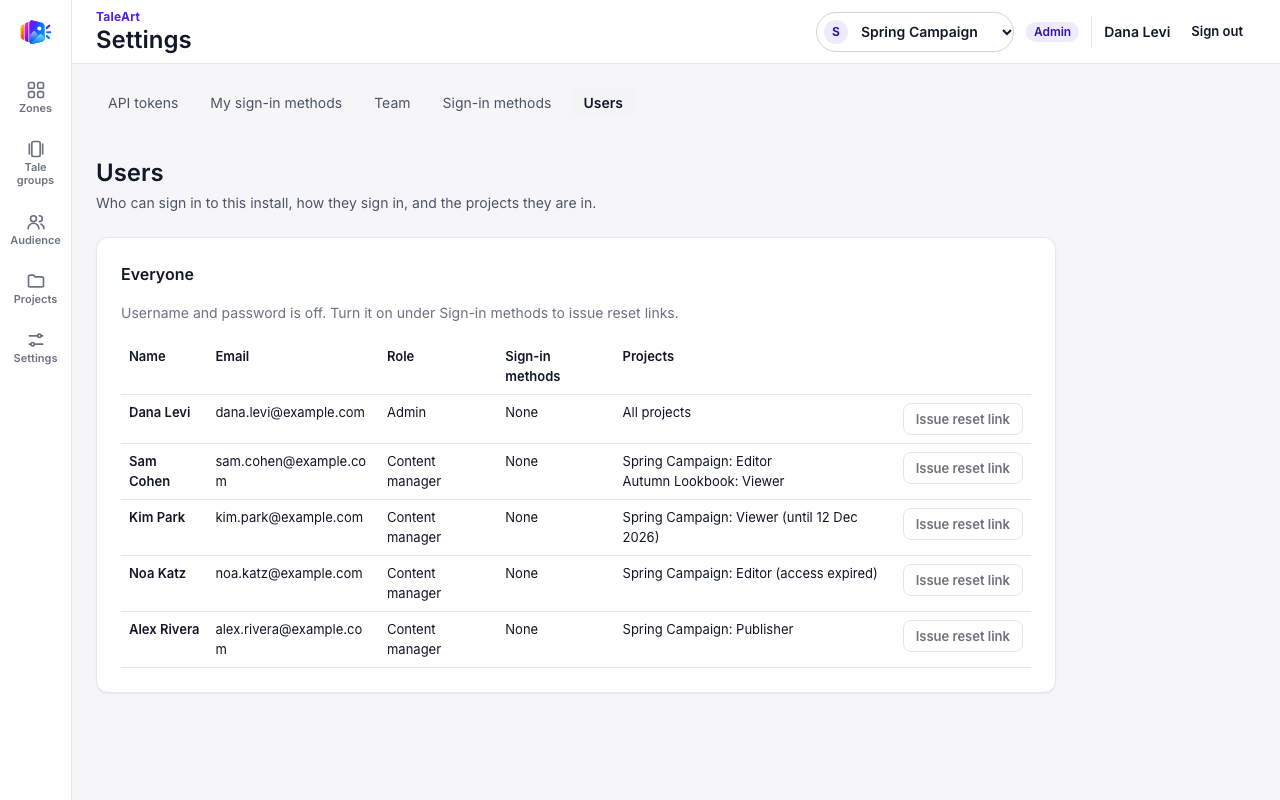
In Tale Studio an editor sees Ask a publisher to publish where a publisher has the publish controls, and the status line says the change is not visible yet. In a tale group, the switches that turn content on or off, and the schedule, are for publishers: an editor sees the same menu item greyed out with the reason Needs the Publisher role or higher.
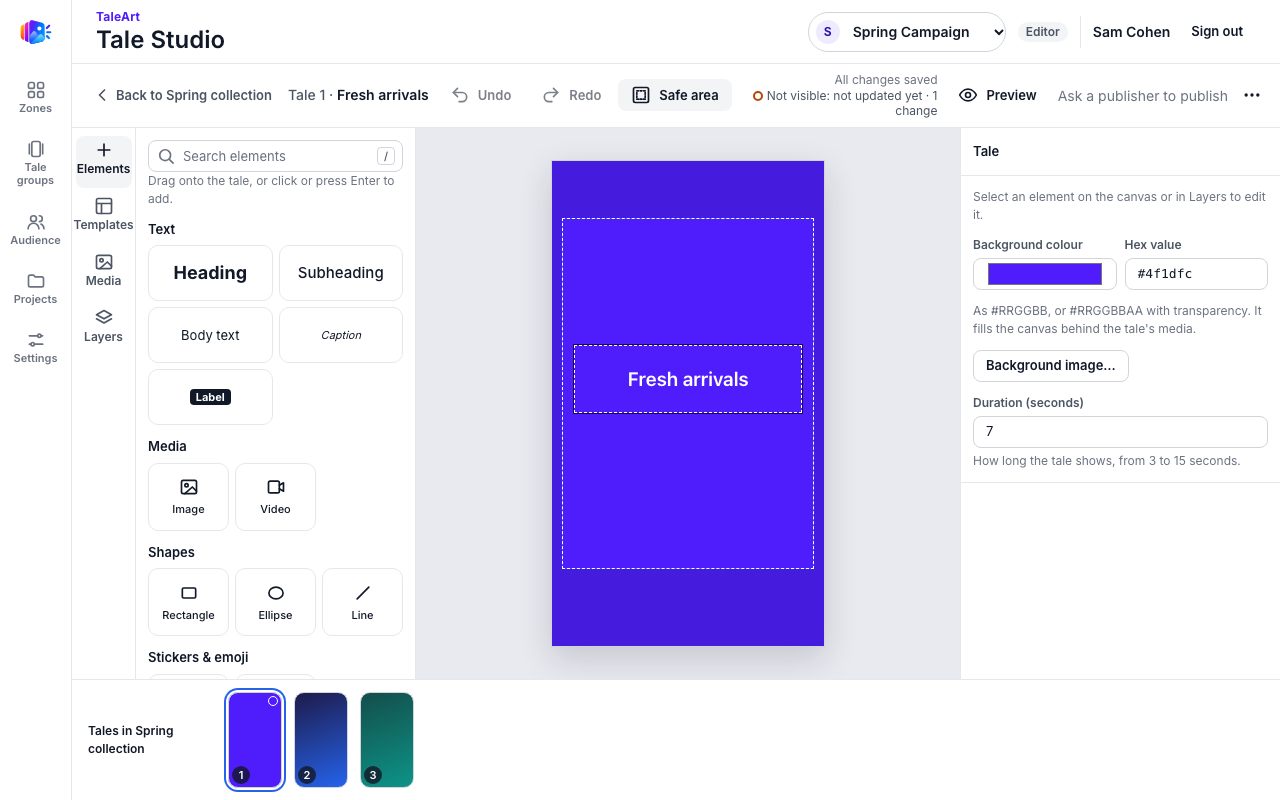
A Viewer sees the same screens in read-only form: controls that change something are off, with a note such as View only: your role cannot change this group.
Manage the team, step by step
Only an Admin of the project, or an install admin, sees the controls below. Everyone else sees the member list and the roles table, read-only.
Open Settings > Team.
Pick the project in the header, then choose Settings and the Team tab. The page names the project and your own role beside it. The Members table lists each person with their Role, their Access (permanent, until a date, or expired), when they Joined, and a Remove button.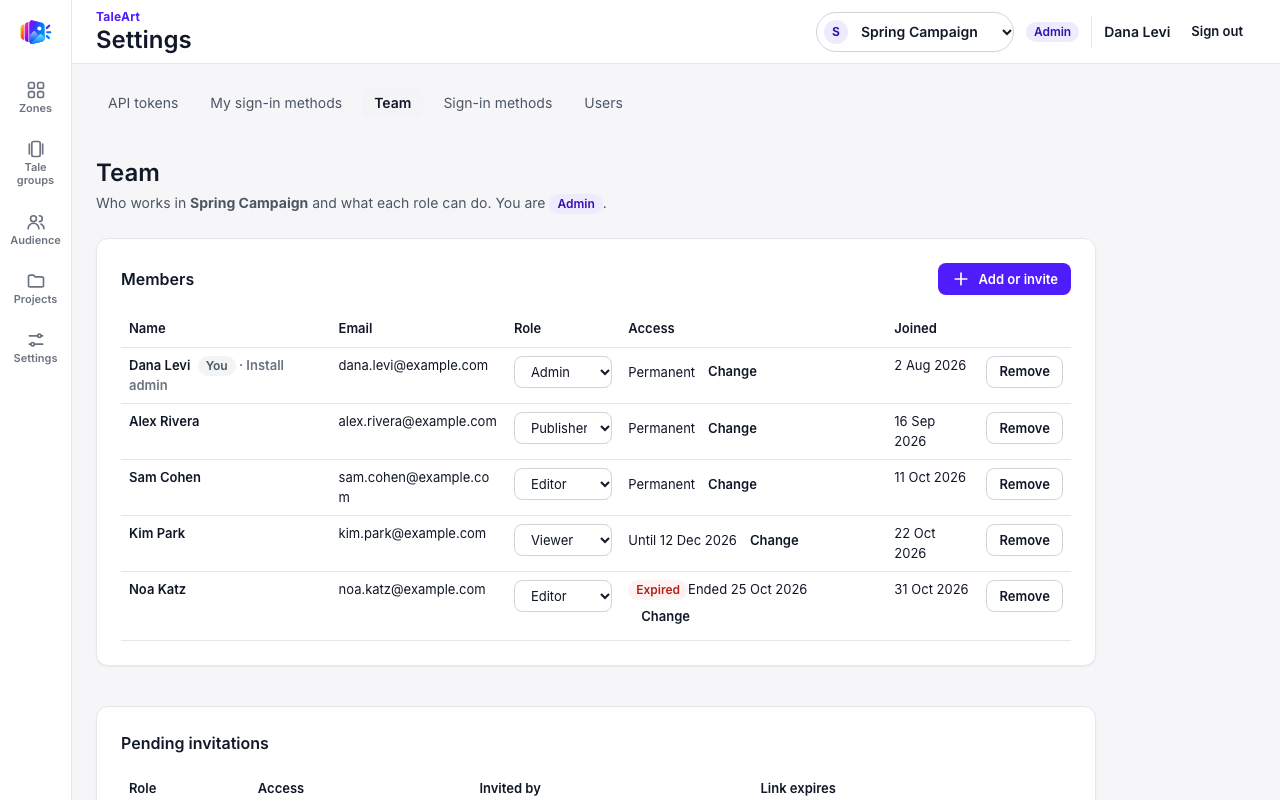
Settings > Team for an Admin, a real screenshot with example people. Kim Park's access ends on a date; Noa Katz's already has. Invite someone with a role.
Choose Add or invite, then Create a one-time invitation link. Pick the Role: the hint under the list says what it allows and what it does not. The default is Editor. Optionally set Access ends. Choose Create link, then Copy link and send it to the person yourself: TaleArt sends no email. The link is shown once, works once, and expires after 7 days. The person opens it, signs up with a passkey, a username and password or a provider, and joins the project with the role you chose.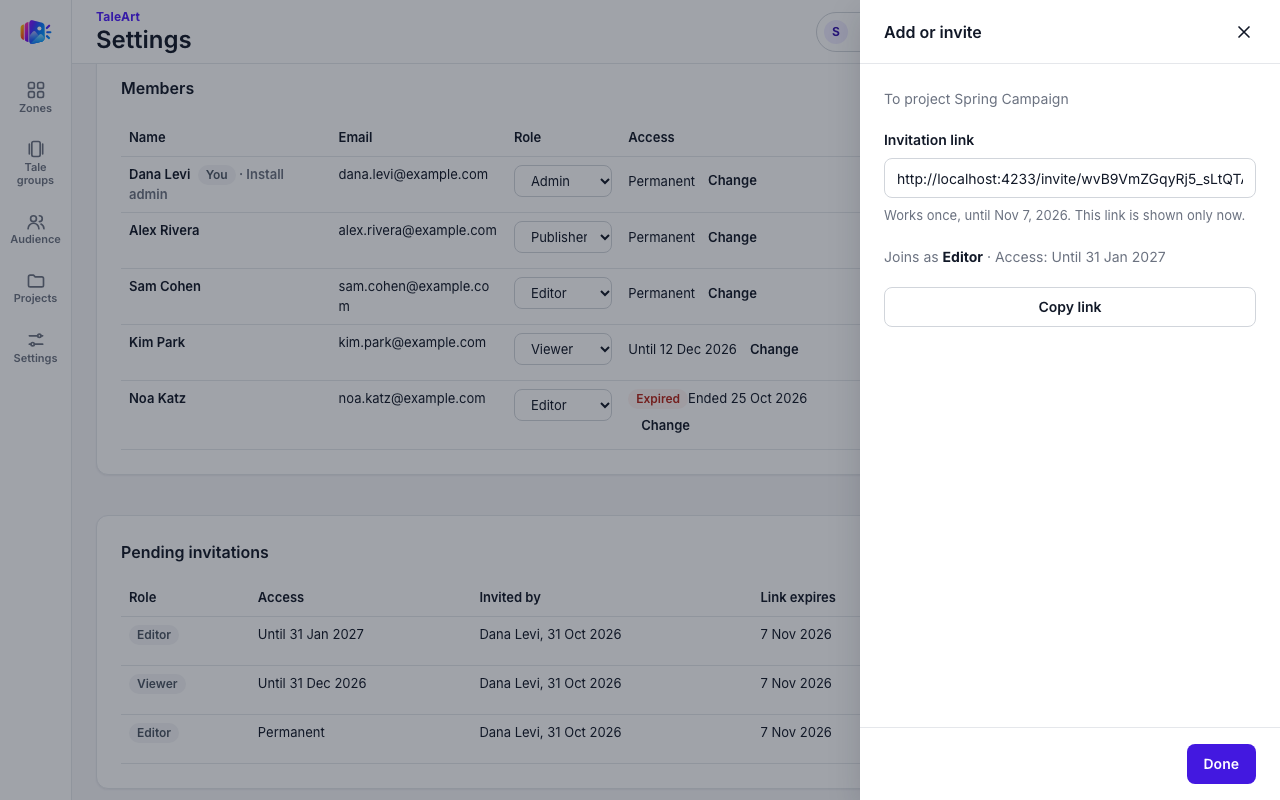
The invitation link, a real screenshot. The link is a local test address; the note says it is shown only now, so copy it before choosing Done. Add an existing user.
Someone who already has an account on this install needs no invitation. Choose Add or invite, keep Add someone who already has an account, type their Email, pick the Role, optionally set Access ends, and choose Add to project. They have access at once. If the email has no account, the answer isuser_not_found: invite them instead. If they are already a member (even with expired access) it ismember_exists: change their role in the table.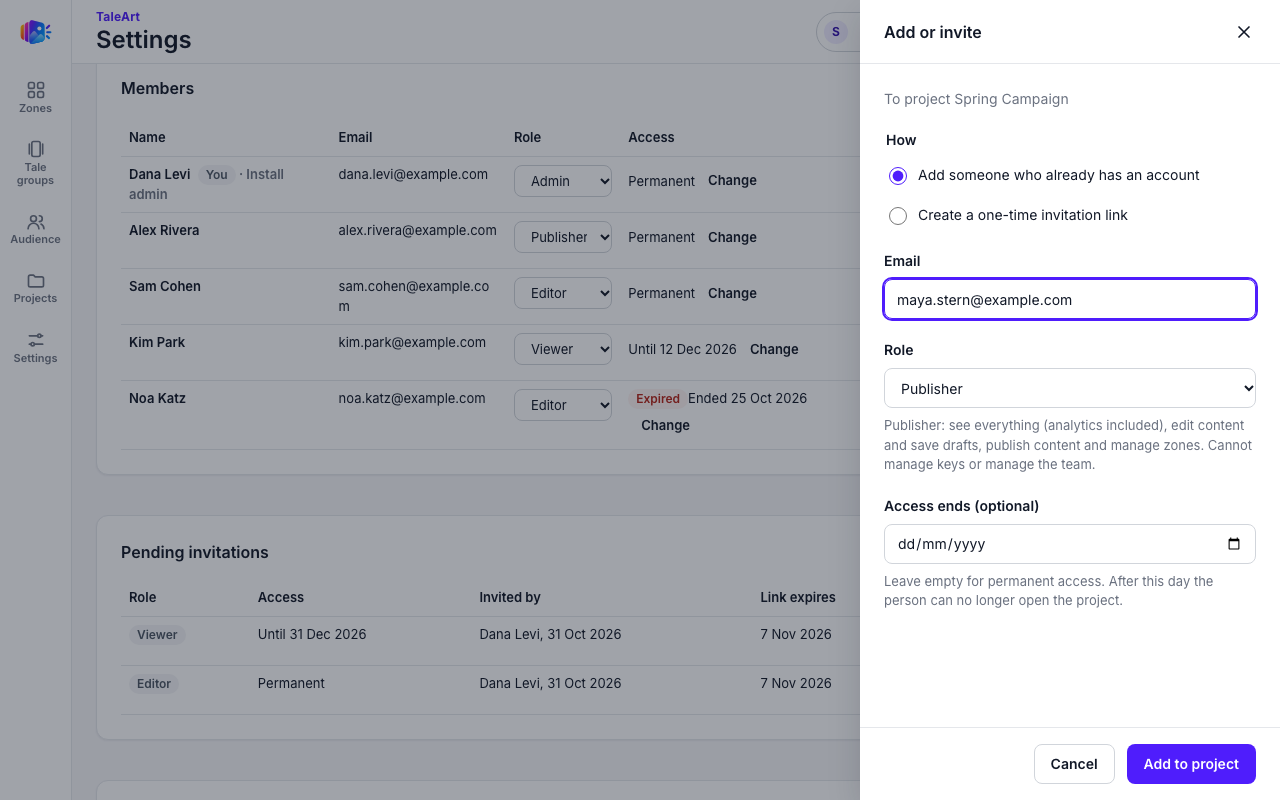
Adding an existing user as a Publisher, a real screenshot with an example email. The hint under Role changes with the role chosen. Change a role.
In the Members table, pick another role in the person's Role list. It saves at once, and takes effect on their next request: they do not need to sign in again. TaleArt will not leave a project without an Admin: see the last admin.Set an end date.
In the person's Access cell choose Change, pick a date, and it saves. Permanent removes the limit. After the end date the person can no longer open the project, and the row is marked Expired. Their membership stays in the list, so you can give a new date to restore access. The same Access ends field is on the add and invite forms.Revoke an invitation.
Invitations that were created and not yet used are in Pending invitations, with the role, the access end date, who invited, and when the link expires. Choose Revoke and the link stops working at once. A person who opened it before then, and finished joining, is already a member: remove them from Members instead.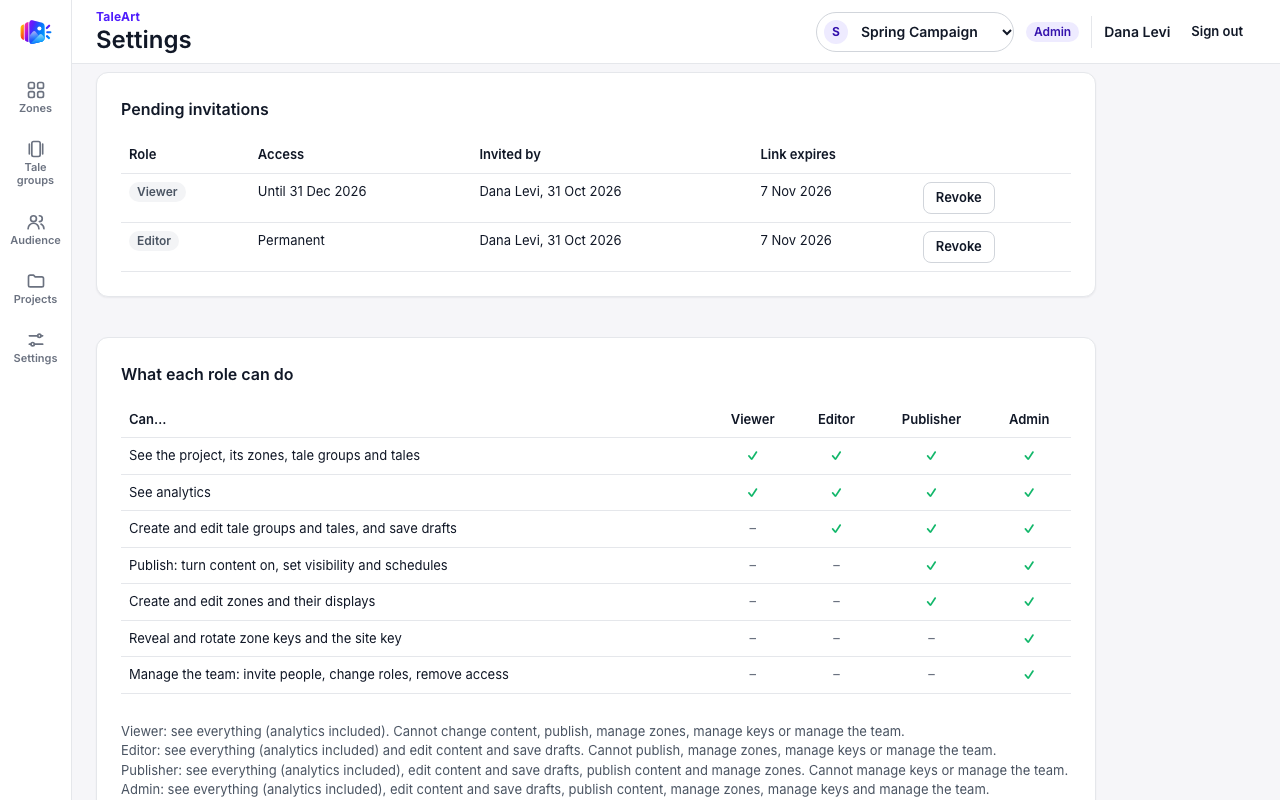
Pending invitations, a real screenshot. Revoke ends a link before its seven days are up. Remove a member.
Choose Remove on the person's row and confirm. They lose access to the project at once; their account stays, and so do their roles in other projects.Read the activity.
At the bottom of the page, Activity lists the newest changes first, in words: Dana Levi changed Sam Cohen from Editor to Publisher. It records invitations created and revoked, people who joined, people added, role changes, end-date changes and removals, with the time of each. Only admins see it.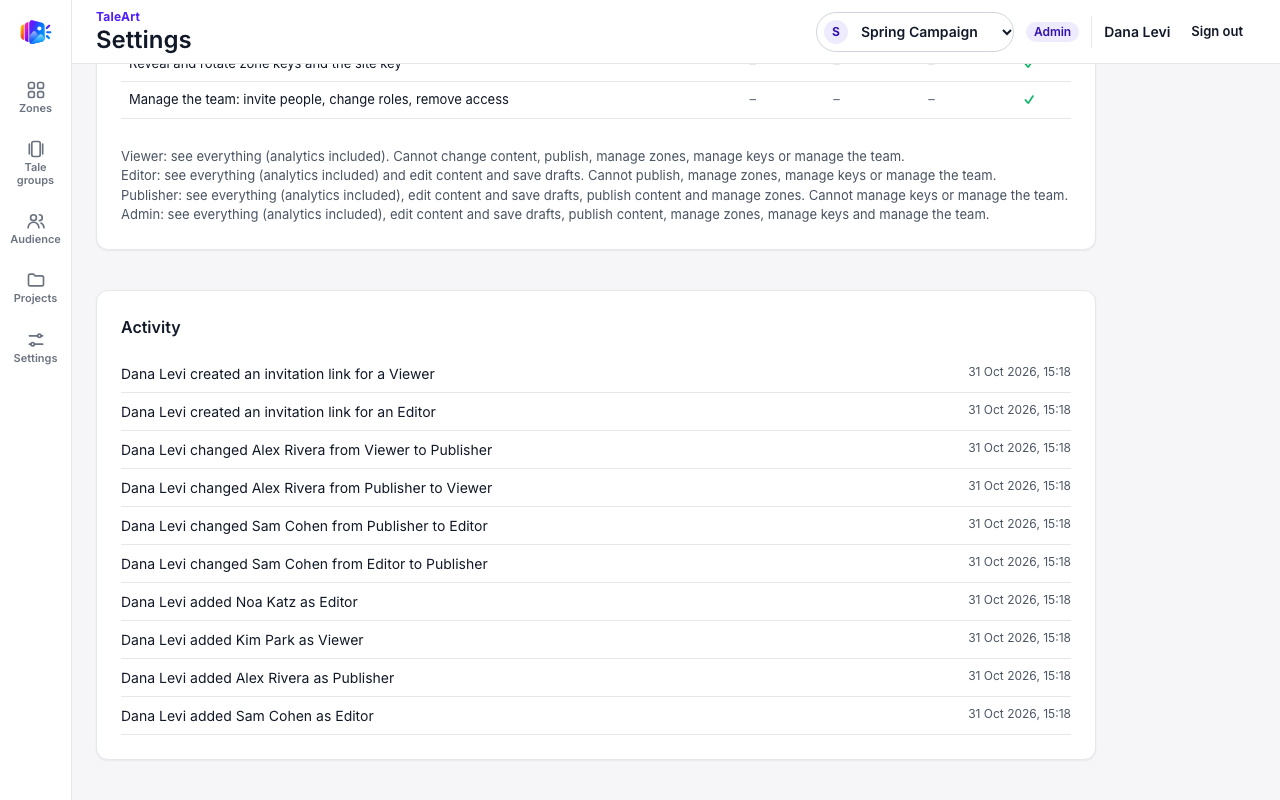
The activity log, a real screenshot. Each line says who did what to whom, and when.
Time-limited access
Any membership or invitation can have an end date. Until that day the role works as usual. After it, the person has no access to the project, but stays in the list as Expired so an admin can extend it or remove them. The date must be in the future when it is set, and counts in UTC. An invitation's end date applies to the membership once the person joins, not to the link, which always lasts 7 days.
Add or invite: which one
| Add someone who already has an account | Create an invitation link | |
|---|---|---|
| For | A person who has signed in to this install before | A new person with no account yet |
| You give | Their email, a role, an optional end date | A role and an optional end date; you send the link |
| Takes effect | At once | When the person opens the link and signs up |
| Link | None | One use, 7 days, shown once; revoke it from Pending invitations |
| If it is wrong | user_not_found (no such account), member_exists (already a member) | Revoke it and create another |
The last admin is protected
A project always keeps at least one active Admin. Lowering the role of the last one, or removing them, is refused with last_project_admin: make another person an Admin first. An install admin is not held to this, since they are an Admin in every project anyway.
API tokens and the API
- An API token acts with your role in each project, as it is at the time of each request, narrowed to the projects the token was given. A token never has more power than its owner: if you are a Viewer in a project, your token reads it and changes nothing there, even when it is read-write.
- Zone keys and the site key can be revealed, issued and rotated only with the Admin role, so a token or the command-line tool needs an Admin owner for those.
- The member, invitation and activity operations marked Dashboard only in the API reference need a signed-in dashboard session. An API token cannot add people, change roles or create invitations: it is refused with 403
forbidden. Listing members needs only the right to see the project.
What a refused action looks like
The dashboard turns off or hides what your role cannot do, and says why, for example Needs the Publisher role or higher. If a request gets through anyway, from an API token or an old page, the API answers 403 with this body, and changes nothing:
HTTP/1.1 403 Forbidden

{
  "error": {
    "code": "forbidden",
    "message": "Your role in this project does not allow this"
  }
}
Someone who is not a member of the project at all is refused the same way, and an expired membership counts as no membership.
Error codes
| Status | Code | Meaning |
|---|---|---|
| 403 | forbidden | Your role in the project does not allow this, or an API token called a dashboard-only operation. |
| 404 | user_not_found | No account has that email. Invite the person instead. |
| 409 | member_exists | The person is already a member, expired or not. Change their role instead. |
| 404 | member_not_found | That person is not a member of the project. |
| 404 | invitation_not_found | The invitation is unknown, already used, expired or already revoked. |
| 409 | last_project_admin | The change would leave the project without an active Admin. |
If you used TaleArt before roles
Everyone who was a member of a project before roles existed became a Publisher there, which is the closest to what they could do. Nothing changed for them on the day. Install admins are still Admins everywhere. Review the team under Settings > Team and lower or raise roles as needed: Editor for people who should not publish, Admin for those who manage keys and people.
Recommended setups
| Person | Role | Why |
|---|---|---|
| Agency contractor, for a campaign | Editor, with an end date | They build tales and save drafts, nothing goes live without a publisher, and access ends by itself when the contract does. |
| Marketing lead | Publisher | They decide what visitors see and when, and manage zones, without handling keys or the team. |
| Analyst or stakeholder | Viewer | They read tales and analytics and cannot change anything. |
| Owner of the site or brand | Admin (at least two people) | They manage keys and the team; a second admin means the project is never left without one. |