 TaleArt docs
Zones and displays
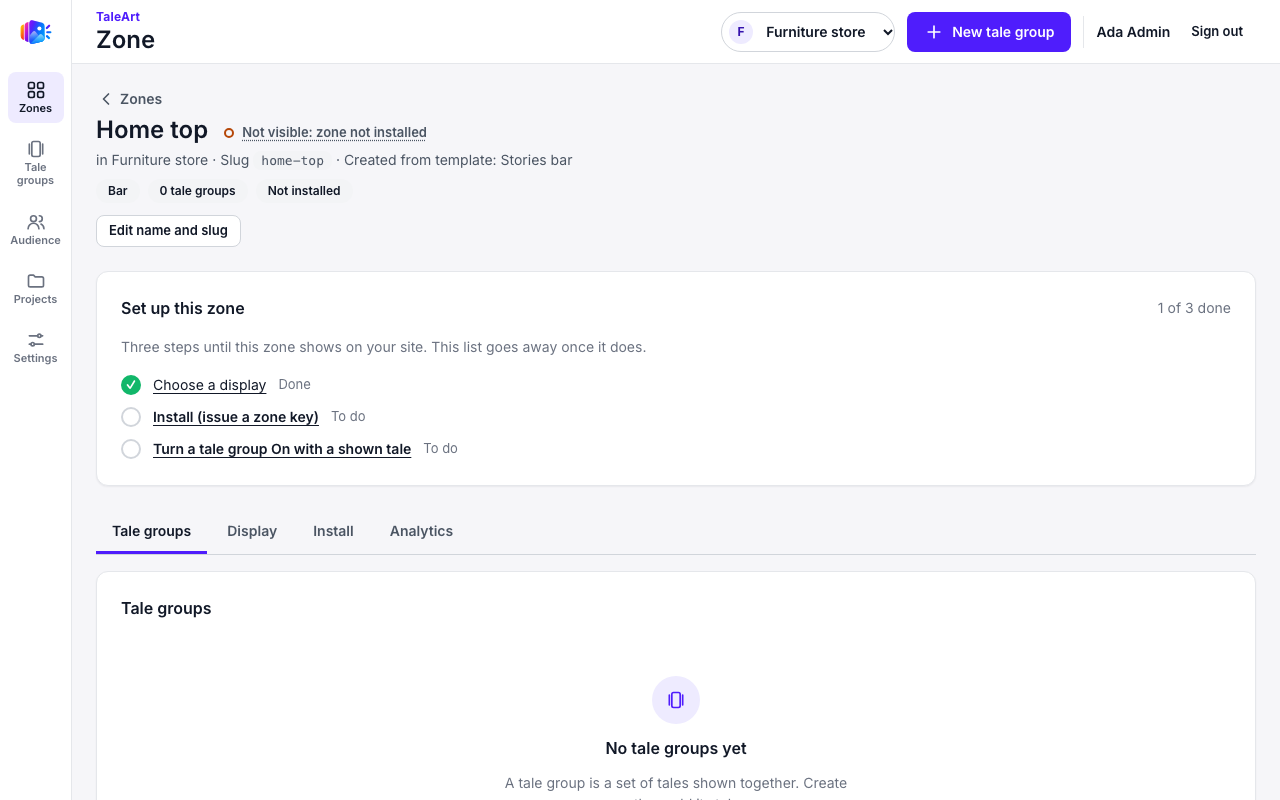
A zone is one spot on your site. It holds at most one display: a Stories bar or a Promo banner. A page places a zone with the zone's own zone key, from the zone's Install tab (see Install a zone).
Create a zone
Open Zones, then New zone. Give it a name. The slug is made from the name if you leave it empty. Pick a template:
- Stories bar - a row with one item per tale group, in the layout you pick (a ring by default).
- Promo banner - one wide card that cycles through tale groups.
- Blank - a zone with no display yet. Choose one later on the Display tab.
A template sets the display once, when the zone is created. After that you change the display on the zone's Display tab.
The zone list
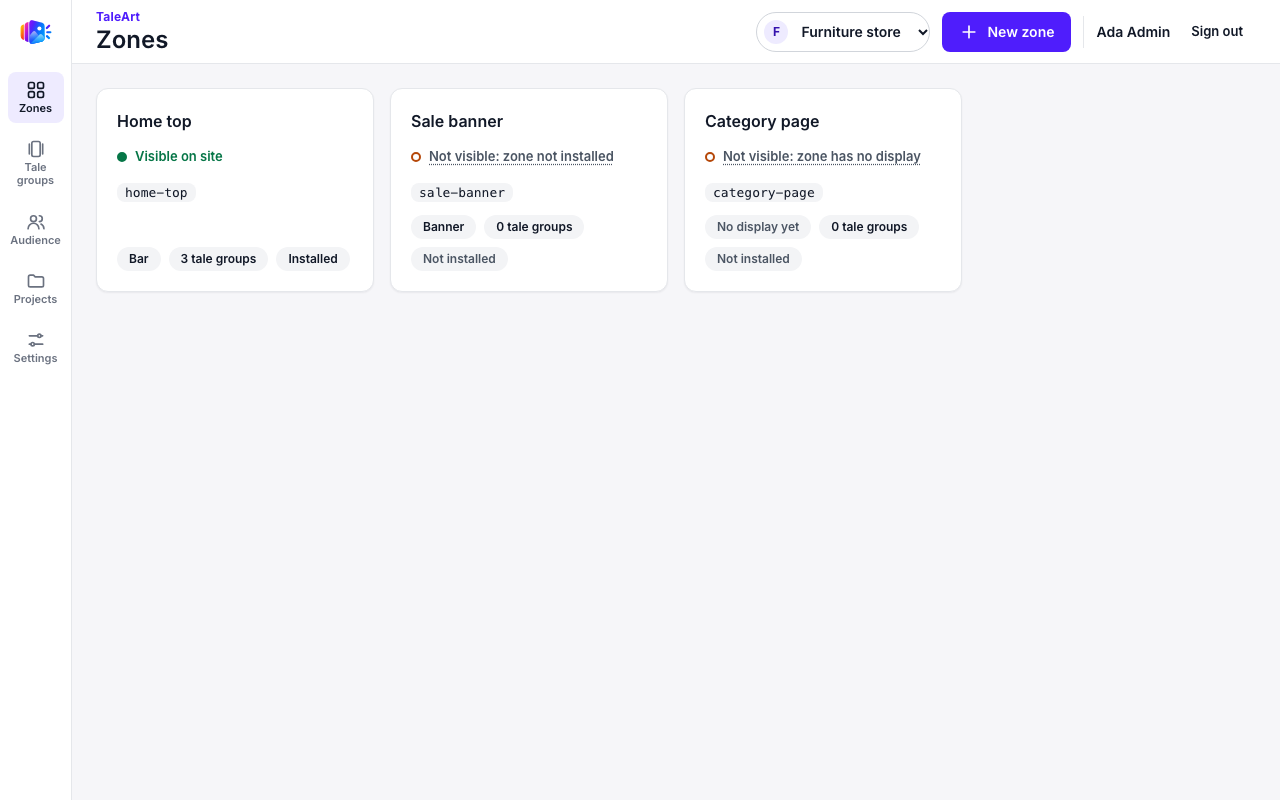
Each zone card shows its slug, whether it is Visible on site, how many tale groups it holds and whether the install snippet was used.
Display tab
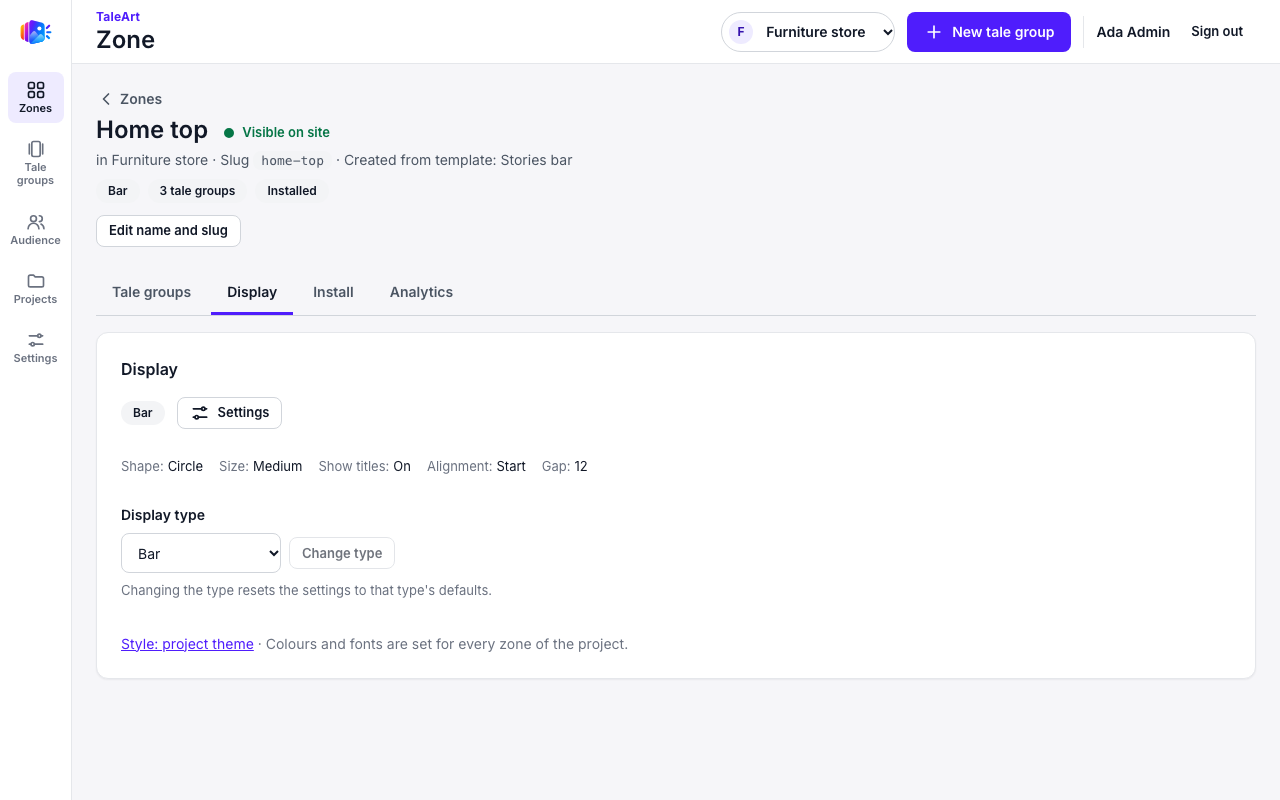
Stories bar
| Setting | Values |
|---|---|
| Layout | ring (default, the current look), chip, poster or stack |
| Shape | circle or rounded square |
| Size | the size of each item |
| Show titles | on or off |
| Alignment | where the row sits in its container |
| Gap | 4 to 24 px between items |
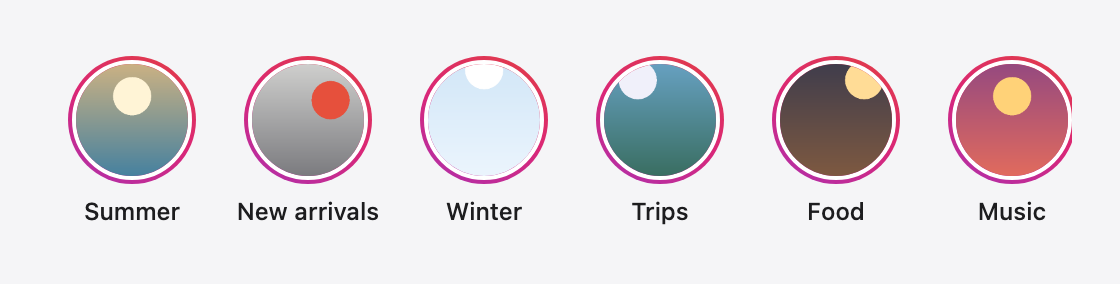
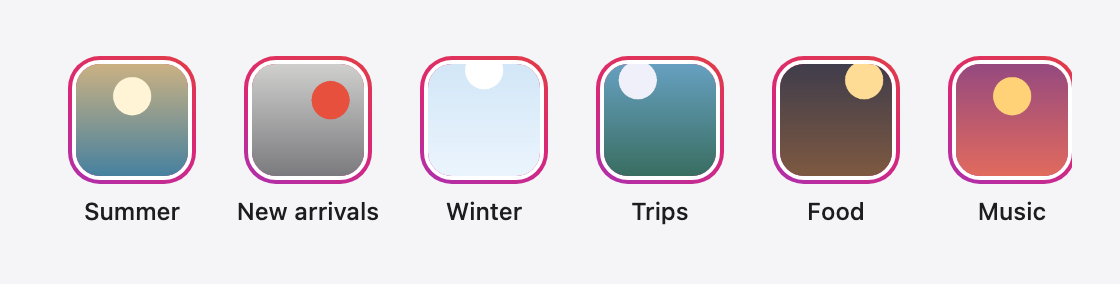
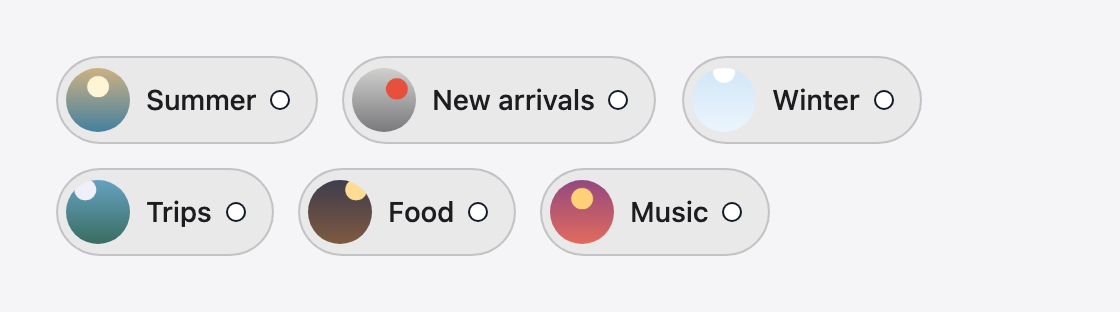
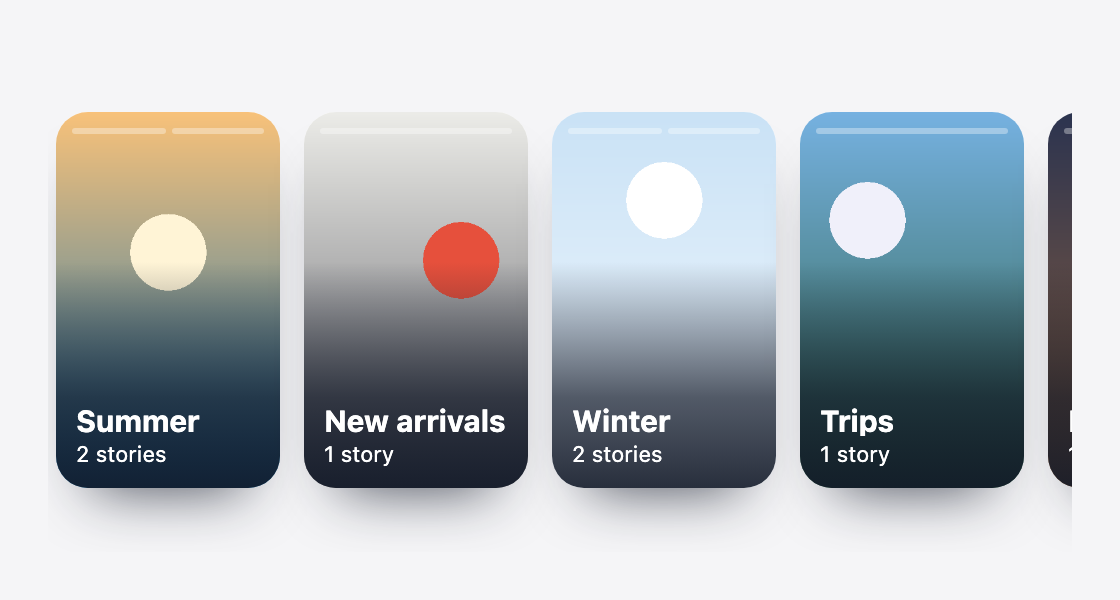
The layout sets how each group is drawn. ring is the default: a round cover in a ring that spins until the visitor has seen it. chip is a round cover beside its title in a pill; the shape is ignored. poster is a tall card with the title over the cover; the shape and the size are ignored. stack overlaps the items in one collapsed row; only the size applies. The dashboard dims the settings a layout does not use.
Layouts
The four layouts draw the same groups, and each one is set here, in the zone's Display tab. The web SDK draws all four. The table says when each one fits and which settings it leaves out.
| Layout | When to use it | Settings it does not use |
|---|---|---|
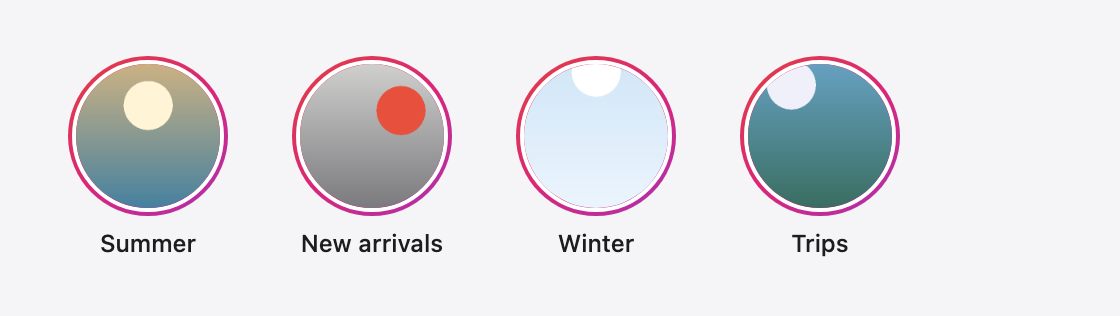
ring (default) | The main row of a page: round covers in a ring that spins until the visitor has seen them. | None |
ring with the shape Rounded square | The same row with square covers, for a page whose pictures are square. | None |
chip | Headers and navigation: a small round cover and the name in a pill. The row wraps onto more lines. | Shape |
poster | Editorial and desktop pages: a tall card with the cover full bleed, the name over it and one segment per tale. | Shape and size |
stack | A tight space, such as a sticky header: the covers overlap in one row, with the number of new stories. | Shape, show titles, alignment and gap (the size still applies) |
The ring, as the default and in the rounded square:
The chip, which wraps onto a second line when the row is full:
The poster, with a segment per tale along the top of each card and the number of stories at its foot:
The stack, collapsed into one row: the covers overlap, a bubble counts the groups not shown, and the text says how many stories are new. A visitor opens the first new group with one tap:

On a right-to-left page the layouts turn around with the page. The poster starts at the right, and the chip's cover sits at the right of its pill:
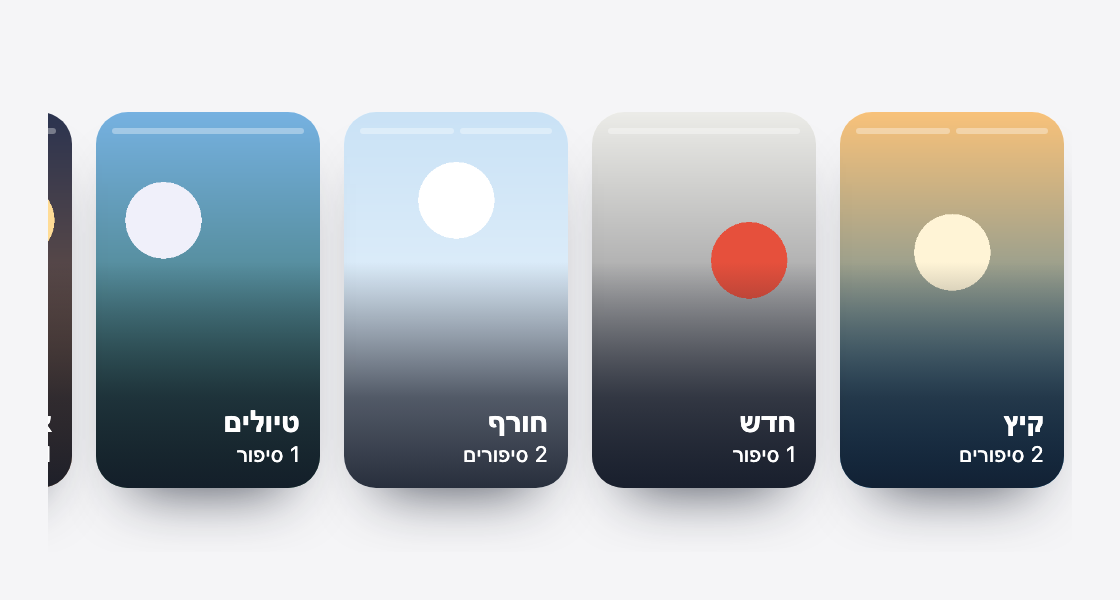
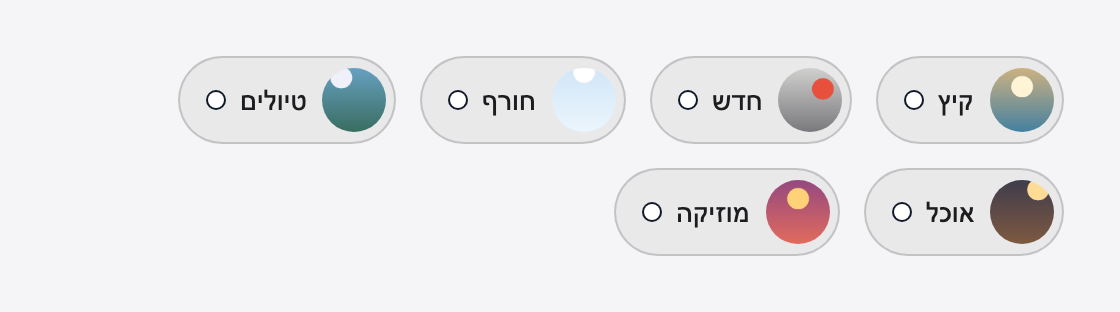
While a zone loads, the page shows a loading skeleton of the bar in the same space, so nothing moves when the zone arrives. The skeleton is grey and still under reduced motion. The layout is not known until the zone arrives, so the element draws the skeleton in the layout its layout attribute names (ring, chip, poster or stack), else the layout it last showed, else the ring. The attribute only shapes the skeleton; the dashboard sets the layout.

The default bar is round, medium and titled. Here the shape is Rounded square, titles are off and the items sit in the centre:

Here the size is Large and the gap is 20 pixels:
Promo banner
| Setting | Values |
|---|---|
| Variant | carousel (default, the current look), coverflow, peek, deck, sticky or strip |
| Aspect ratio | 16:9, 3:1 or 1:1 |
| Autoplay | on or off |
| Interval | 3 to 15 seconds |
| Dots | show or hide the position dots |
| Loop | start again after the last card |
Variants
The variant sets how the slides are shown. The web SDK draws all six. The table says when each one fits and which settings it leaves out, and the dashboard dims those settings.
| Variant | When to use it | Settings it does not use |
|---|---|---|
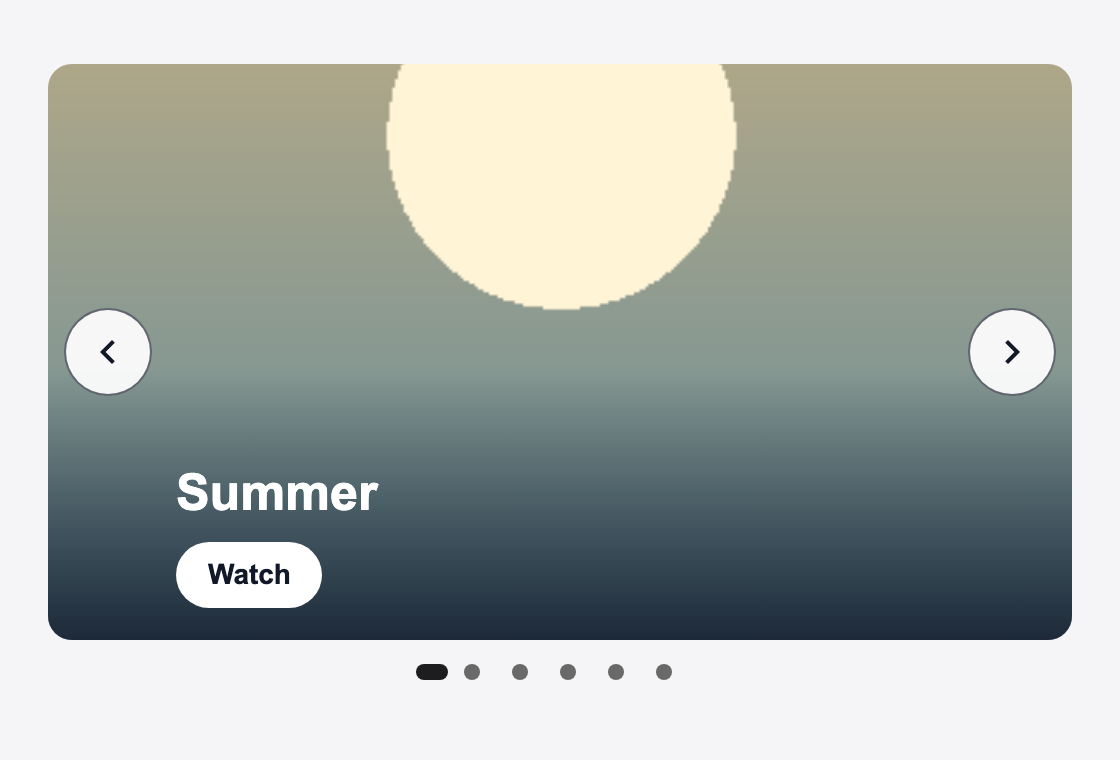
carousel (default) | Most pages: one slide at a time, with the group's name and a Watch button on the picture. | None |
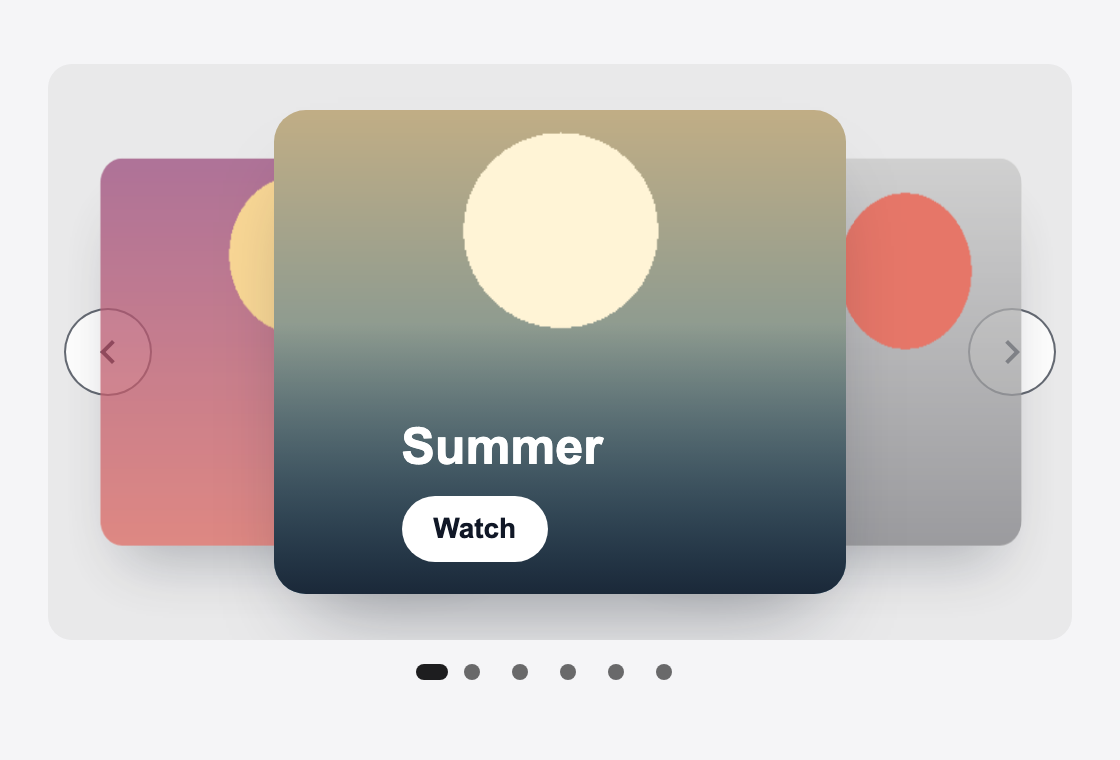
coverflow | A hero at the top of a desktop page: the current slide in front, its neighbours turned away at the sides. | None |
peek | A phone or a narrow column: the neighbouring slides show at the edges, and a swipe moves to the next one. | None |
deck | A few campaigns at once: the groups fanned out like a hand of cards, with the front card open to the visitor. | None |
sticky | A compact bar that stays on screen while its section scrolls, with a button to dismiss it. | Aspect ratio, dots and loop |
strip | A ticker under a header: the groups move past in one continuous marquee at a fixed speed. | Aspect ratio, dots, loop, autoplay and interval |
The carousel, the default, is one slide at a time, with the group's name and a Watch button on a dark fade at the bottom of the picture. A dot per slide shows where the visitor is; the current dot is the longer one:
Coverflow puts the current slide in front, and its neighbours are turned away at the sides and partly hidden. A click on a neighbour shows it:
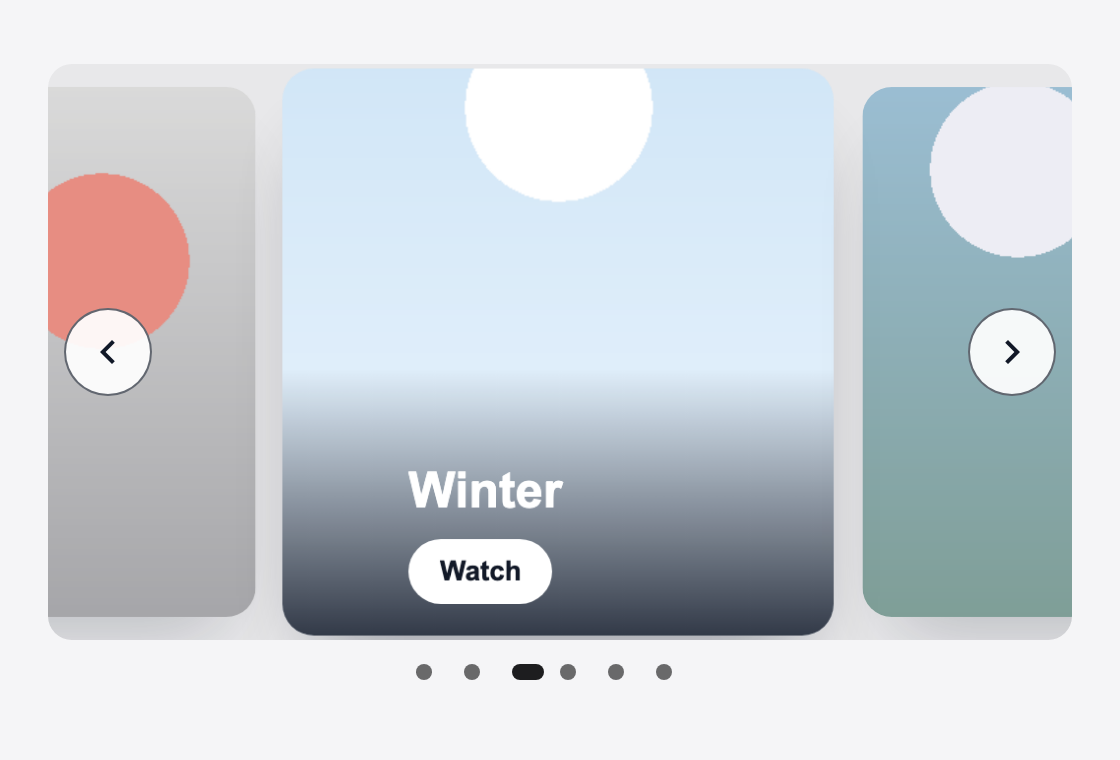
Peek shows the neighbouring slides at the edges, so the visitor sees that there is more. A swipe, or the arrows, move one slide:
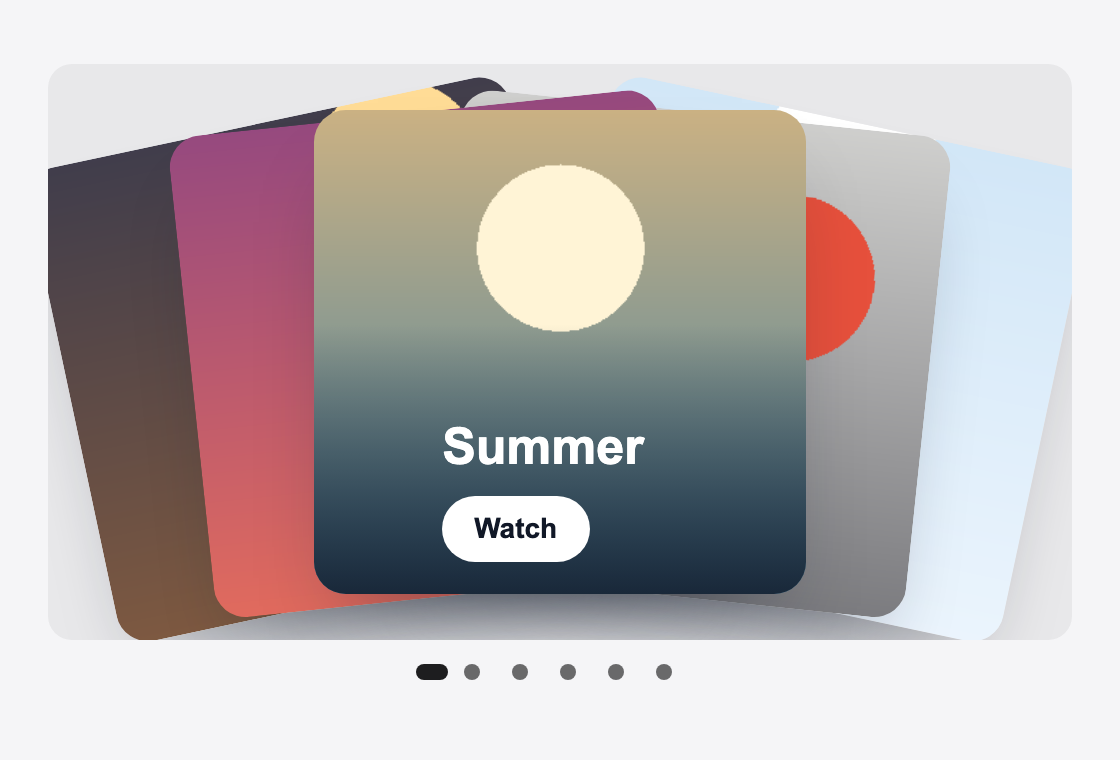
Deck fans the groups out like a hand of cards. The front card opens the group, and the others wait behind it:
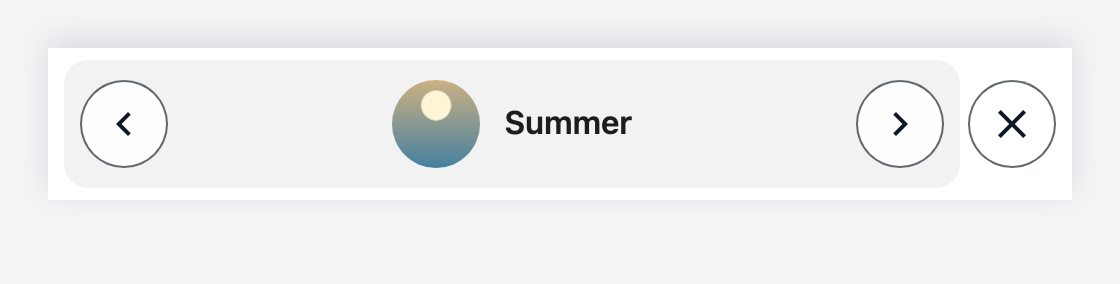
Sticky is a compact bar with the current group's cover and name, the previous and next buttons, a rotation button and a dismiss button. It stays at the bottom of its section while the page scrolls, and it never covers the content around it: the bar takes its own space in the page, as any block does. A visitor who dismisses it does not see it again in the same browsing session; the dismissal is kept in the browser's session storage. In a browser that blocks session storage the bar shows again on the next page view:
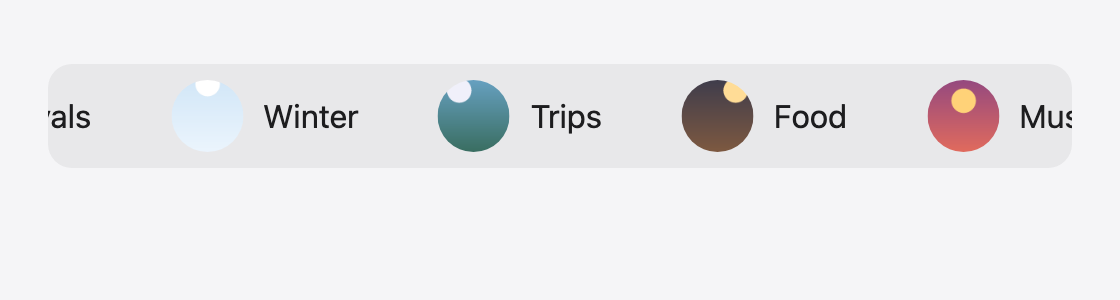
Strip is a marquee of the groups: the covers and names move past at a fixed speed, one full pass of the groups in 18 seconds, and the strip runs in the direction the page reads. Hovering over it, or moving the focus into it, pauses it. A visitor who prefers reduced motion sees it still, and can scroll it sideways:
On a right-to-left page each variant turns with the page. The next slide of the coverflow is on the left, the peek and the deck open toward the left, and the strip's names and motion run from the right. These are the same four on a Hebrew page:
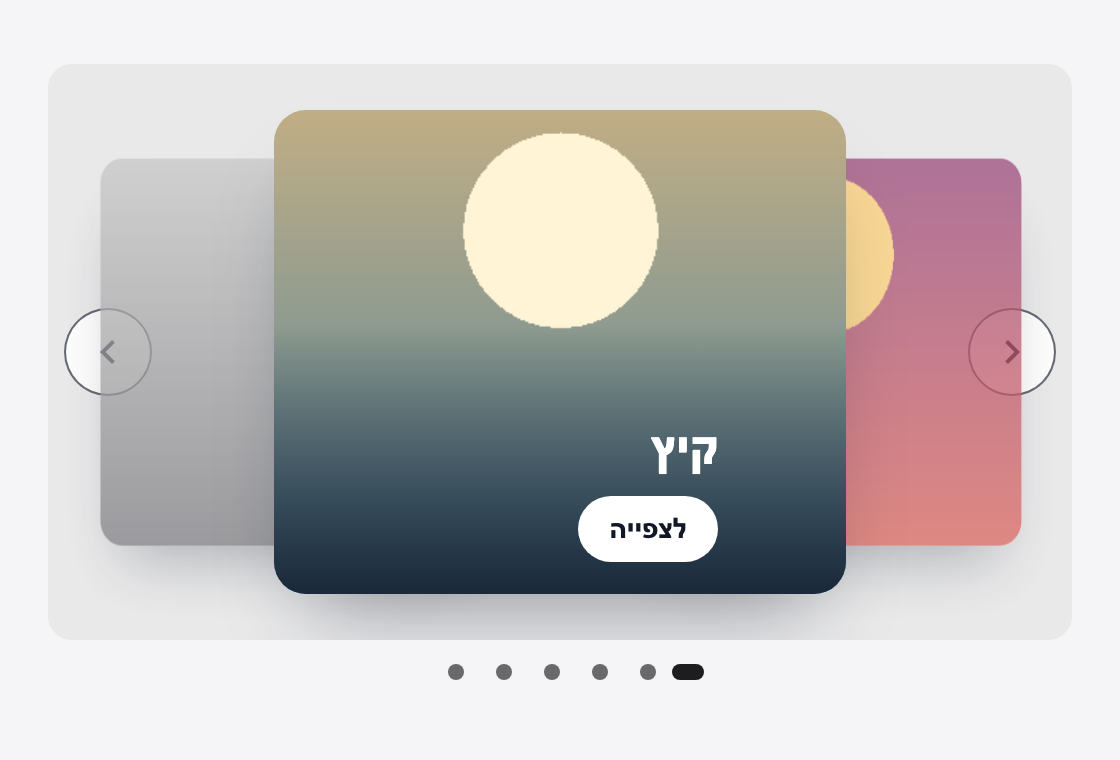
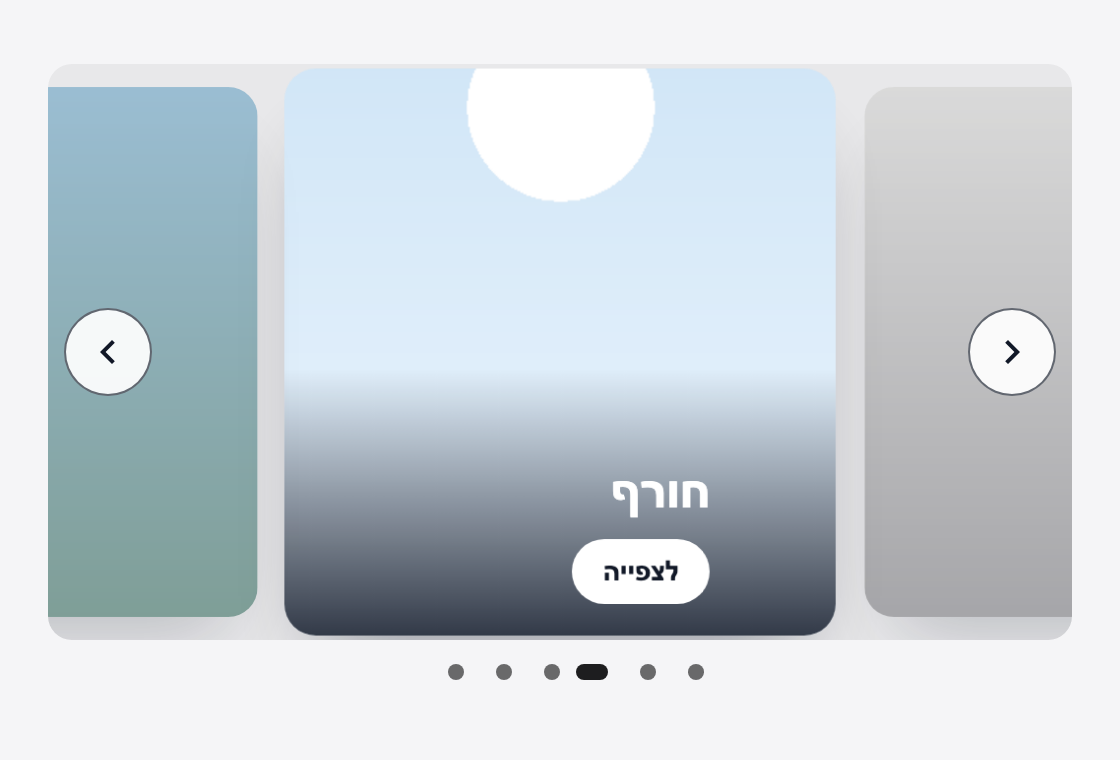
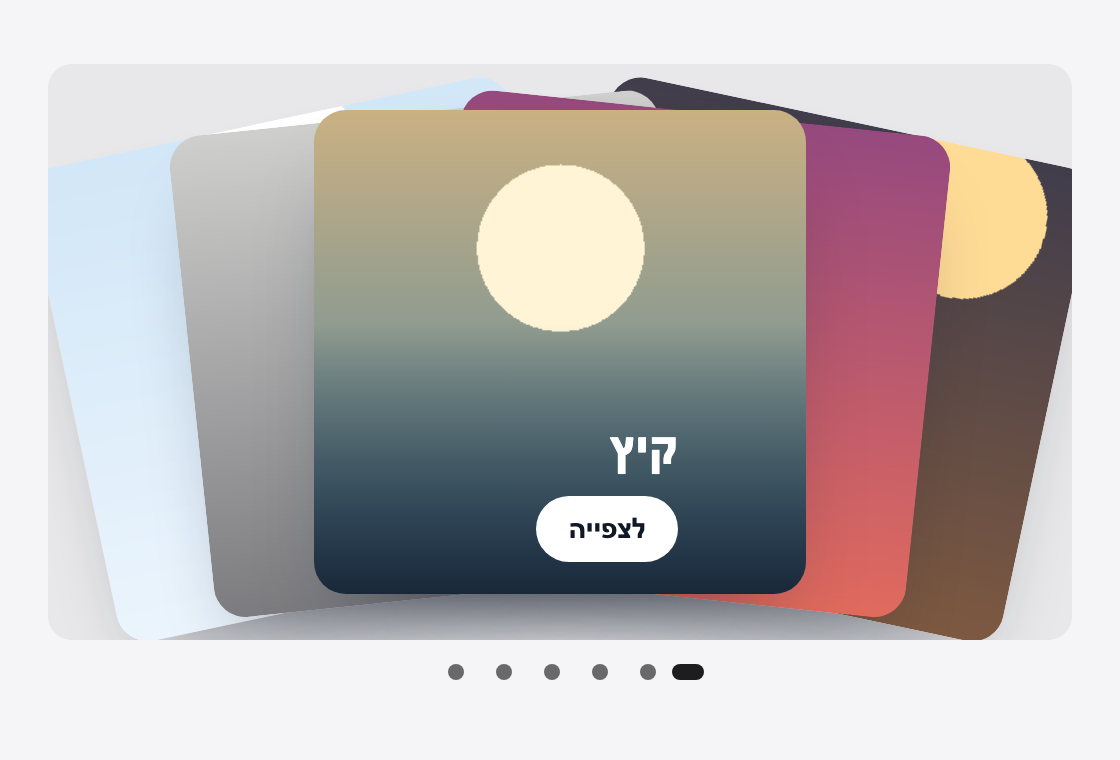
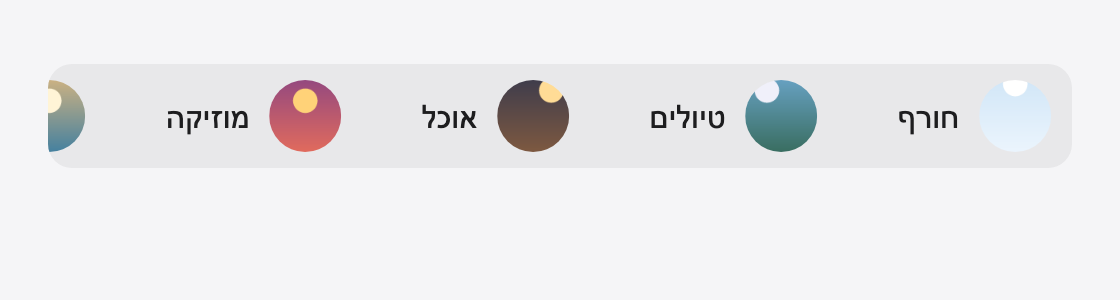
Autoplay and its interval apply to every variant except the strip, which moves at its own speed. Loop, dots and the aspect ratio apply to the carousel, the coverflow, the peek and the deck. The stills here were taken with autoplay off, so each one holds still; the strip is frozen a third of the way along its loop.
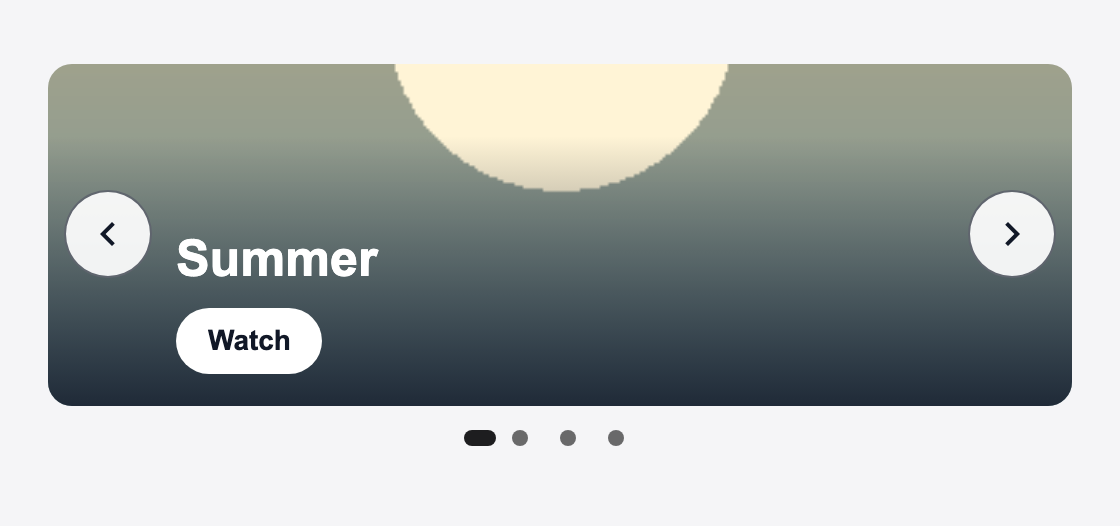
A banner shows one group at a time. Here are three ways the carousel can be proportioned. The aspect ratio 3:1 gives a wide strip:
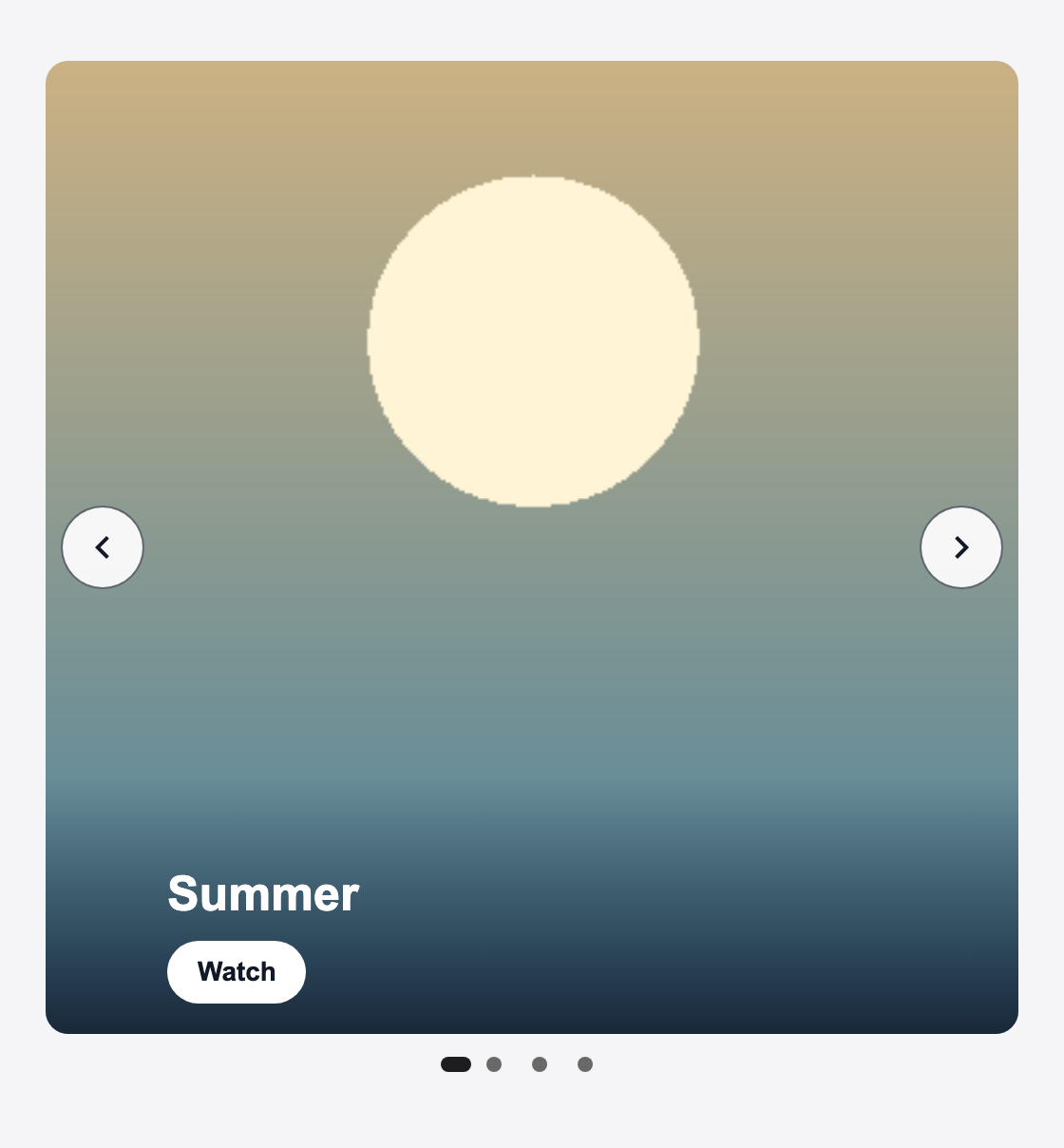
The aspect ratio 1:1 gives a square card:
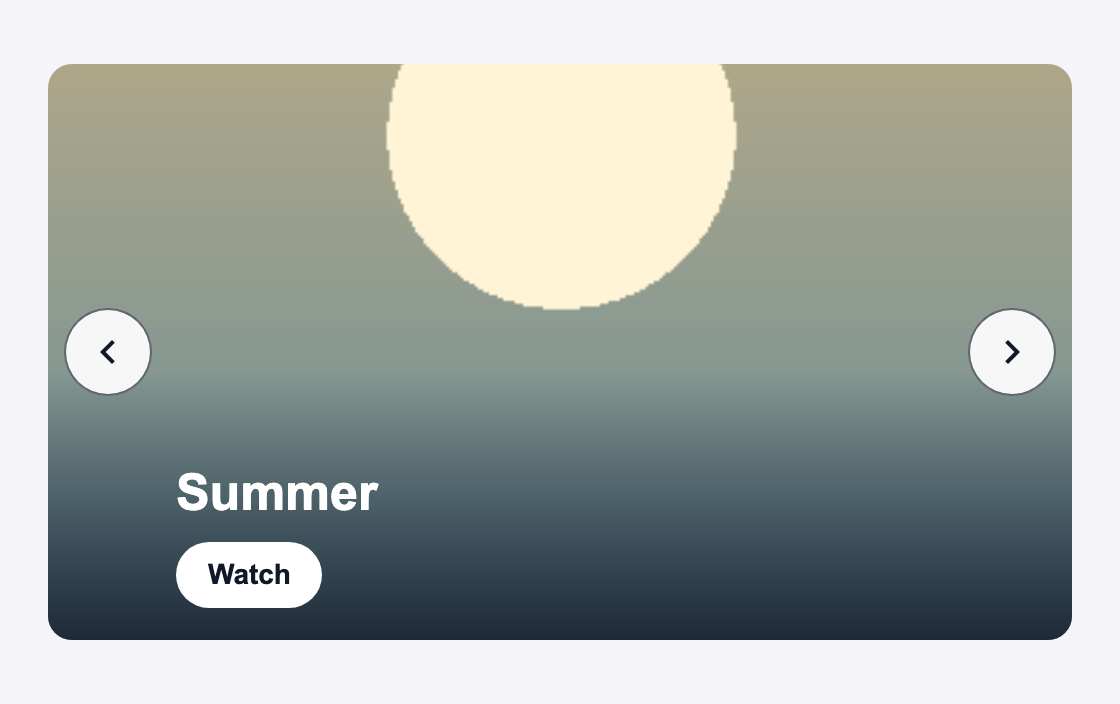
With Dots off the banner keeps its arrows and hides the position dots:
Colours, ring style and fonts are not display settings. They come from the theme.
Several zones on one page
One script tag serves every zone on a page. Each zone has its own zone key, so add one <taleart-view> element per zone, each with its key.
Not in the current source
Widget types other than the bar and the banner (for example a video feed, a swipe-card stack or a full-screen flow) were not found in the current source.