 TaleArt docs
Create a campaign
A campaign is a zone (a spot on your site) that shows tale groups (one circle in a bar), each made of tales (full-screen pages of image, video and text). See Concepts for the glossary.
Create the zone
- Zones, then New zone.
- Name it (example: "Home - top"). The slug (
home-top) is made from the name if left empty. Pick a template: Stories bar, Promo banner or Blank.
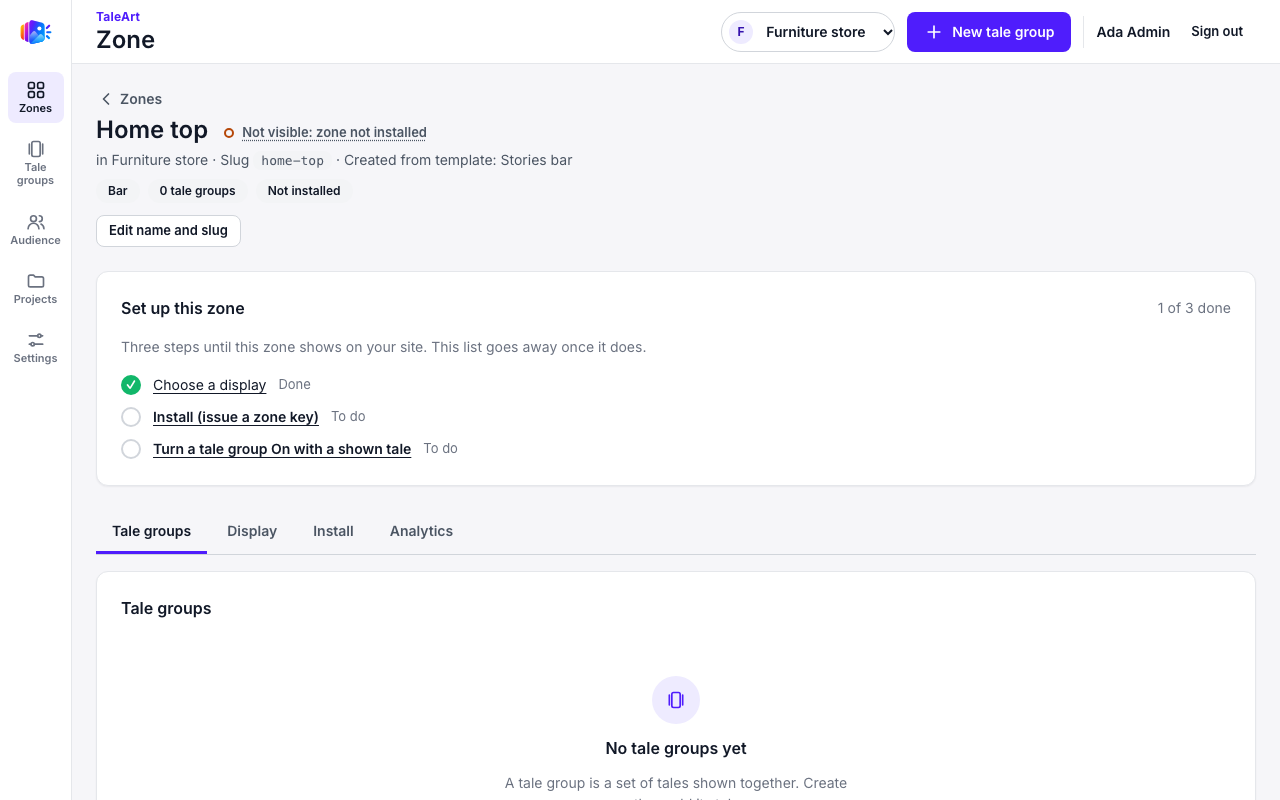
The page shows why a zone is not visible yet, and a checklist: choose a display, issue the zone key on the zone's Install tab, turn a tale group On with a shown tale.
Add tale groups
- New tale group, give it a name, and upload an image or video: each file becomes a tale. New tales are Shown.
- Turn the group On. New groups start Off.
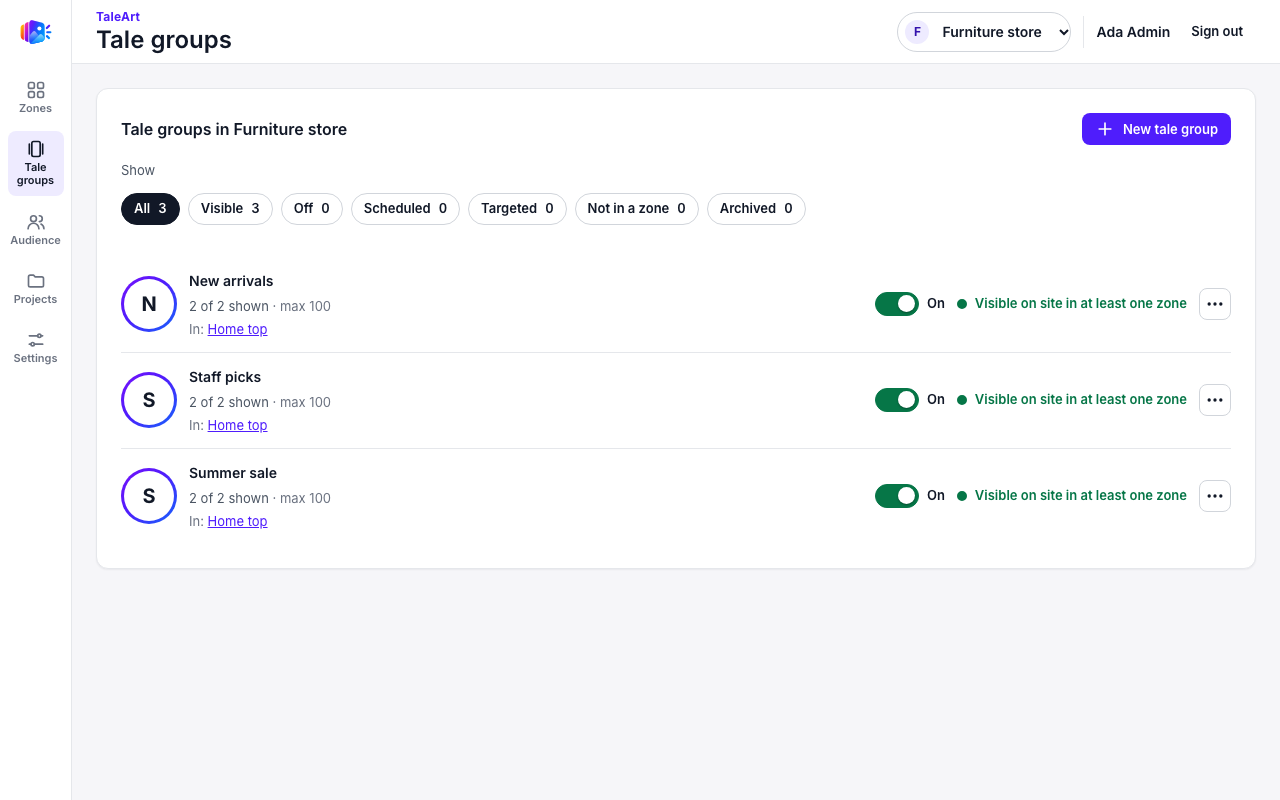
In the furniture example we made three groups: Summer sale, New arrivals and Staff picks. Each has two tales, and each tale has its own generated sample illustration.
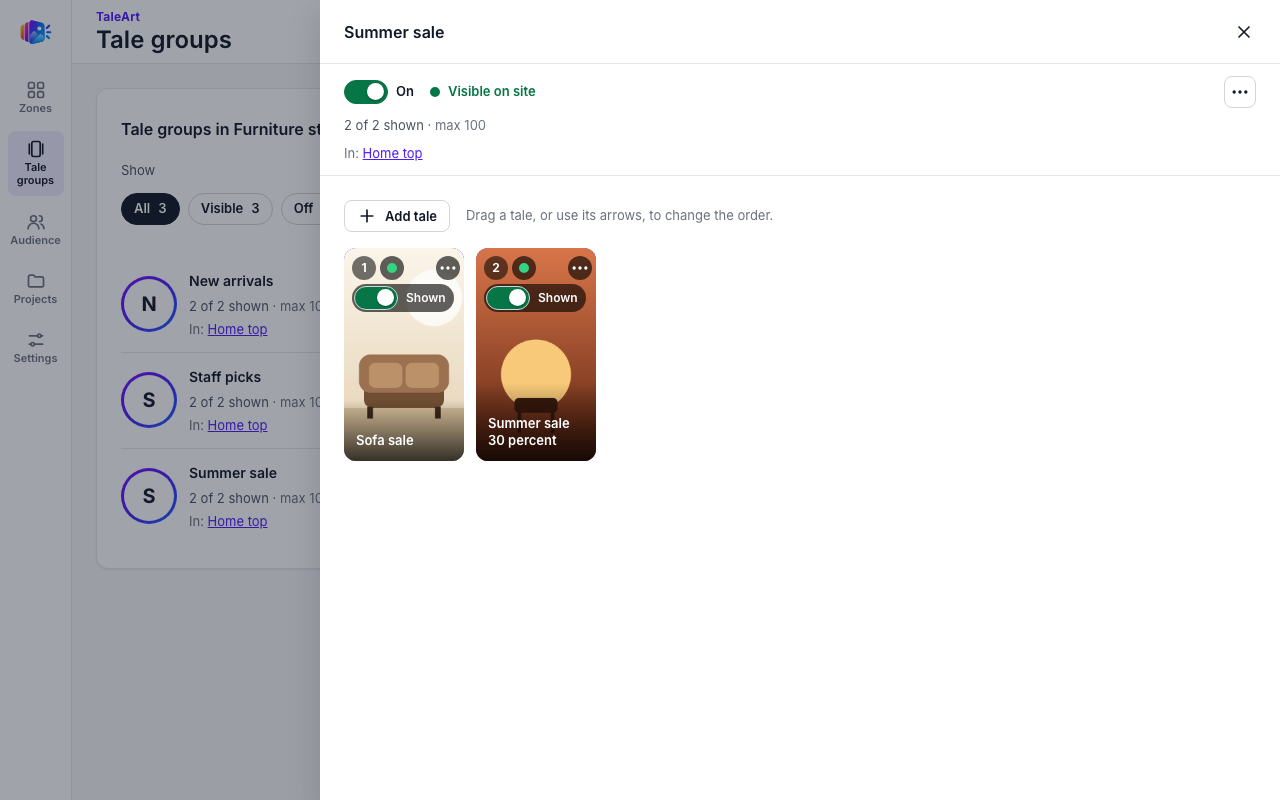
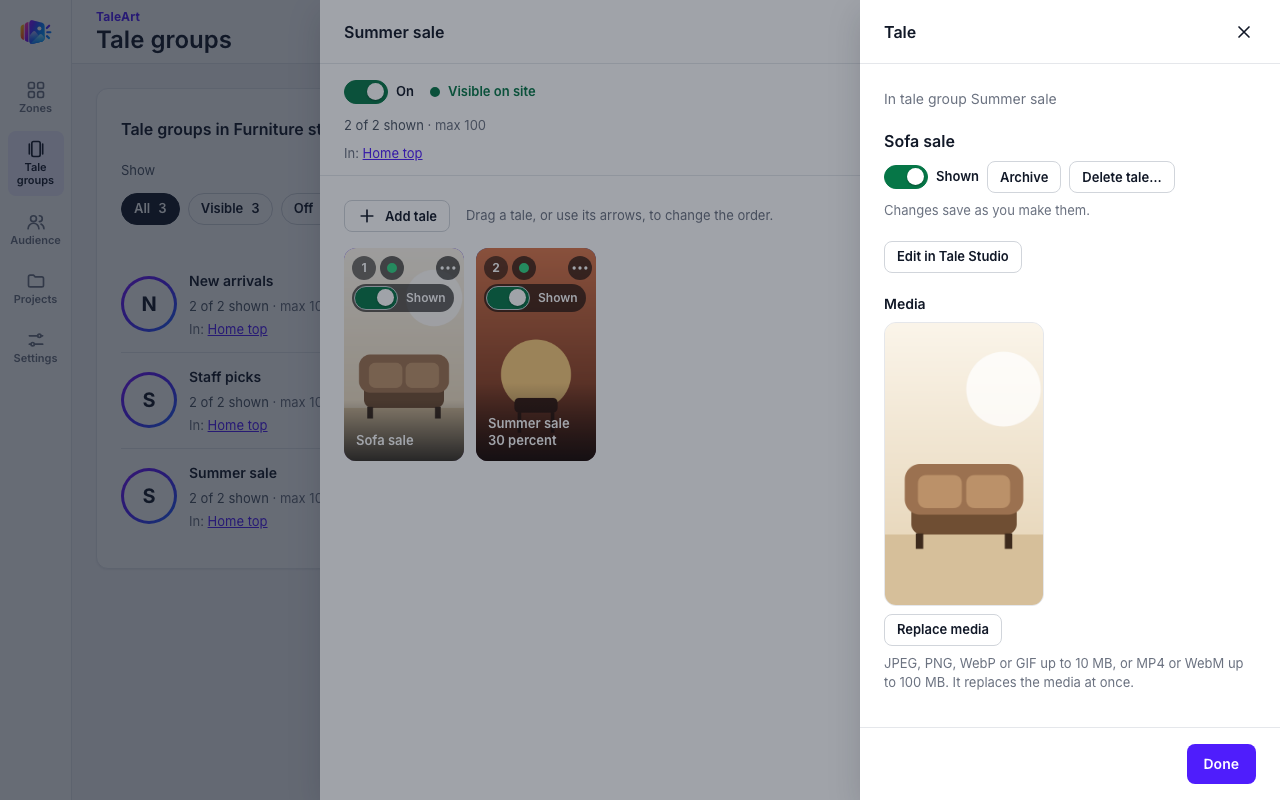
Open a group to see its tales. Each uploaded file is one tale, shown by default, with an Add tale button.
Click a tale to open its panel: Shown/Hidden, Archive, Delete, Replace media, and Edit in Tale Studio.
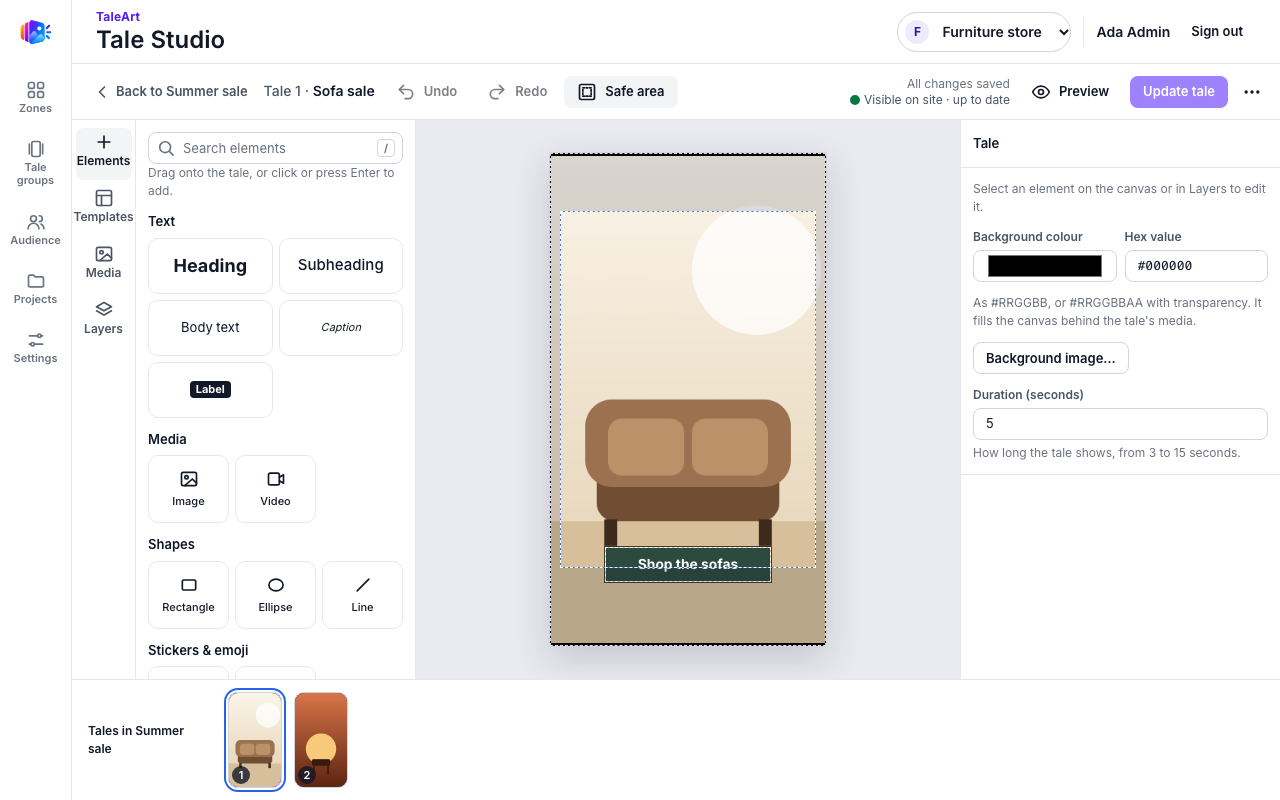
Tale Studio opens the tale on a canvas with an Elements palette (text, image, video, shapes, emoji, stickers, buttons, polls and more), Templates, Media and Layers, a Safe area toggle, Undo/Redo, Preview, and Update tale, which puts your changes on the site (until then visitors see the previous version).
Add a heading and publish the change
- In the Elements palette, click Heading. It lands on the canvas. Change the text in the Text box on the right (up to 1,000 characters).
- Studio saves as you work ("All changes saved") but visitors still see the old version: the status says "changes not updated yet".
- Click Update tale. Studio confirms "Tale updated. Visitors now see this version."
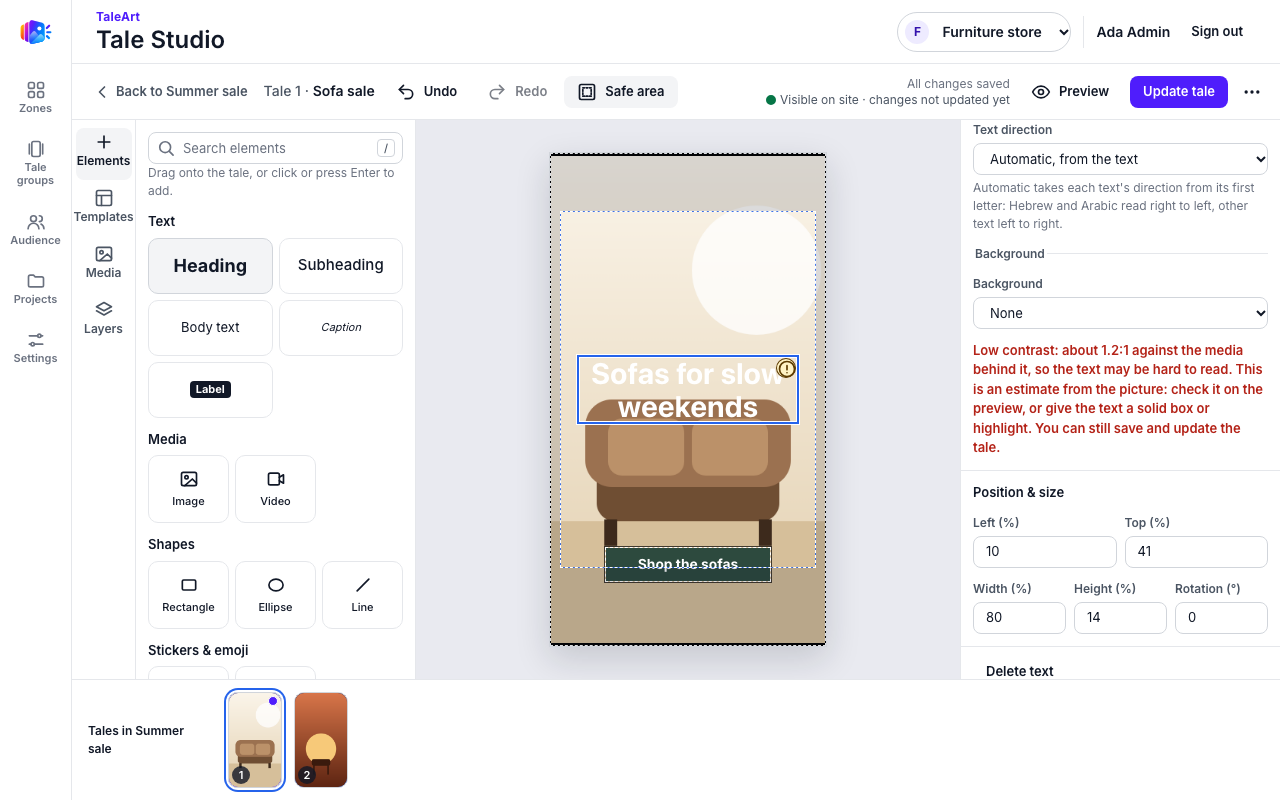
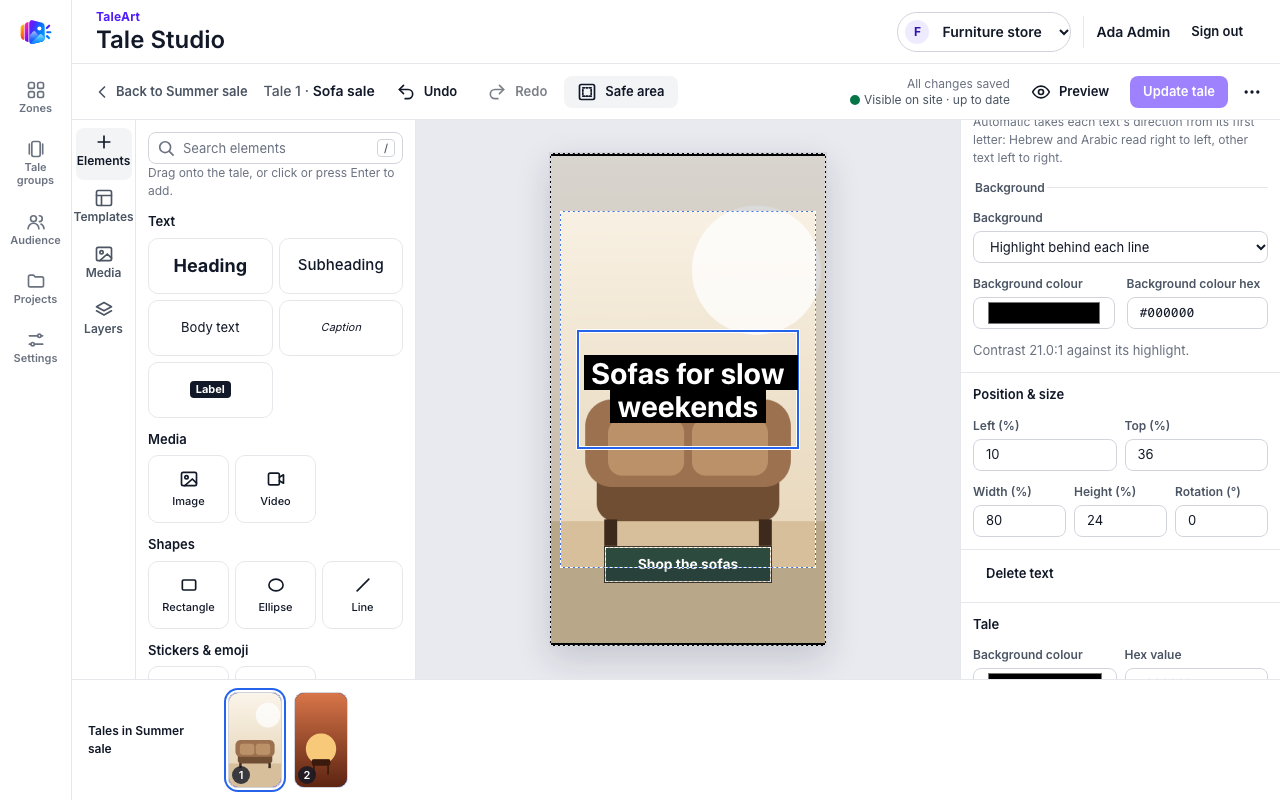
Studio warns about low contrast here (white text on a light photo, about 1.2:1). Fix it in the text's style panel: set Background to Highlight behind each line (or Solid box) and pick a dark colour (black in the example). The panel then reads "Contrast 21.0:1 against its highlight". Also make the text box tall enough for the text (we set Top 36%, Height 24%), then click Update tale again.
The fixed heading shows in the viewer on the example website:
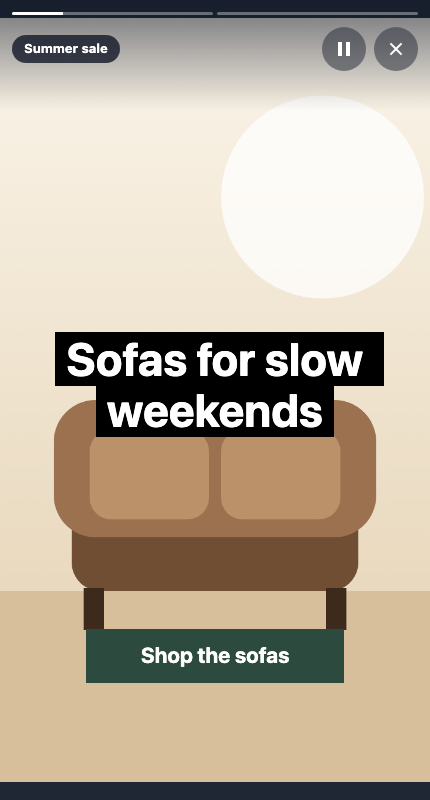
Only the Heading element was tested. Other elements (images, shapes, buttons, polls, Templates, Media, Layers) were not exercised.
A group, and each tale, can also be scheduled (the ... menu) so it only shows in a time window.
Check visibility
Every zone, group and tale says "Visible on site" or "Not visible" with the first reason. The Display tab sets bar or banner options.