 TaleArt docs
Interactive components
Six elements sit on a tale. Four let a visitor answer: a poll, a quiz, a rating and a reaction, and a tale holds at most one of each kind. Two show something the visitor can use: a countdown and a promo code, and a tale may hold several of each.
| Component | What the visitor does | Setup |
|---|---|---|
| Poll | Picks one of 2 options | Two labels |
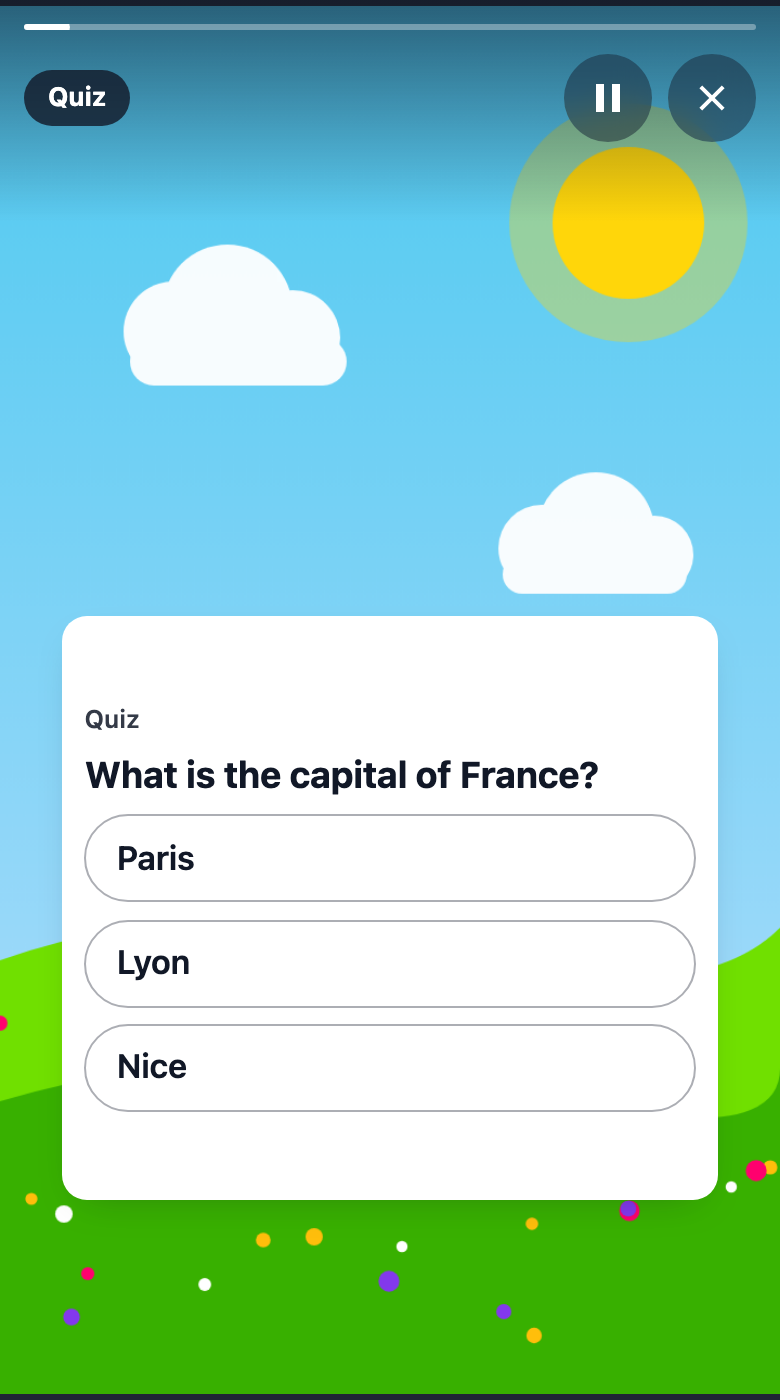
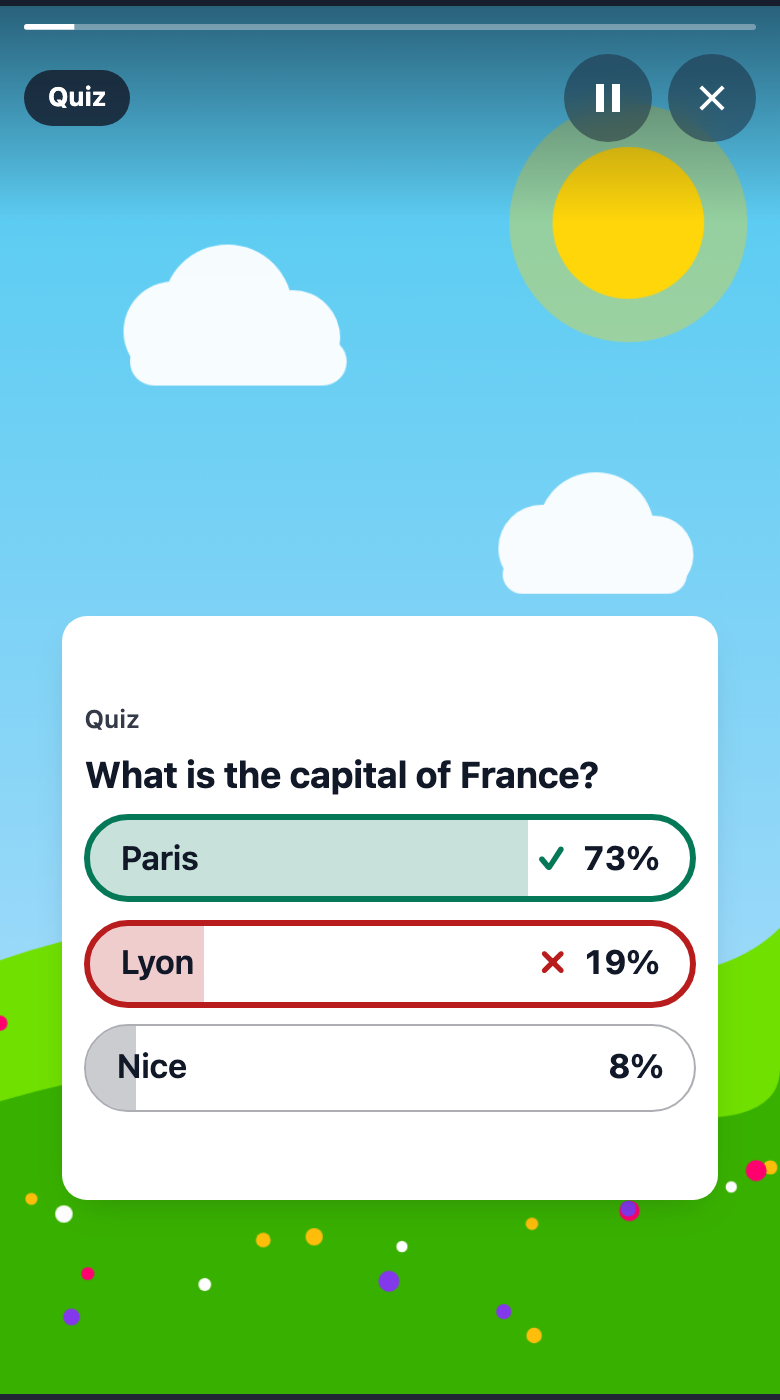
| Quiz | Picks one of 2 to 4 answers | Optionally mark one answer correct. The results are public. |
| Rating | Moves an emoji slider from 0 to 100 | Choose the emoji |
| Reaction | Taps one of 2 to 6 emoji, then sees each emoji's count | The question and the emoji |
| Countdown | Watches the time left until an instant | The end time in UTC |
| Promo code | Copies a code | The code |
What the visitor sees
These are real screenshots of the Web SDK in the viewer at phone size, with sample tales. The same components look the same in the Android and iOS SDKs.
Poll
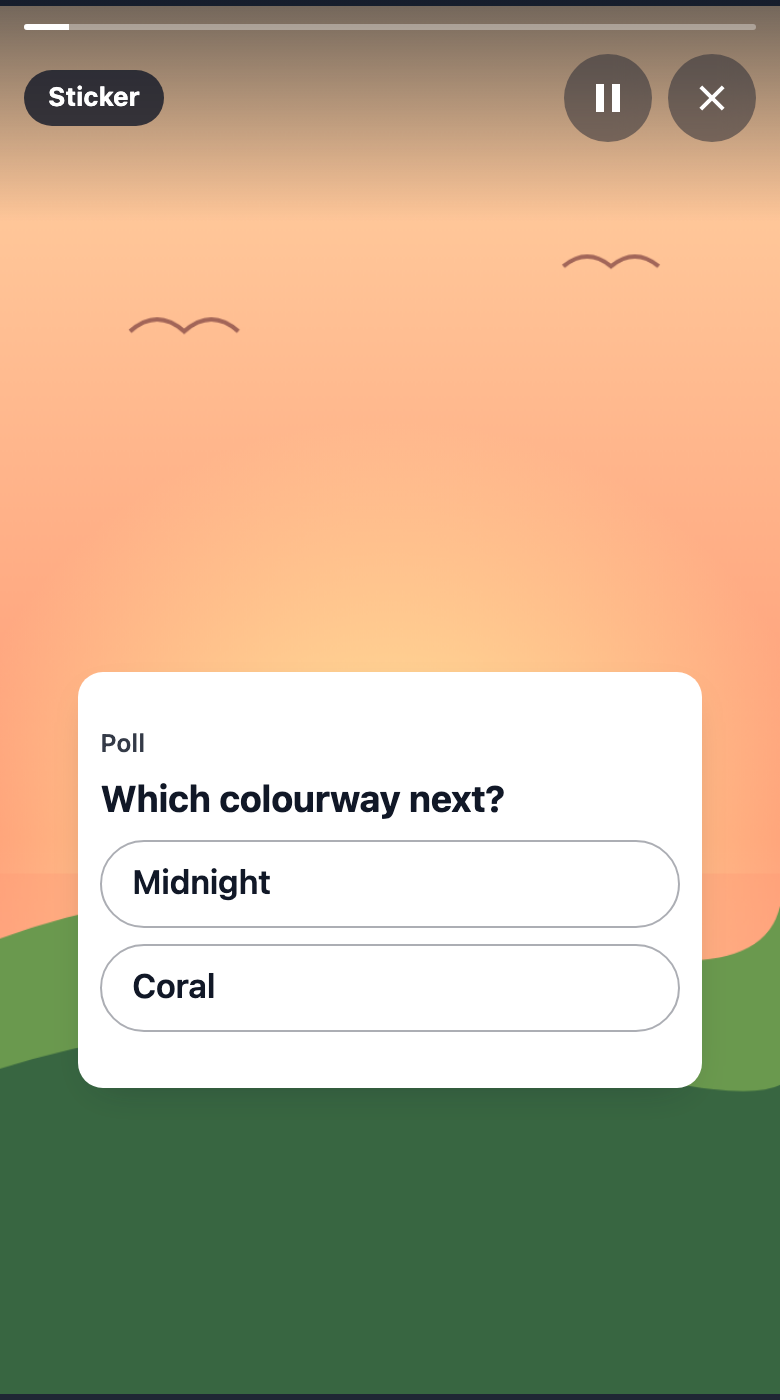
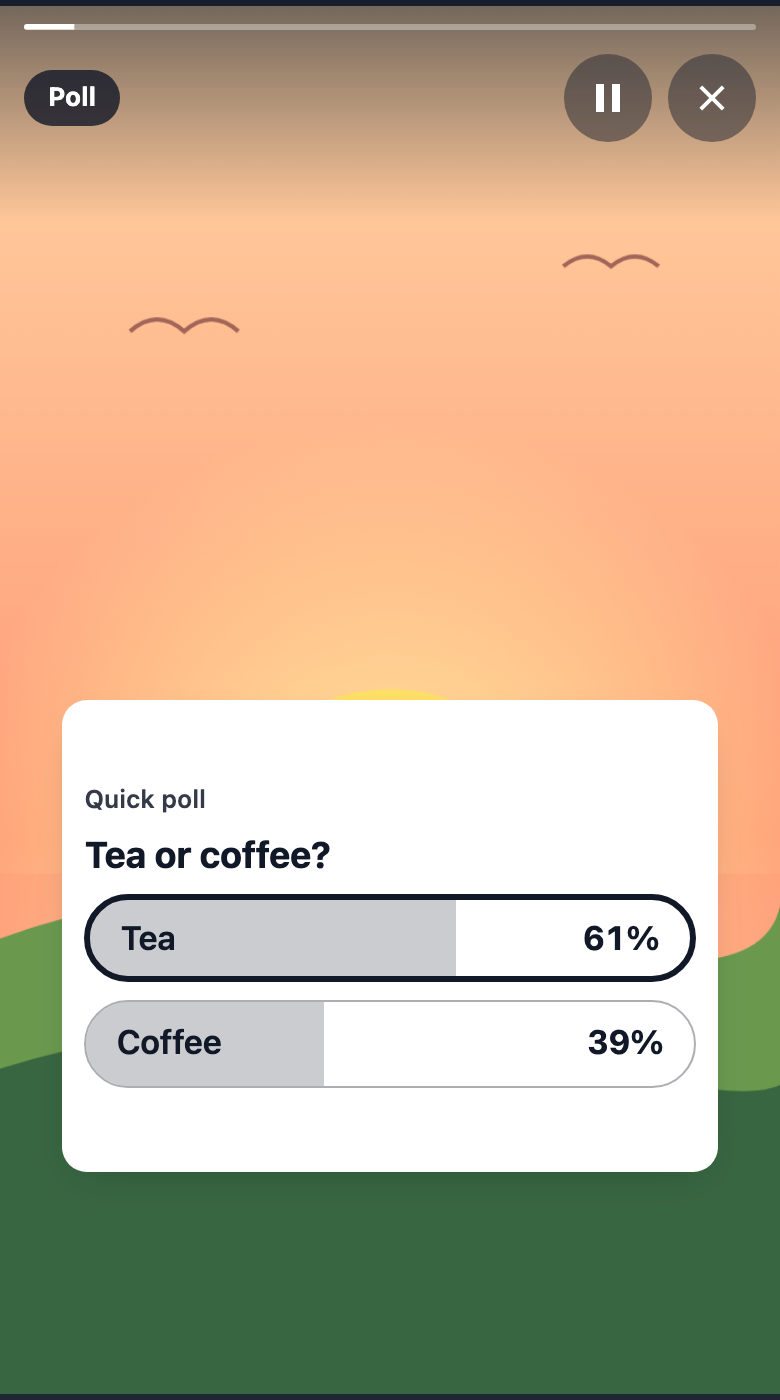
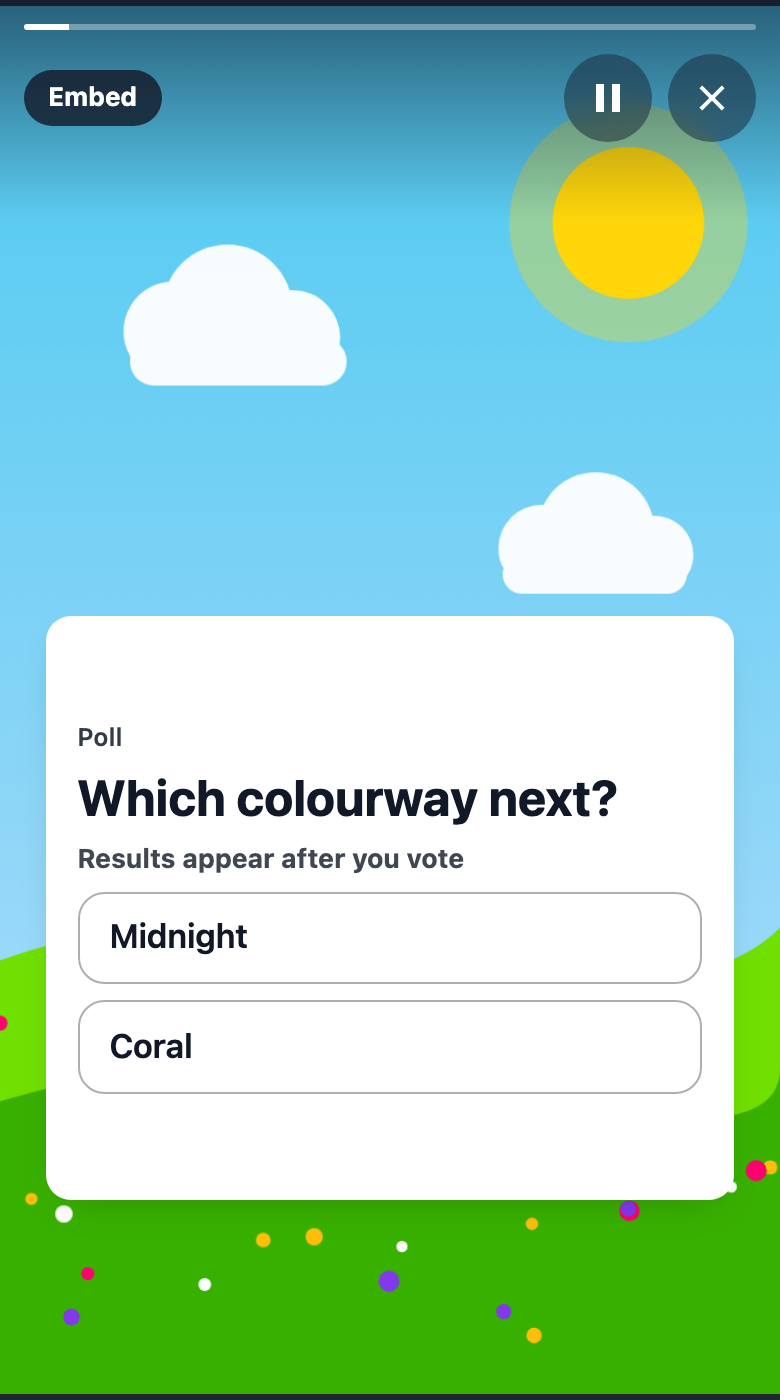
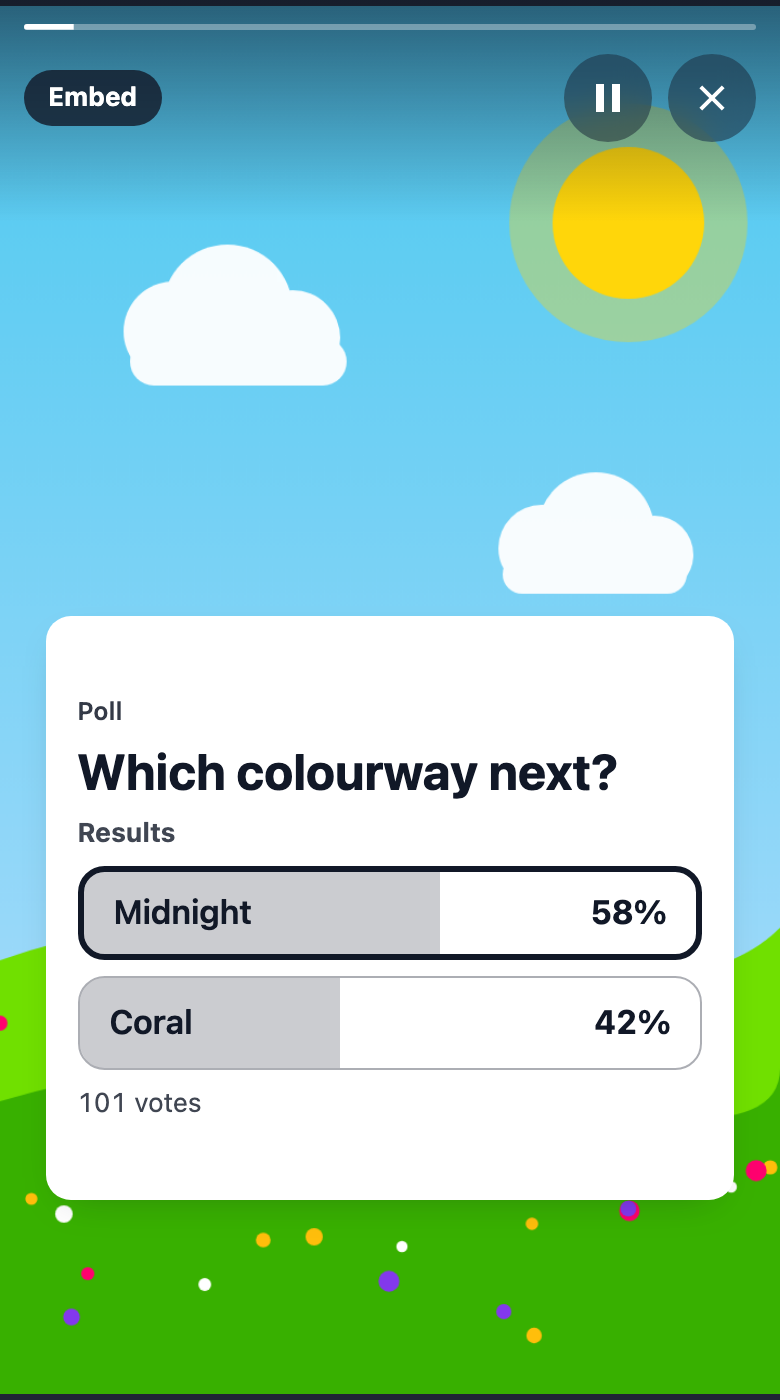
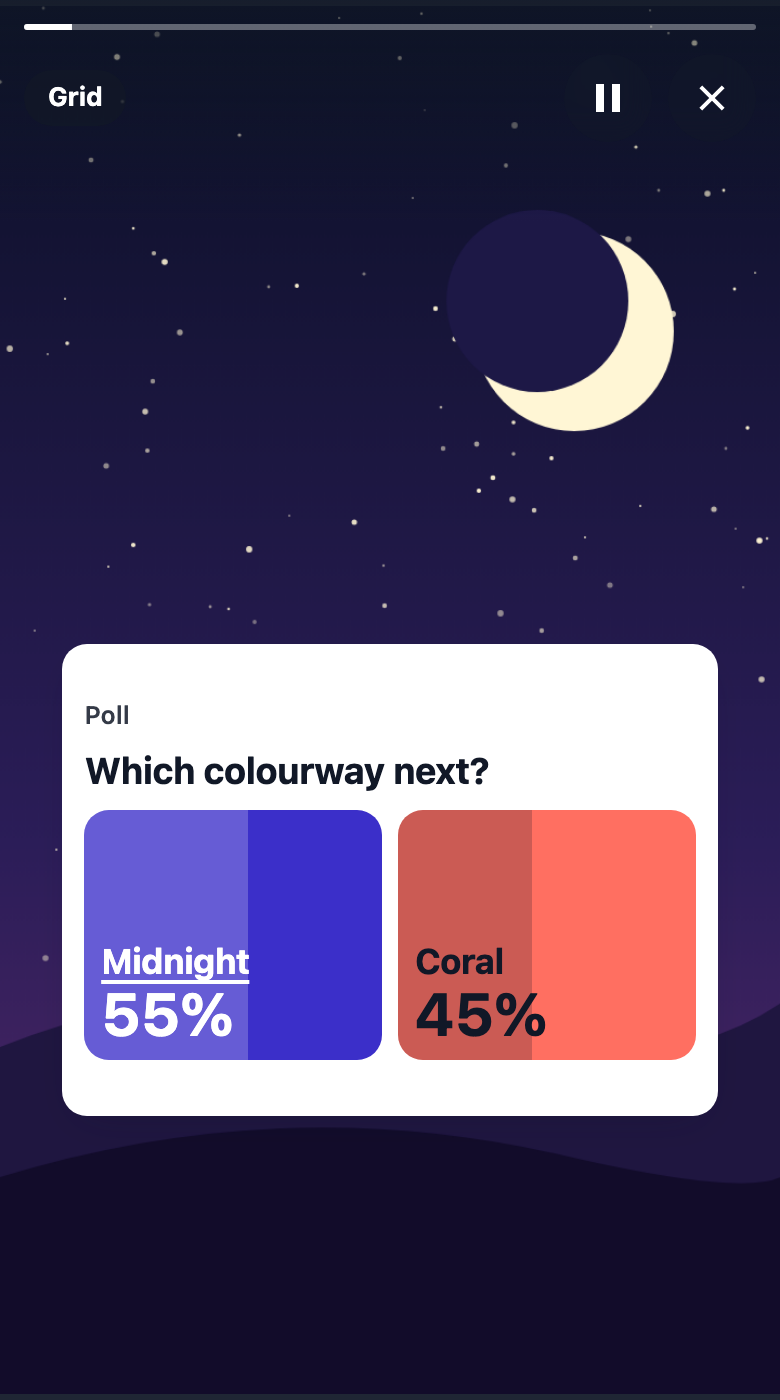
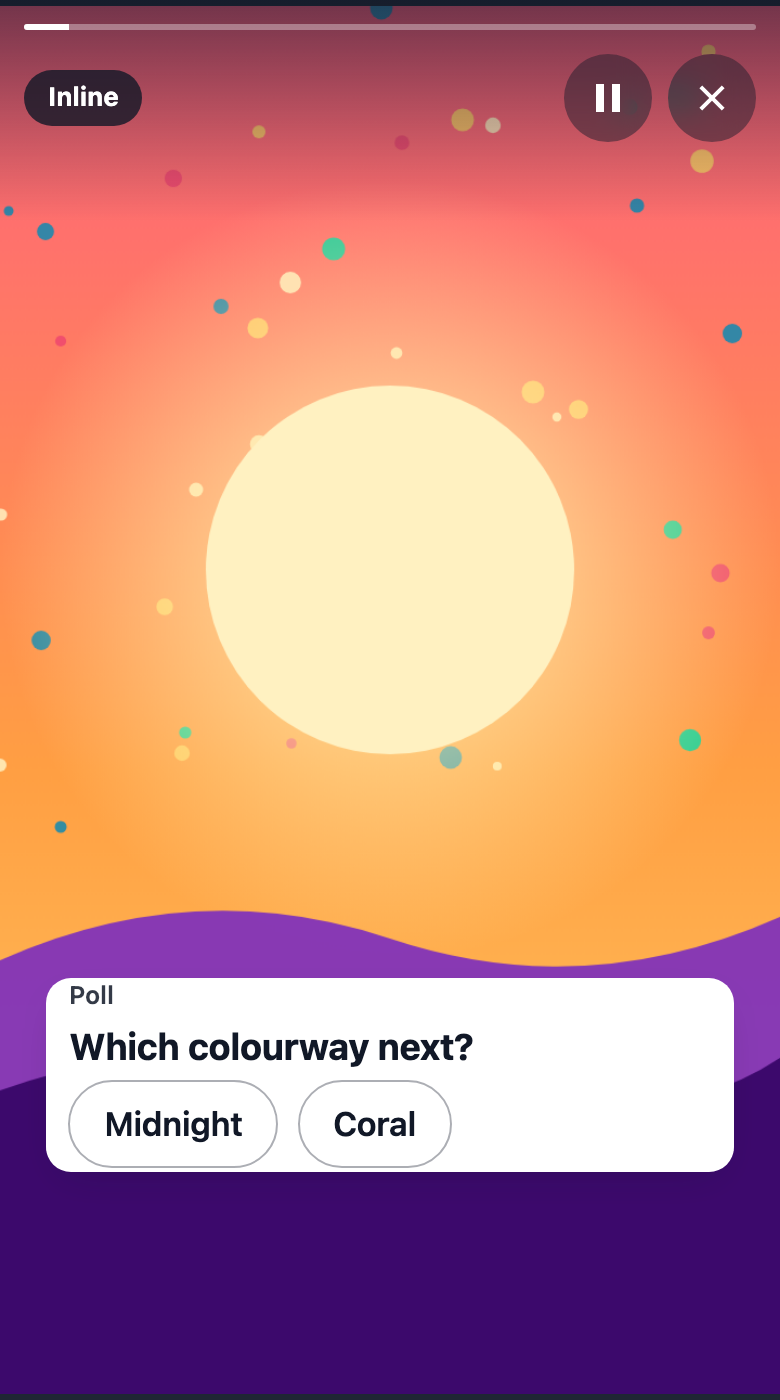
A poll asks two options. Its View picks how it is drawn, and each option may have its own colour. Every view answers the same way, and shows the same shares once a visitor has voted.
| View | How it looks | When to use it |
|---|---|---|
sticker (default) | A small card with two pills. Each pill fills with its share after the vote, and the visitor's choice is marked. | A question over a photo. The default for a tale. |
embed | A full-width card with a results header, a full bar for each option, and a total line such as "101 votes". | A poll that reads as a result: on a page, a blog post or below a story. |
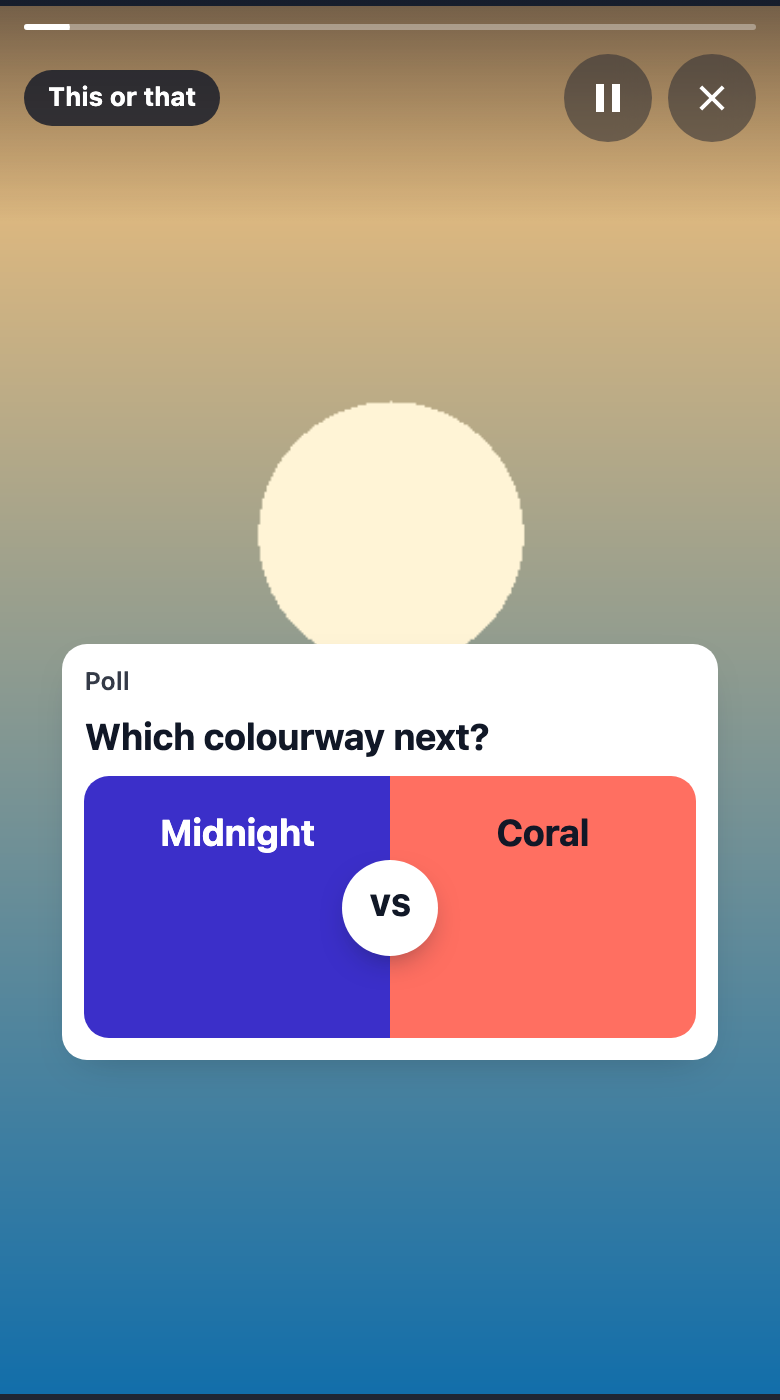
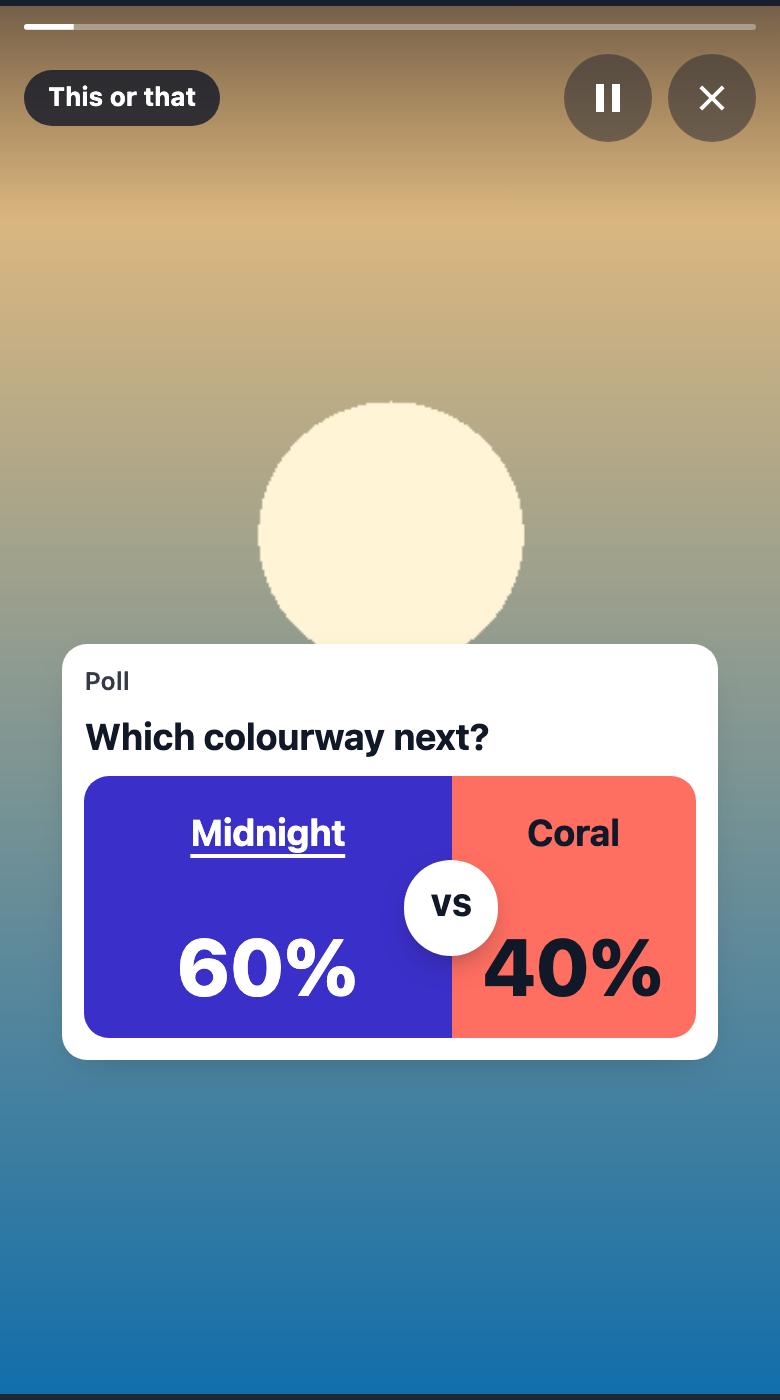
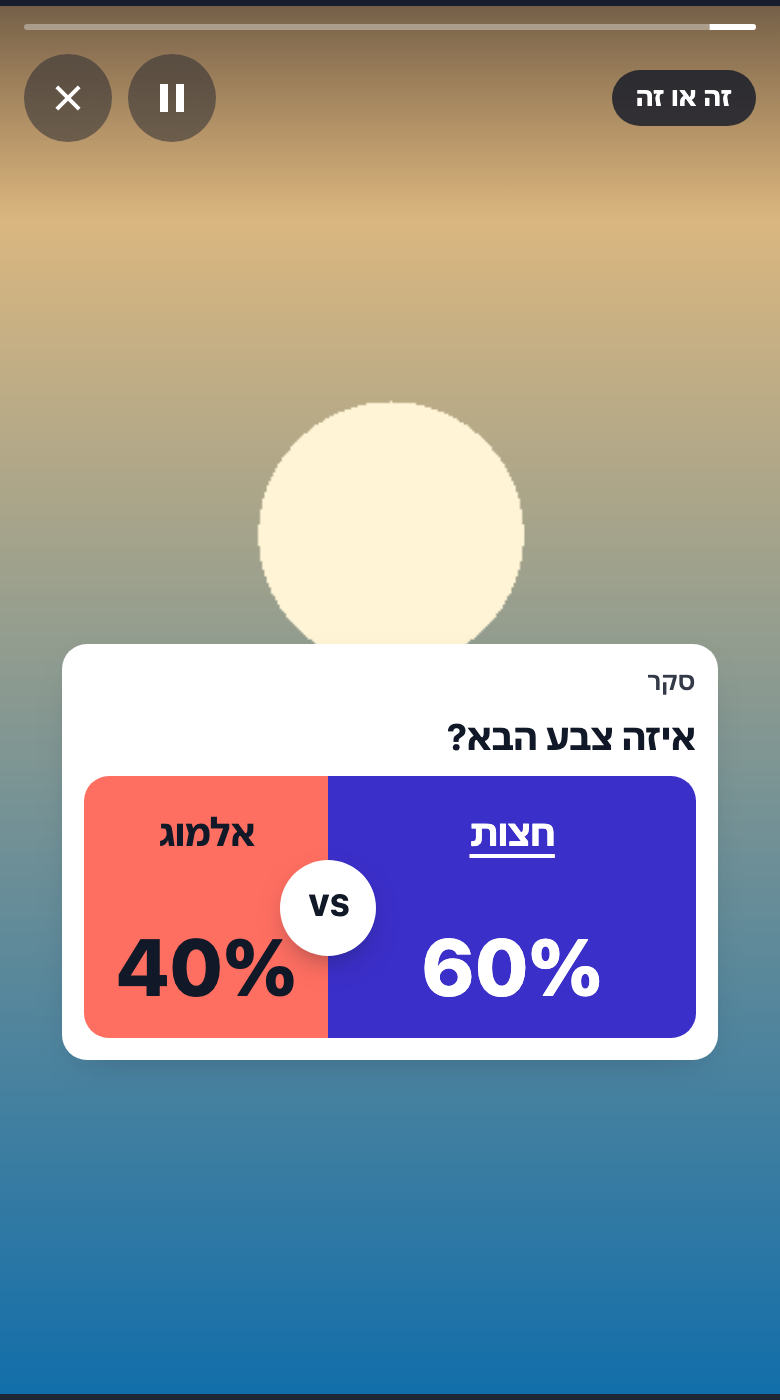
this-or-that | Two halves that fill the card. After the vote the split moves to the two shares, with a VS marker on the split. | Two choices that are opposites, such as two colourways. |
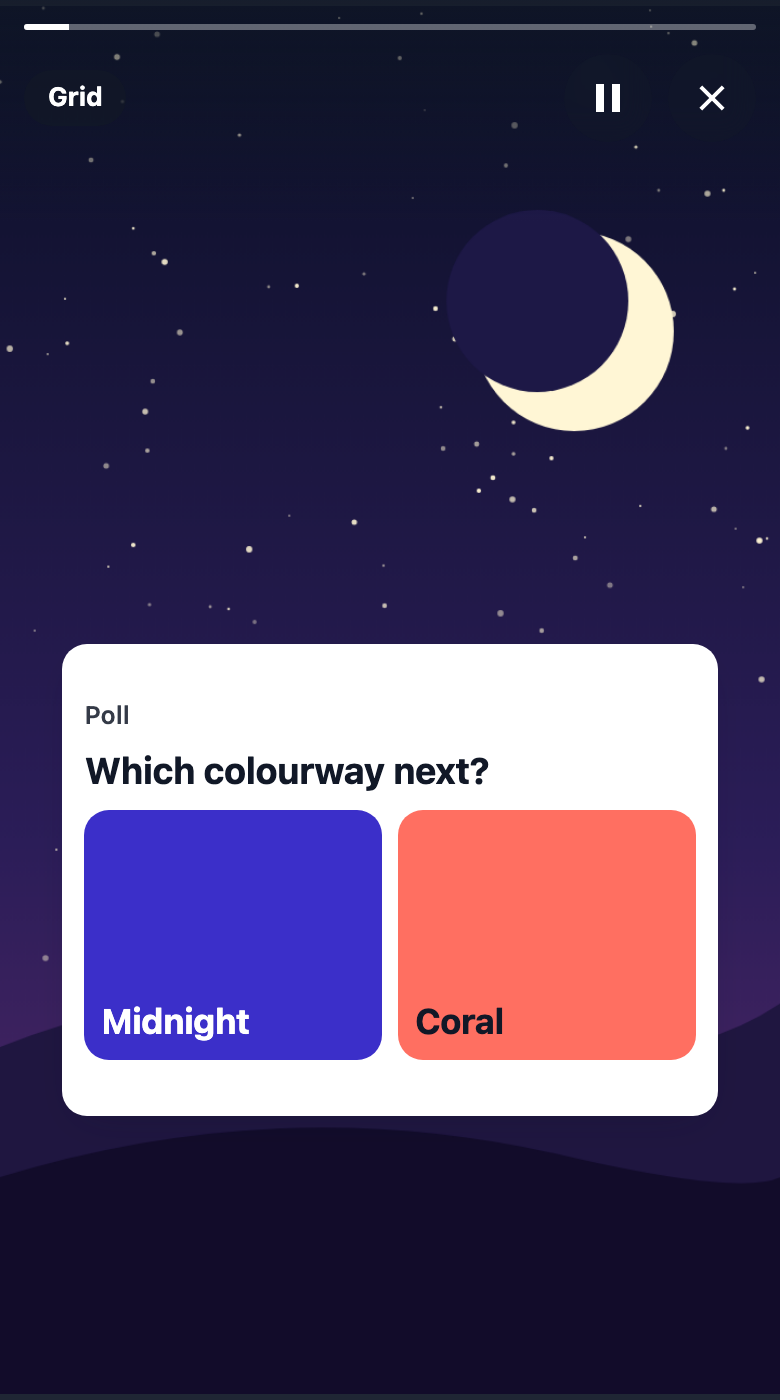
grid | Two large coloured tiles. After the vote each tile shows its share along its bottom edge. | Two choices that work as pictures in colour. |
inline | Compact pills in one row. After the vote the pills give way to a stacked bar with its legend. | A poll under a banner or in a feed, where there is little room. |
Option colour. An option may carry a colour, #rrggbb. The this-or-that and grid views use it for their halves and tiles, and the text on each colour is picked automatically, black or white, whichever reads at 4.5:1 or better. An option without a colour takes the tale's accent and ink colours from the theme. The other views ignore the colour. It is content (the colour of that answer), not part of the theme.
The views other than the sticker load their own module the first time a tale that shows one is drawn. A page whose tales are all stickers never fetches it.
Quiz
Rating
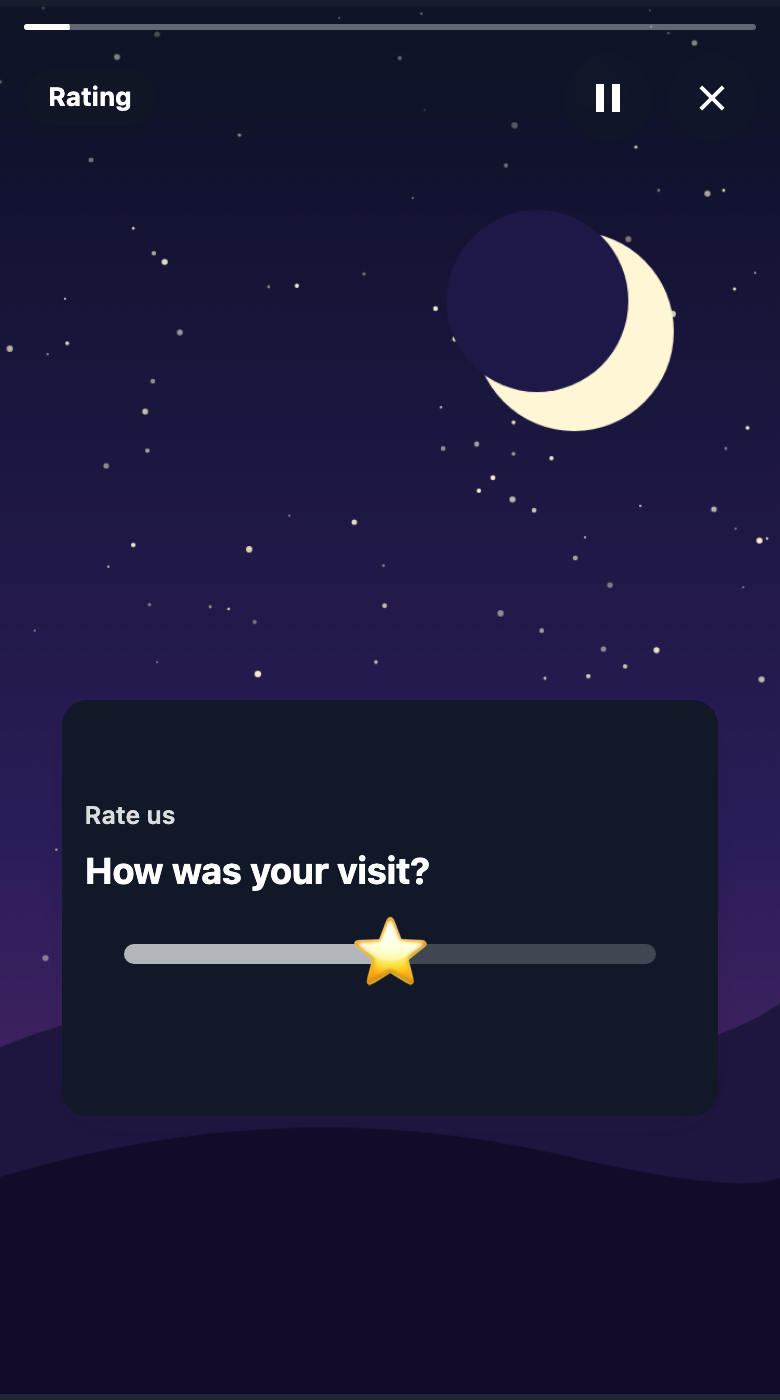
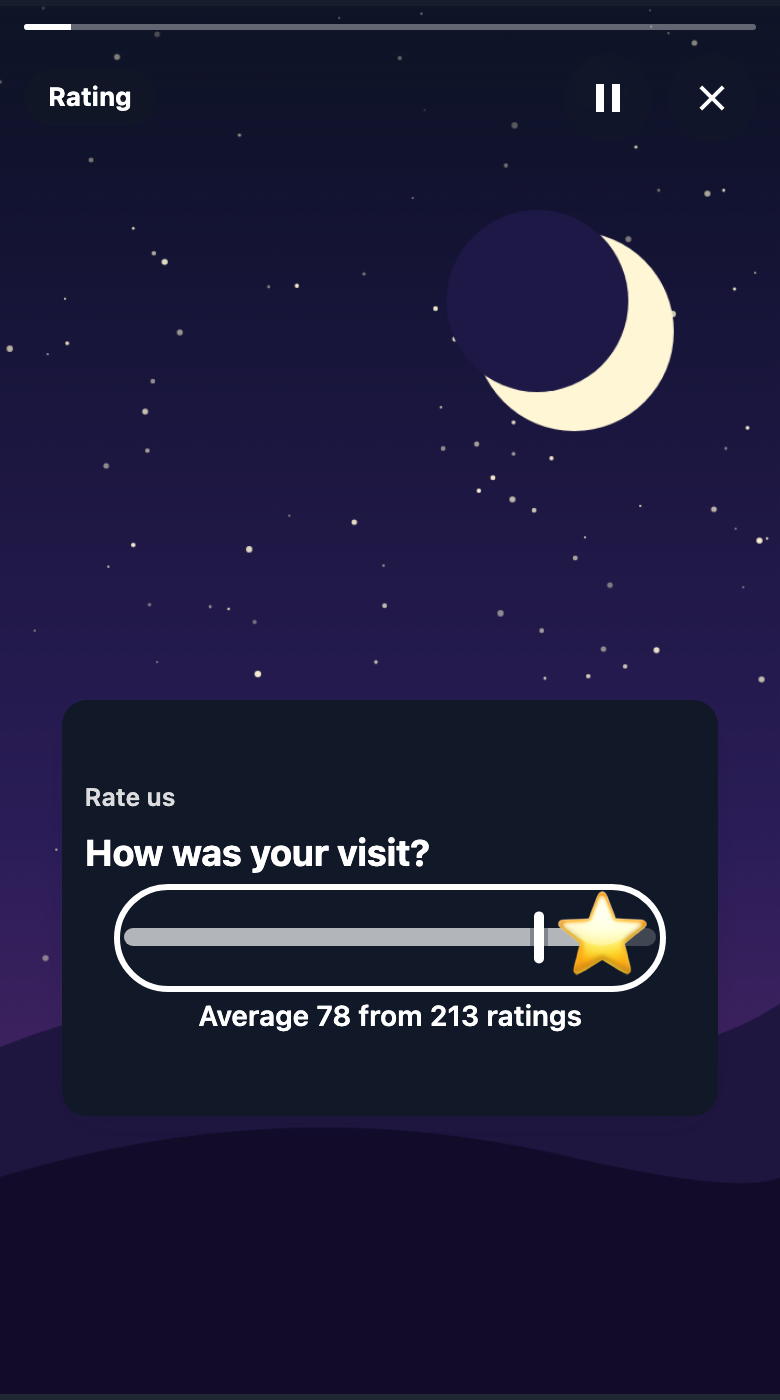
Countdown, promo code and reaction are shown in their own sections below.
In Tale Studio
Countdown, promo code and reaction are in the Interactive group of the Elements palette, with poll, rating and quiz.
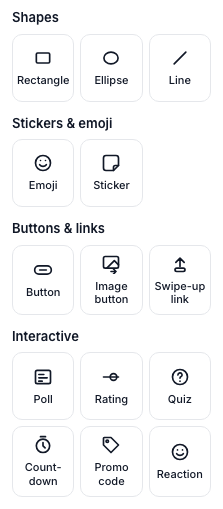
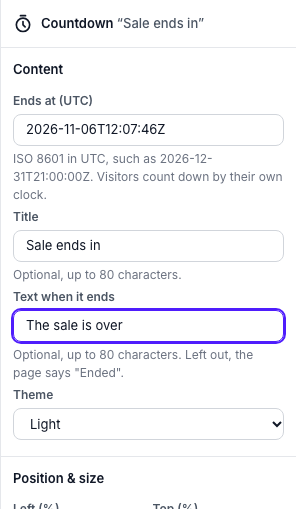
Each one's inspector lists its fields. A countdown's inspector:
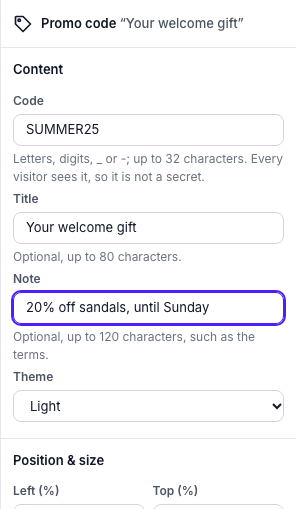
A promo code's inspector:
Countdown
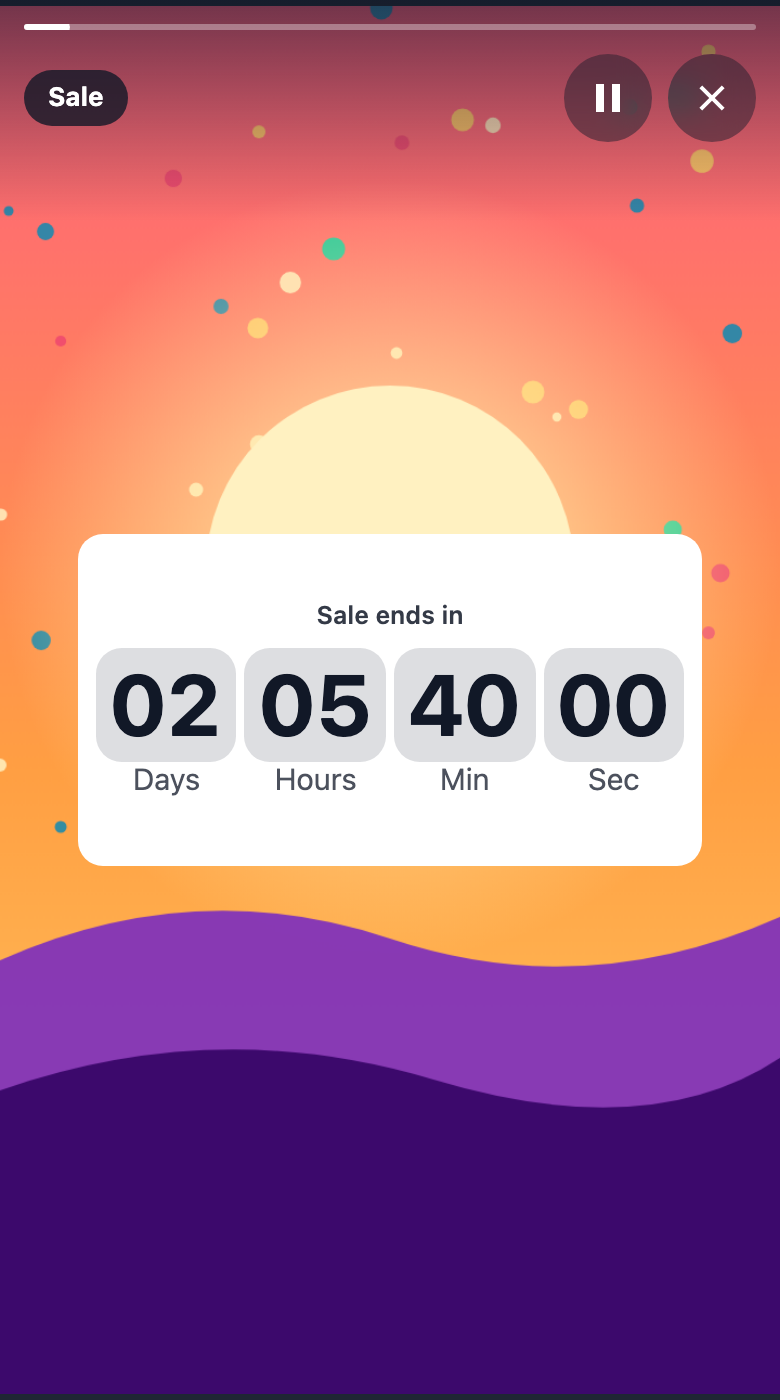
A countdown shows the days, hours, minutes and seconds left until its end, and ticks each second. Each number turns over when it changes, on a tile of its own. It counts with the visitor's clock, so a visitor whose clock is wrong sees a different time. At the end, and after it, the countdown shows its end text instead. Assistive technology is told the days, hours and minutes once a minute, not every second. A visitor who prefers reduced motion sees no flip animation.
| Prop | Type | Required | Limits |
|---|---|---|---|
endsAt | Instant (text) | Yes | ISO 8601 in UTC, ending in Z, such as 2026-12-31T21:00:00Z. A real date and time, at most 40 characters. |
title | Text | No | 1 to 80 characters, on one line. A heading above the countdown. |
endedText | Text | No | 1 to 80 characters, on one line. Shown at and after endsAt. Left out, the page says "Ended". |
theme | light or dark | No | Light (dark text on a light card) when left out. |
The SDK's texts for the countdown: countdown.ended (Ended), countdown.days (Days), countdown.hours (Hours), countdown.minutes (Min) and countdown.seconds (Sec). Change them with strings, as described in the Web SDK reference.
At the end the countdown reports a component event, ended, once per render. See Listen for component events in the Web guide.
Promo code
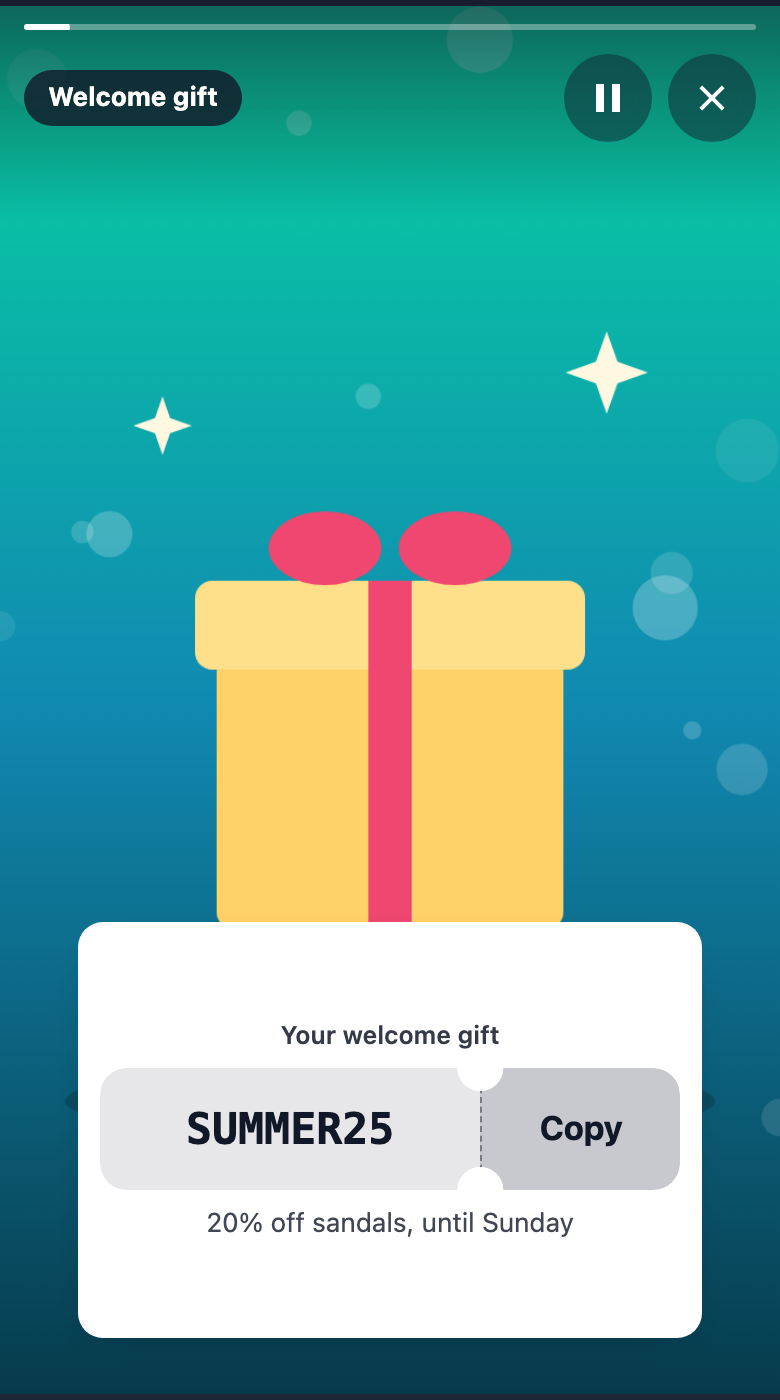
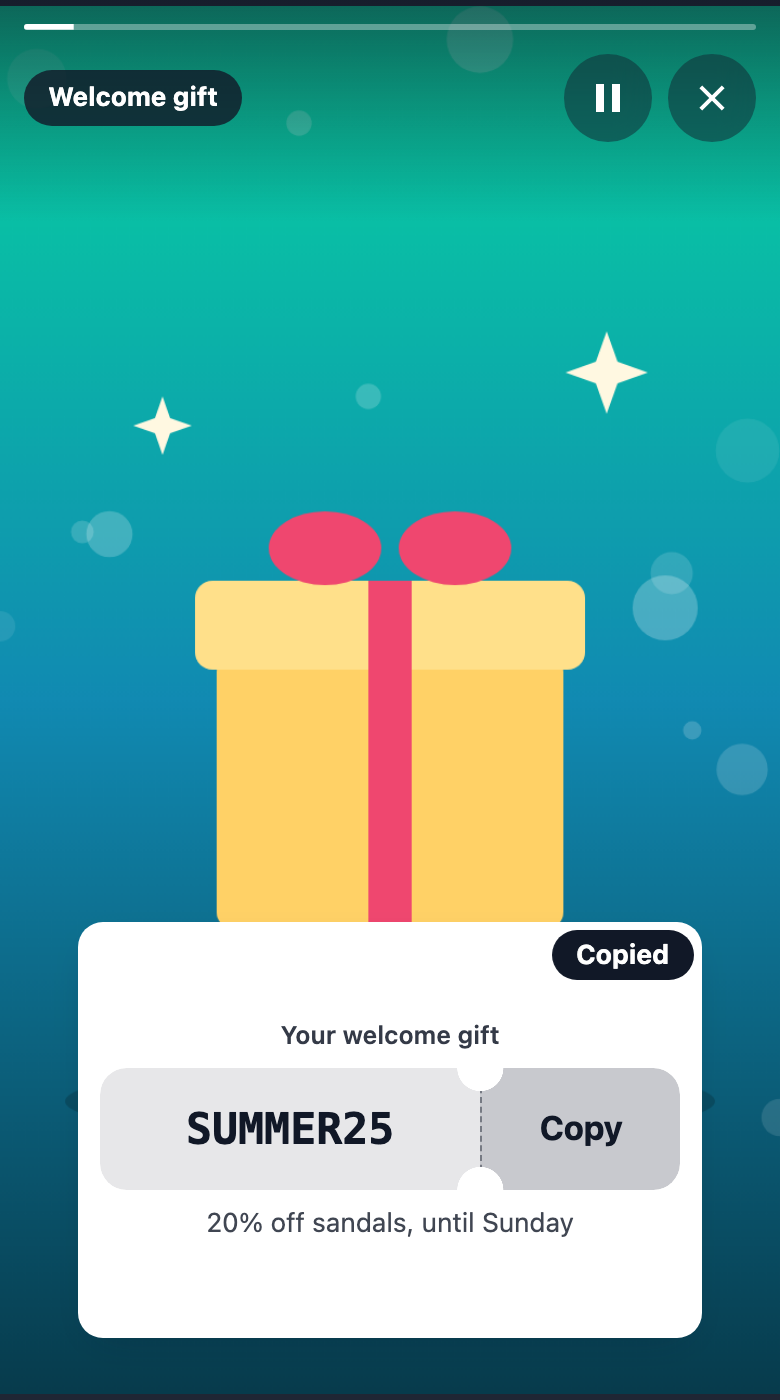
A promo code shows its code on a ticket: the code on one side, and a Copy stub on the other, with notches cut at the tear line. Copy puts the code on the clipboard (or selects it, when the browser does not allow a copy), and a toast in the top corner of the card says Copied for four seconds. A copy reports a component event, copied, with the code as its value.
| Prop | Type | Required | Limits |
|---|---|---|---|
code | Text | Yes | 1 to 32 characters: letters A-Z and a-z, digits, _ and -. |
title | Text | No | 1 to 80 characters, on one line. A heading above the code. |
note | Text | No | 1 to 120 characters, on one line. A line under the code, such as its terms. |
theme | light or dark | No | Light (dark text on a light card) when left out. |
The SDK's texts for the promo code: promo.copy (Copy), promo.copied (Copied) and promo.copyFailed, which says the copy failed and asks the visitor to select the code.
The code is not a secret. Every visitor who opens the tale can read it, and the copy event reports it. Use a promo code for an offer that anyone may use, not for a code that must stay private.
Reaction
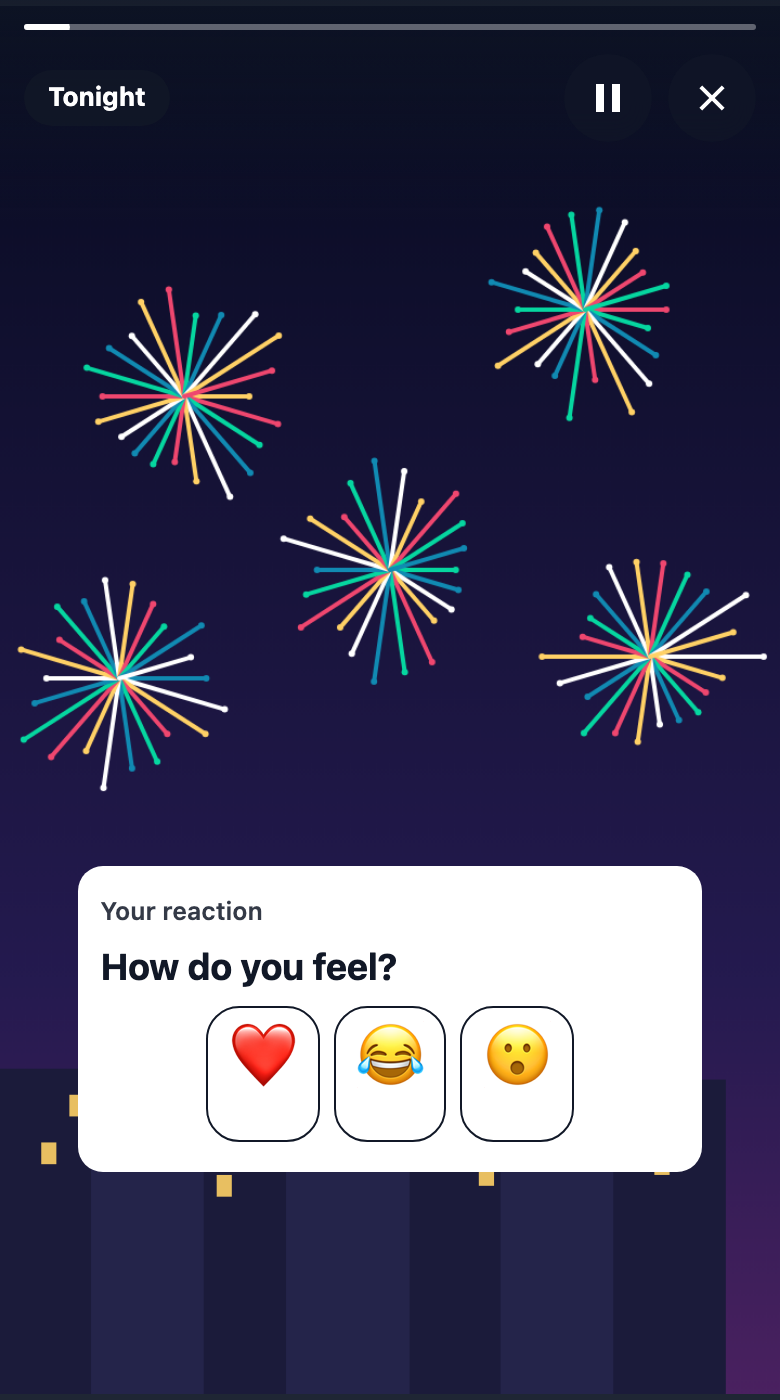
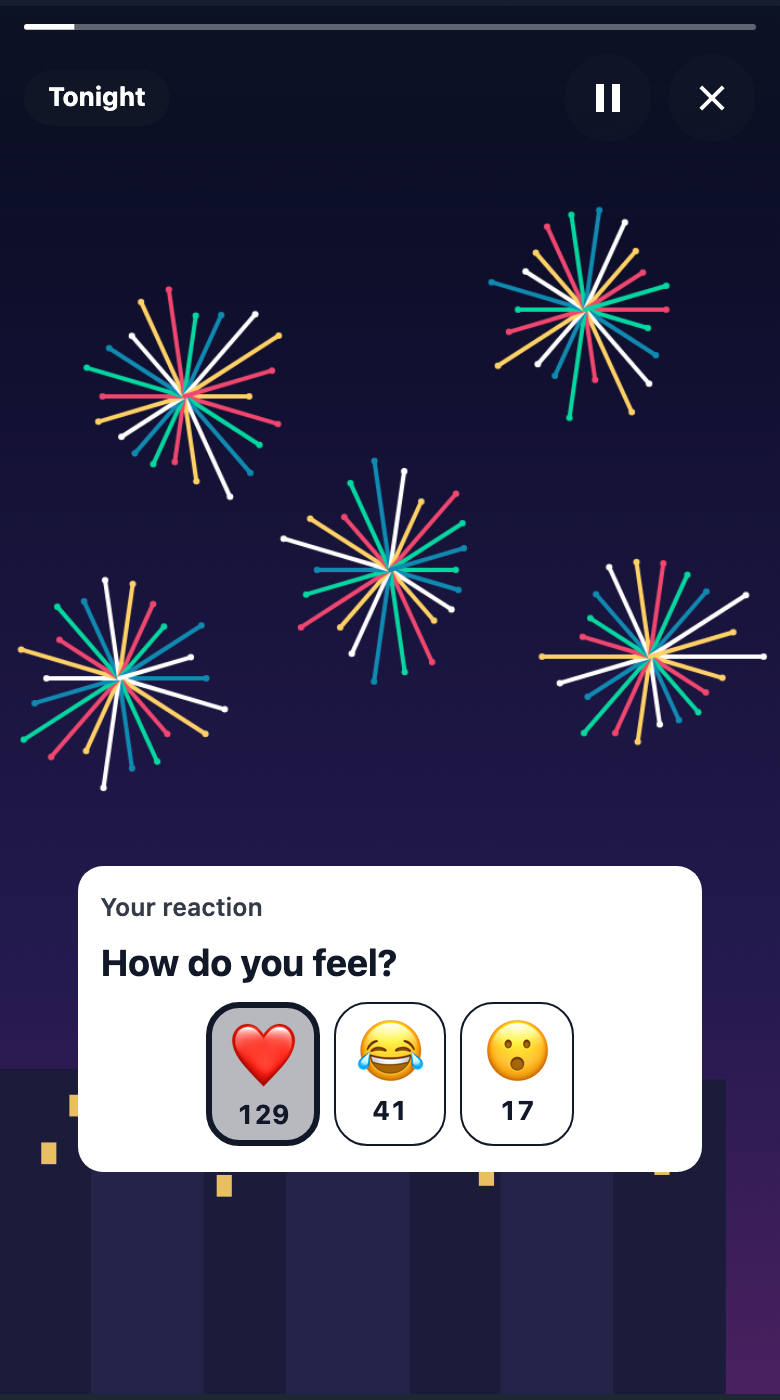
A reaction asks a question over a row of two to six emoji. A visitor taps one, and the tap is posted like a poll vote; then each emoji shows how many taps it has, and the one tapped is pressed. A visitor taps once. A tale holds one reaction, and its counts are shown to every visitor, not only to the one who tapped.
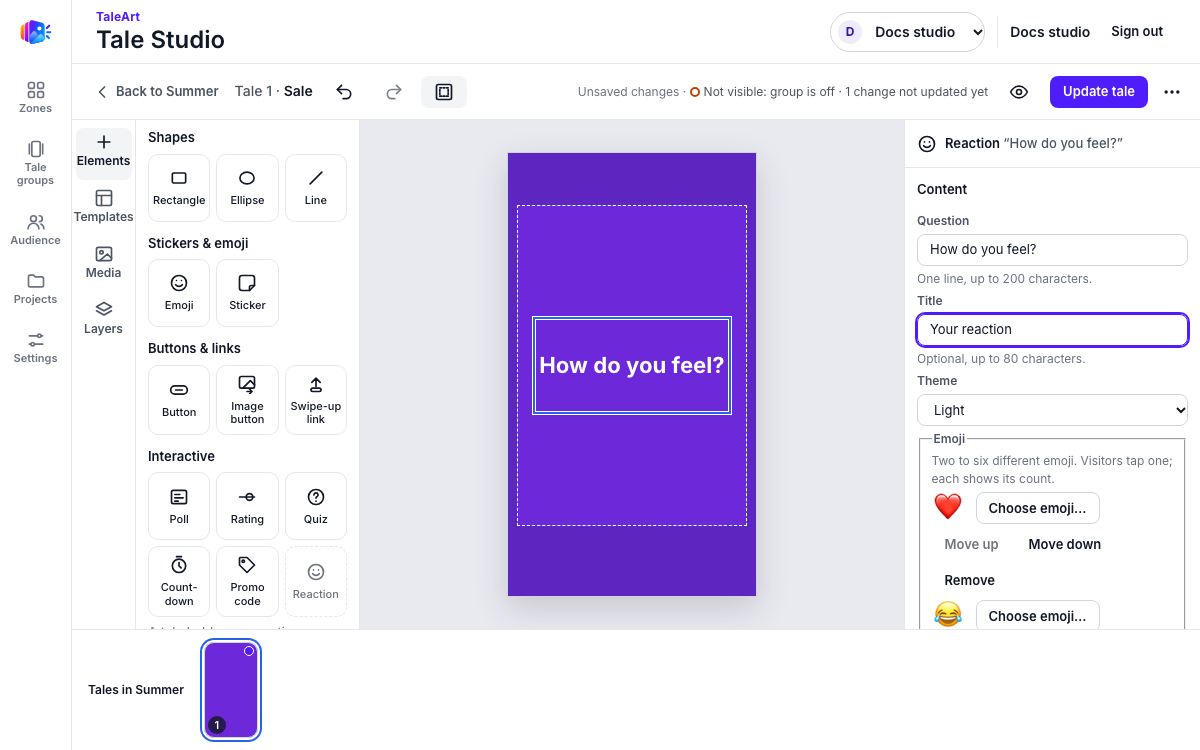
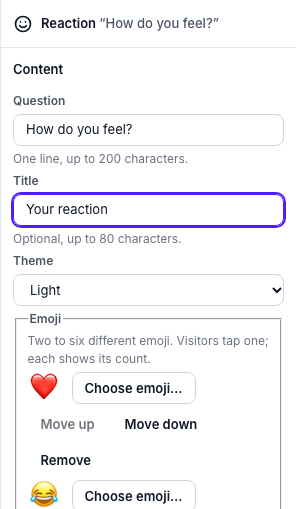
In the studio, a reaction shows its question on the canvas. Its inspector lists the question, the title, the theme and the emoji, in the order they show to a visitor:
| Prop | Type | Required | Limits |
|---|---|---|---|
question | Text | Yes | 1 to 200 characters, on one line. The question visitors answer, and the name of the row for assistive technology. |
emojis | List of emoji | Yes | 2 to 6 emoji, all different, each one emoji such as ❤️ or 😂. They show in this order. A tap is counted by its emoji, so an emoji that is kept keeps its count; one that is replaced drops it. |
title | Text | No | 1 to 80 characters, on one line. A heading above the question. |
theme | light or dark | No | Light (dark text on a light card) when left out. |
The SDK's texts for the reaction: reaction.count (Reactions: {count}), which names each emoji's count for assistive technology, and reaction.failed (Your reaction could not be sent. Try again.), shown when a tap is not sent. Change them with strings, as described in the Web SDK reference.
An accepted tap reports a component event, selected, with the emoji as its value. See Listen for component events in the Web guide.
Results
Read the answers through the Management API: GET /tales/{id}/responses. The SDK sends a visitor's answer to POST /delivery/v1/responses.
In Tale Studio, the inspector of a poll, quiz, rating or reaction has a Responses panel. Press Refresh to read the counts: for a reaction, each emoji with its taps and the total.
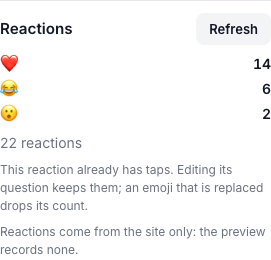
Counts are kept per visitor id (a random id in the browser's local storage), so they are indicative only. The same person on two devices counts twice, and clearing storage resets the count.
Not in the current source
A dashboard page with charts for answers, and a per-tale analytics view, were not found in the current source.