 TaleArt docs
Tale Studio
Tale Studio is the editor for one tale. It opens from Edit in Tale Studio in the tale panel.
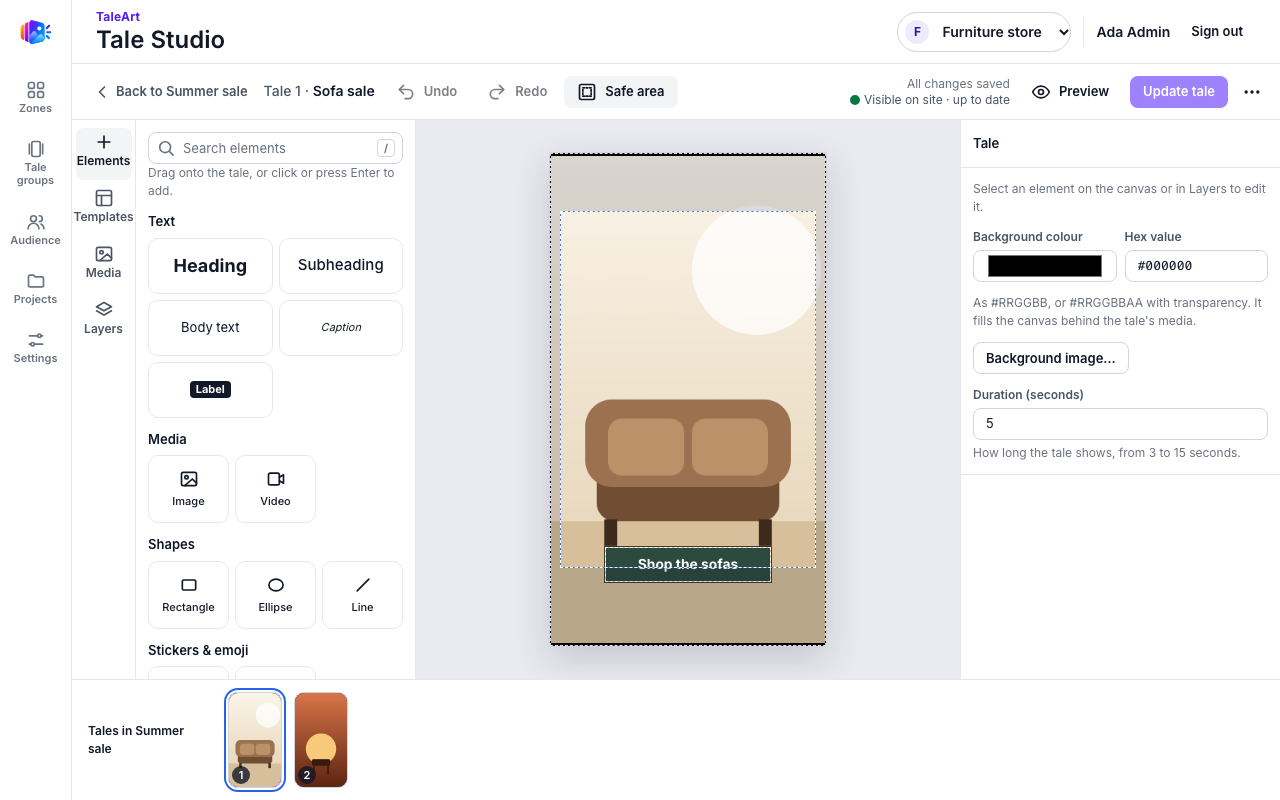
The canvas
- The canvas is 9:16, like a phone screen.
- Safe area shows the margins the viewer may cover: 12% at the top, 16% at the bottom and 4% on each side. Studio warns when an element sits outside them.
- A tale lasts 7 seconds by default. You can set 3 to 15 seconds. A tale with a video plays for the video's length, up to 15 seconds.
- A tale holds at most 60 elements, and its document at most 128 KB.
Elements
| Element | Notes |
|---|---|
| Text | Up to 1,000 characters. Font, size, weight, italic, colour, alignment, direction and line height. Background: none, box or highlight. |
| Image | Needs alt text, or a "decorative" flag. |
| Video | At most one per tale. |
| Shape | Rectangle, ellipse or line. |
| Emoji and sticker | |
| Button | Filled or outline. Opens a link. |
| Image button | A button made from an image. |
| Swipe-up | A swipe-up link. At most one per tale. |
| Poll, quiz, rating, reaction, countdown, promo code | See Interactive components. |
A link must be an absolute http or https URL of at most 2,048 characters.
A poll's inspector has a View select. For the this-or-that and grid views, each option also has a colour, with a button to clear it.
On the canvas an interactive element is a dashed box with its name. Preview draws the tale as the Web SDK shows it to a visitor, so a poll's view, its colours and its results look as they do in the viewer.
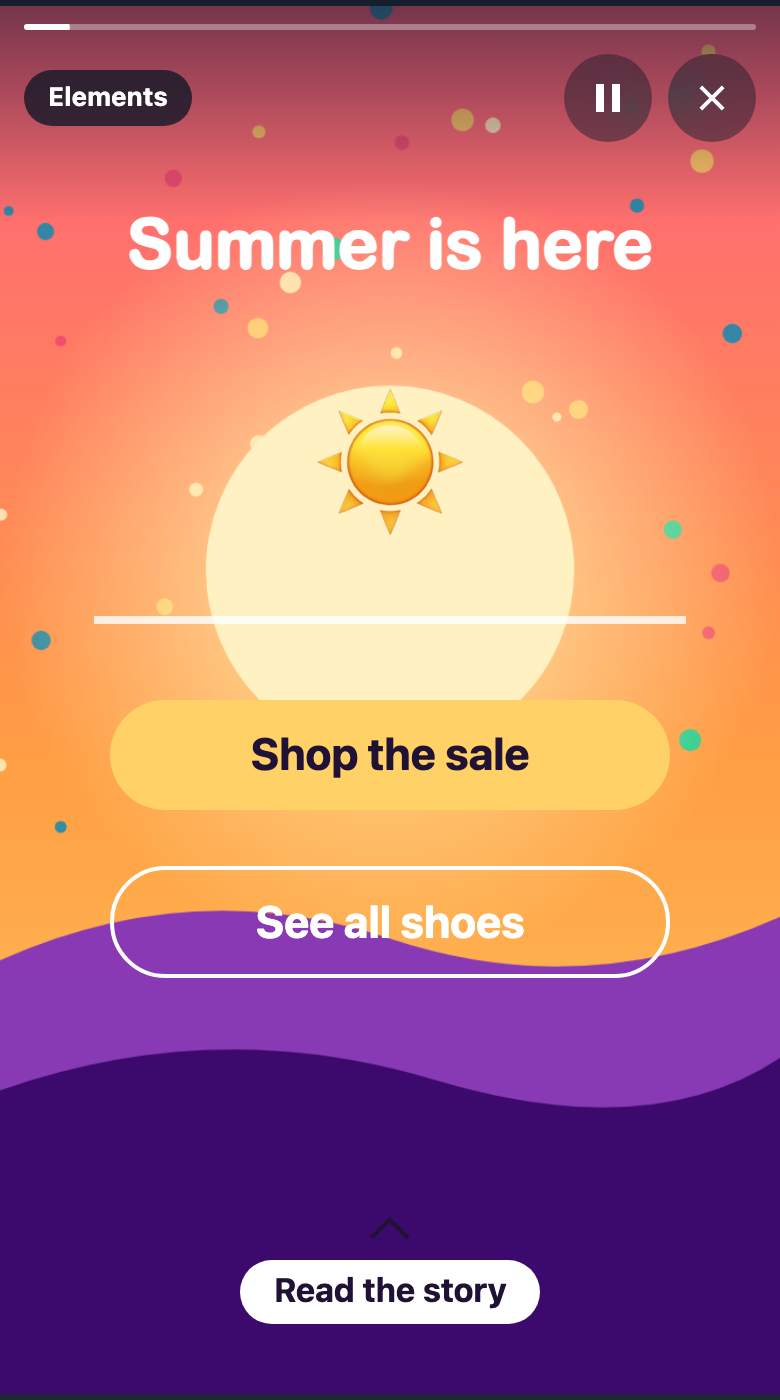
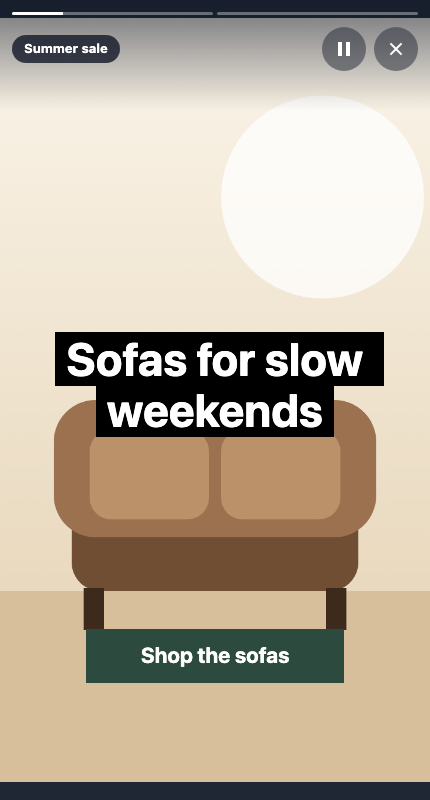
The screenshot above shows how text, an emoji, a shape, two buttons and a swipe-up link look to a visitor in the viewer. Poll, quiz, rating, countdown, promo code and reaction have their own page: Interactive components.
Autosave and publish
Studio saves a draft as you work. Visitors keep seeing the last published version until you click Update tale. You can discard the draft, and duplicate or copy a document.
Accessibility checks
Studio warns about text with a contrast ratio below 4.5:1, about elements outside the safe area, and about images with no alt text.
Example: fixing a low-contrast heading
- Click Heading in the Elements palette and change its text.
- Studio saves ("All changes saved"), but the status says changes are not updated yet.
- Click Update tale. Studio confirms that visitors now see this version.
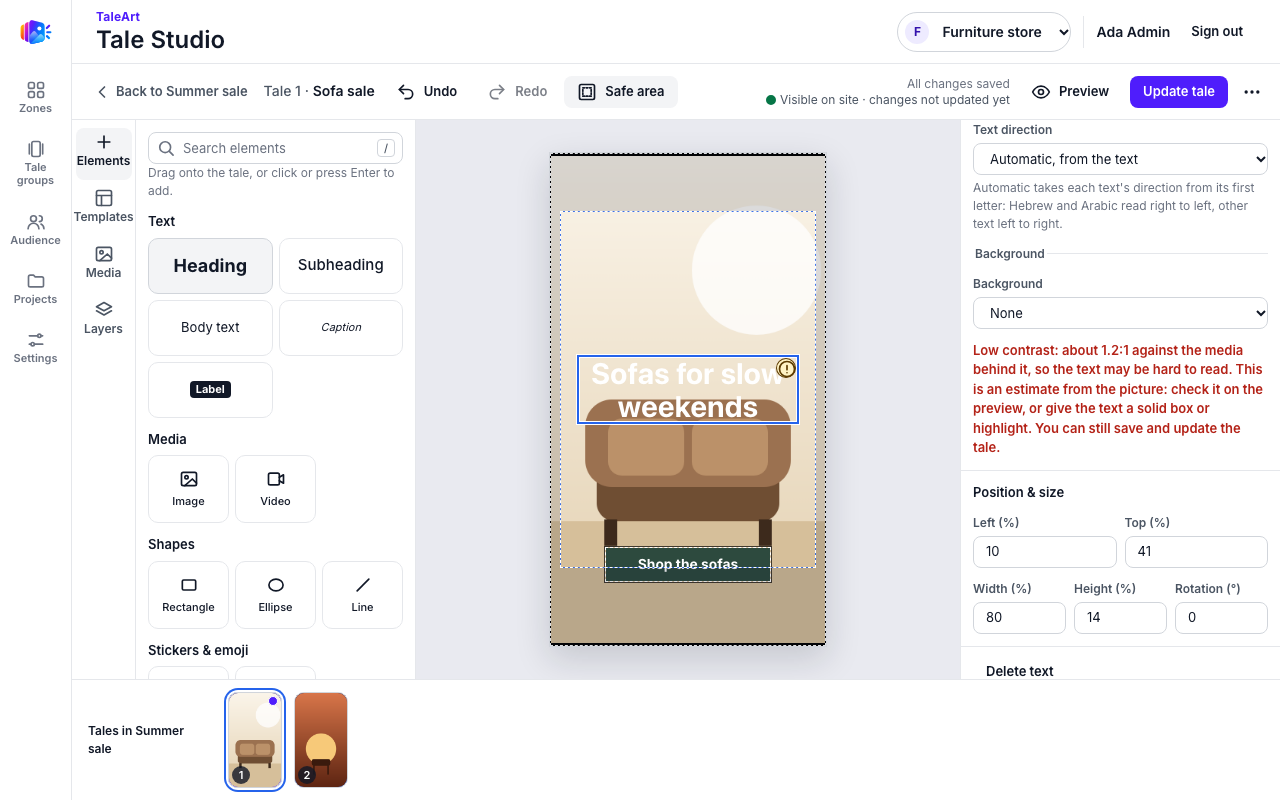
White text on a light photo scored about 1.2:1. Set the text Background to Highlight behind each line (or Solid box) with a dark colour (black in the example). The panel then reads "Contrast 21.0:1 against its highlight".
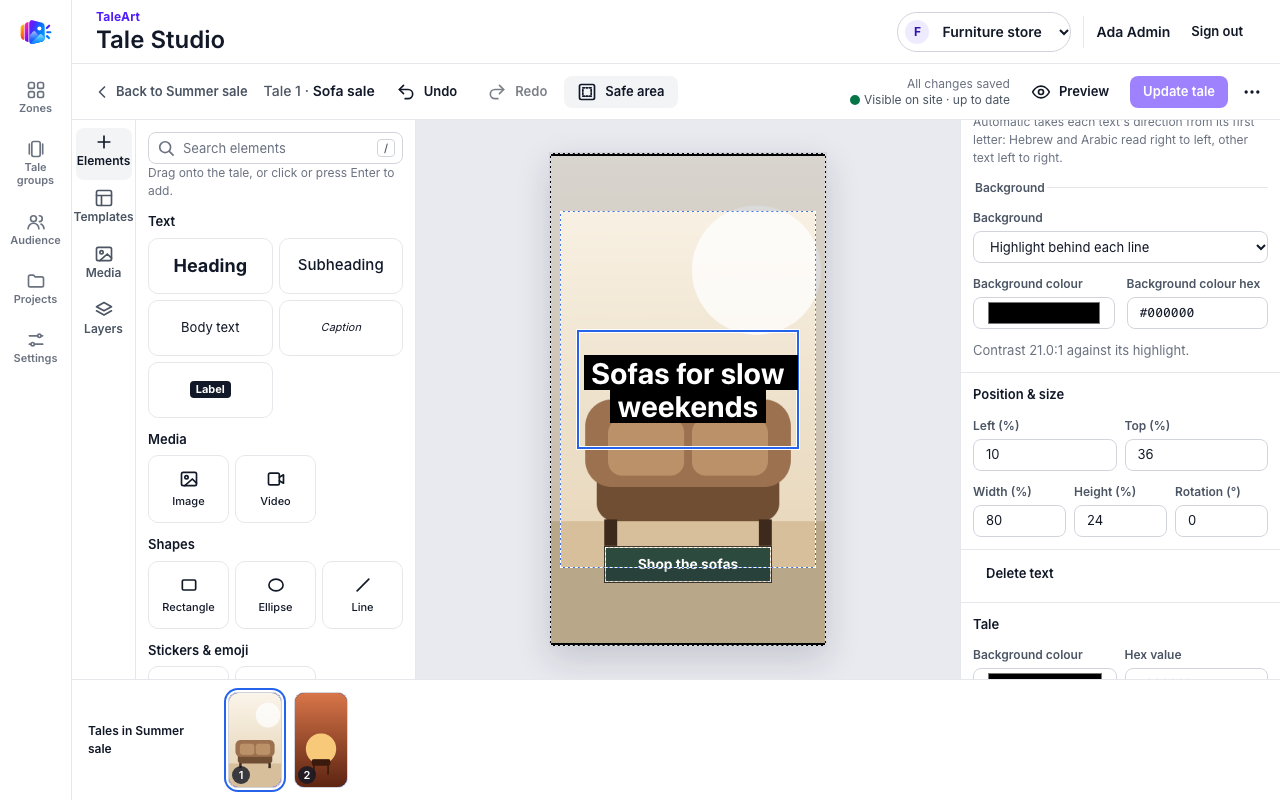
Only the Heading element was exercised by hand for these guides. The other elements are described from the source.