 TaleArt docs
iOS guide
Show a TaleArt zone in an iOS app with the iOS SDK: a view controller for UIKit, or a SwiftUI view made from it. You need the zone key from the dashboard, the same key the Web SDK uses. The iOS SDK sends analytics events too (see Analytics below), so the zone's Analytics tab counts the app along with the web.
Before you start
- iOS 15 or later, Xcode and Swift. The framework is built for devices (arm64) and for the simulator on Apple silicon.
- A zone with a display, and its key (
tak_…), from the zone's Install tab in the dashboard.
Steps
Add the SDK
The easiest way is Swift Package Manager: in Xcode choose File > Add Package Dependencies and enter the repository URL. The repository's
Package.swiftpoints at theTaleartSDK.xcframework.zipattached to a GitHub release, so the version you choose is the framework you get.// Xcode: File > Add Package Dependencies, then enter the repository URL. // Or in a Package.swift: dependencies: [ .package(url: "https://github.com/ido-lempert/Taleart", from: "0.1.1"), ], targets: [ .target(name: "MyApp", dependencies: [ .product(name: "TaleartSDK", package: "Taleart"), ]), ],Or add the framework by hand: download
TaleartSDK.xcframework.zipfrom the release page, unzip it, and dragTaleartSDK.xcframeworkinto your app target. Set its embed option to match the framework's type: embed and sign a dynamic framework, do not embed a static one (itsInfo.plistsays which).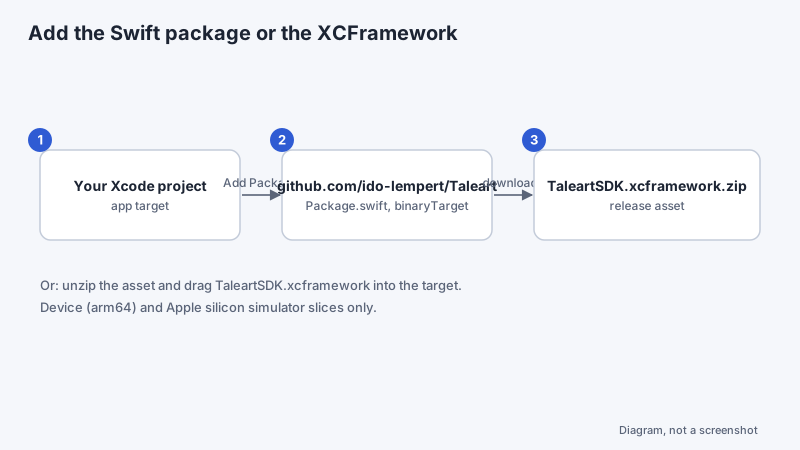
Diagram of the two ways to add the SDK (not a screenshot). Get the zone key
On the zone's Install tab in the dashboard, copy the key (
tak_…). The key is shown once, when it is issued. Put it in your code as a value, never in a URL. It reads that one zone, so treat what the zone shows as public. Rotating the key issues a new one and stops the old one at once.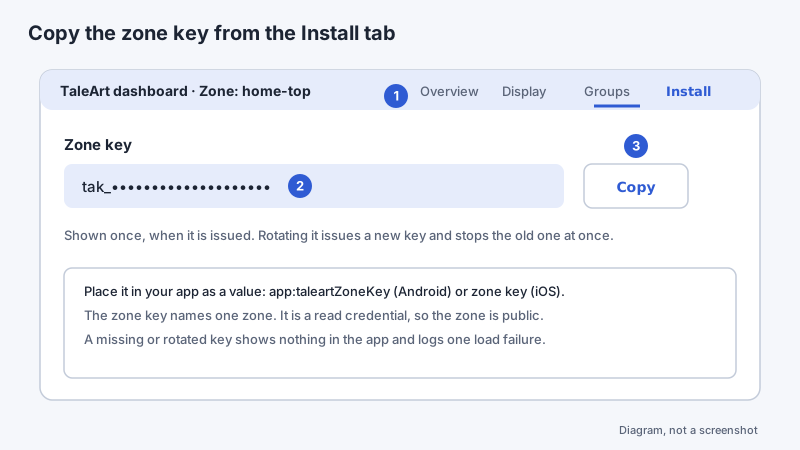
Diagram of the Install tab (not a screenshot). Place the zone: UIKit or SwiftUI
TaleartZoneViewshows one zone. ItsviewControlleris the controller to embed, andonHeightChangereports the bar's or banner's height, so the container can size to it. Keep theTaleartZoneViewalive as long as the controller: it holds the zone's state. A UIKit screen embeds it as a child controller.import UIKit import TaleartSDK final class HomeViewController: UIViewController { private let zone = TaleartZoneView(apiUrl: nil, zoneKey: "tak_YOUR_ZONE_KEY") private var heightConstraint: NSLayoutConstraint? override func viewDidLoad() { super.viewDidLoad() let bar = zone.viewController addChild(bar) bar.view.translatesAutoresizingMaskIntoConstraints = false view.addSubview(bar.view) let height = bar.view.heightAnchor.constraint(equalToConstant: 0) heightConstraint = height NSLayoutConstraint.activate([ bar.view.topAnchor.constraint(equalTo: view.safeAreaLayoutGuide.topAnchor), bar.view.leadingAnchor.constraint(equalTo: view.leadingAnchor), bar.view.trailingAnchor.constraint(equalTo: view.trailingAnchor), height, ]) zone.onHeightChange = { value in height.constant = CGFloat(value) } bar.didMove(toParent: self) } }In SwiftUI, wrap the controller in a
UIViewControllerRepresentable. Its coordinator keeps theTaleartZoneView, and the height goes back to a state value:import SwiftUI import TaleartSDK struct ZoneBar: UIViewControllerRepresentable { let zoneKey: String @Binding var height: CGFloat // The zone object must live as long as the view controller: the coordinator keeps it. func makeCoordinator() -> Coordinator { Coordinator(zoneKey: zoneKey) } func makeUIViewController(context: Context) -> UIViewController { let zone = context.coordinator.zone let height = $height zone.onHeightChange = { value in DispatchQueue.main.async { height.wrappedValue = CGFloat(value) } } return zone.viewController } func updateUIViewController(_ controller: UIViewController, context: Context) {} final class Coordinator { let zone: TaleartZoneView init(zoneKey: String) { zone = TaleartZoneView(apiUrl: nil, zoneKey: zoneKey) } } } struct HomeView: View { @State private var barHeight: CGFloat = 0 var body: some View { VStack { ZoneBar(zoneKey: "tak_YOUR_ZONE_KEY", height: $barHeight) .frame(height: barHeight) Spacer() } } }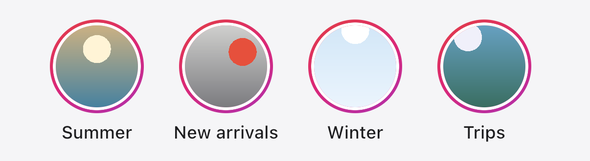
The bar in the sample app (taller) on iOS, a real screenshot taken in the iPhone 16 Pro simulator. It shows only the zone (its taller.zoneOnlydebug option), so the picture holds nothing but the SDK's own output. The zone has six groups, and the row scrolls sideways.Initialise once at launch
Set the SDK's configuration once, at launch, before any zone view shows. Every view reads it; a later call replaces it, and the views read it again. Set
apiUrl: a native app has no page to take the origin from, and with an empty one a zone shows nothing. The call isdoInit(config:)in Swift, because Kotlin'sinitis named that way for Objective-C.import SwiftUI import TaleartSDK @main struct MyApp: App { init() { TaleartSdk.shared.doInit(config: TaleartConfig( apiUrl: "https://api.example.com", locale: "he-IL", strings: ["he": ["viewer.close": "סגור", "bar.seen": "{name}, נצפה"]], stringsForEveryLocale: [:], listener: AppTaleartHooks(), externalUserId: nil, tags: [], properties: nil, fallback: FallbackMode.none, frequency: nil, analytics: true, layoutDirection: nil )) } var body: some Scene { WindowGroup { HomeView() } } } // UIKit: the same call in application(_:didFinishLaunchingWithOptions:) of your AppDelegate.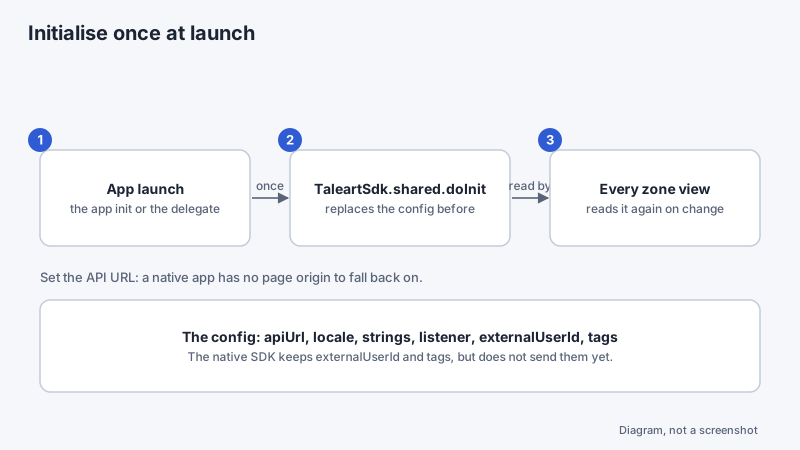
Diagram of the start-up order (not a screenshot). Pass viewer properties
Pass what the app knows about the viewer as
properties: a dictionary from a name to a String, a number, a Boolean or an array of Strings. A tale group can carry an audience rule, set in the dashboard under its targeting, and the SDK shows the group only when the rule passes these values. The rule can test a value witheq,in,gt,contains,existsand the other operators listed on the Targeting page.Put the properties in
TaleartConfigat launch. Swift needs every argument of the configuration, so passnilwhen the app has none:// The properties argument of TaleartConfig(...) in doInit. Swift needs every argument, // so pass nil when the app has none. properties: [ "plan": "pro", // a String "age": 34, // a number "newsletter": true, // a Boolean "segment": ["beta", "newsletter"], // a list of Strings ], // One zone only: its properties replace the SDK's, and the zone is read again at once. let zone = TaleartZoneView(apiUrl: "https://api.example.com", zoneKey: "tak_YOUR_ZONE_KEY") zone.properties = ["plan": "free"] // Back to the SDK's properties: zone.properties = nilA name starts with a letter and uses letters, digits,
_,.or-, up to 64 characters, and is case-sensitive. A dictionary has at most 50 properties, a string at most 256 characters and an array at most 50 items. An invalid entry is ignored. Dates go as epoch milliseconds.With no properties (
nil) every group's audience rule passes, as it does with no tags. An empty dictionary means the app knows nothing about the viewer: a group whose rule needs a value is then left out, while the negative conditions (neq,notIn,notExists) pass.A group shows only when its tags and its audience rule both pass. The properties stay on the device: the SDK sends them in no request header, no URL and no analytics event. The rule itself is public, as the tag names are, so keep private content out of rule values.
A zone can use its own properties, which replace the SDK's for that zone only. Setting
propertieson aTaleartZoneViewreads its zone again at once. A laterdoInitapplies its properties on the next read of a zone: a zone already on screen keeps the groups it shows until it reads again, as it does for tags.Listen to hooks and override a link
Subclass
TaleartListenerBasein Swift and override the hooks you need. Its methods do nothing by default, so override only what you use. Pass the subclass aslistenerin the configuration, or on one zone view. The view's listener runs first, then the global one.onActionClickedreturns a Boolean. Returntruewhen your app routed the link, and the SDK does not open it. Returnfalseand the system opens it in the browser.import TaleartSDK final class AppTaleartHooks: TaleartListenerBase { override func onLoaded(event: TaleartEvent) { print("zone \(event.zoneSlug) loaded") } override func onActionClicked(event: TaleartEvent) -> Bool { guard let url = event.url, url.hasPrefix("https://shop.example.com/") else { return false } AppRouter.shared.open(url) // your own navigation return true // handled: the SDK does not open the browser } }The methods, their payloads and the events are in the iOS SDK reference.
onGroupImpressionfires on native too, once per group per load.onComponentEventreports a countdown's end and a promo code's copy, andonUserInteractedreports each answer the server accepts to a poll, a quiz, a rating or a reaction.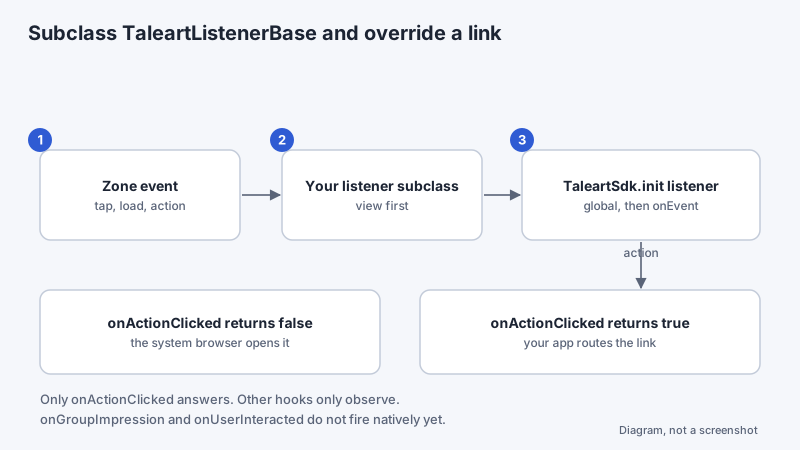
Diagram of the hook order and the link decision (not a screenshot). Localise the texts
The SDK's texts (the viewer's buttons, the banner's controls, the names it announces) are English by default. Set
locale(BCP 47, such ashe-IL) and the texts per locale. A text is looked up under the full locale, then its language, thenstringsForEveryLocale, then English. A missing key shows English, never the key. With no locale set, the device's locale is used. A single zone view takes its own locale and strings:// At launch (the config above), or for one zone: let zone = TaleartZoneView(apiUrl: "https://api.example.com", zoneKey: "tak_YOUR_ZONE_KEY") zone.locale = "he-IL" zone.strings = ["he": ["viewer.close": "סגור"]]Each string key and its English default is in the iOS SDK reference.
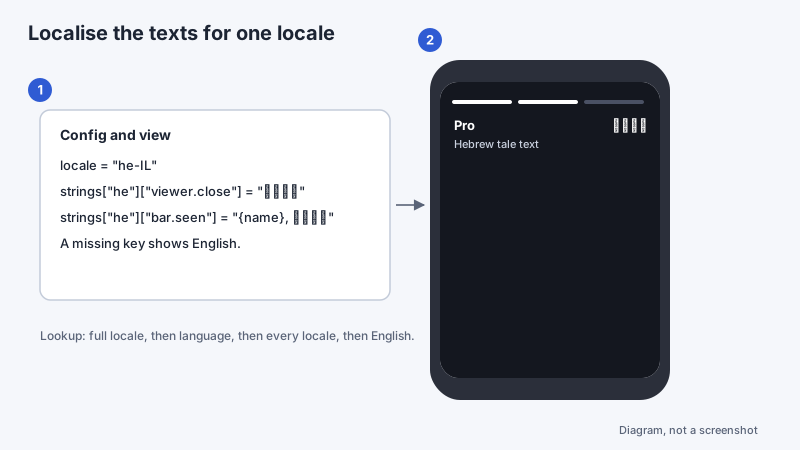
Diagram of the localised result (not a screenshot). 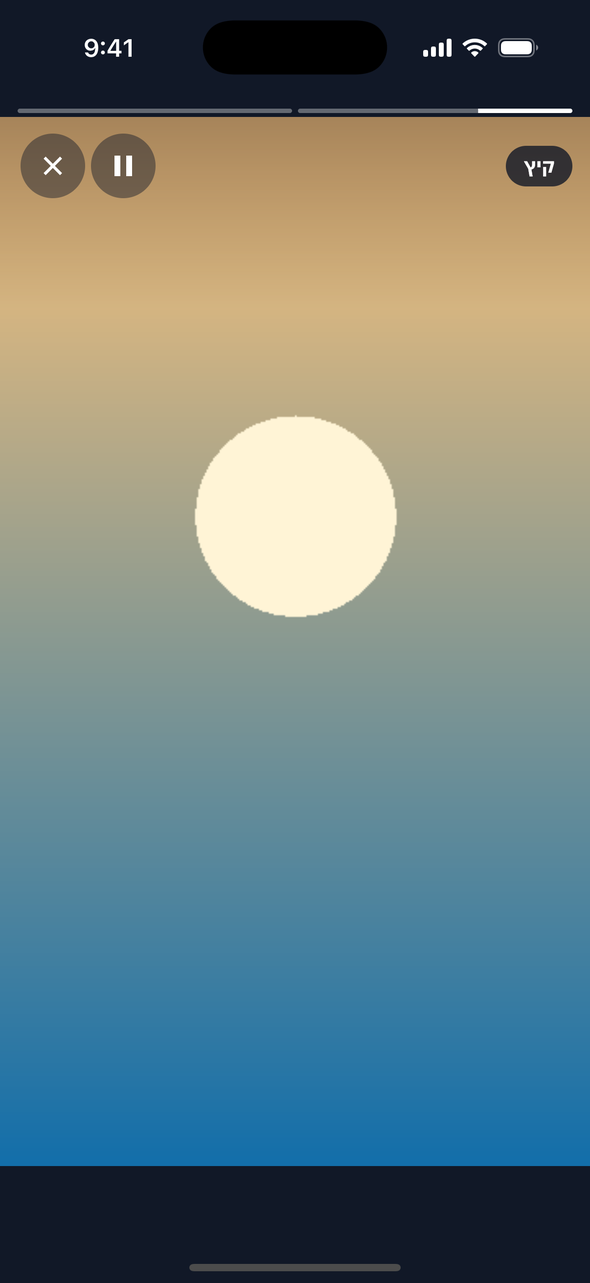
A Hebrew group in the sample app's viewer (taller), a real screenshot taken in the simulator. The group name and the controls sit by right-to-left rules. The viewer's buttons are icons in this shot, so it does not show their localised labels. Verify
Run the app in the simulator (Apple silicon) or on a device, then check, in order:
- The bar (or banner) appears where you placed the zone view, and takes its height.
- A tap on a circle opens the viewer, and Close (in your locale) dismisses it.
- The Xcode console shows the SDK's messages, marked
TaleArt. A wrong key shows no zone and logs one failure;onLoadFailedgets the message.
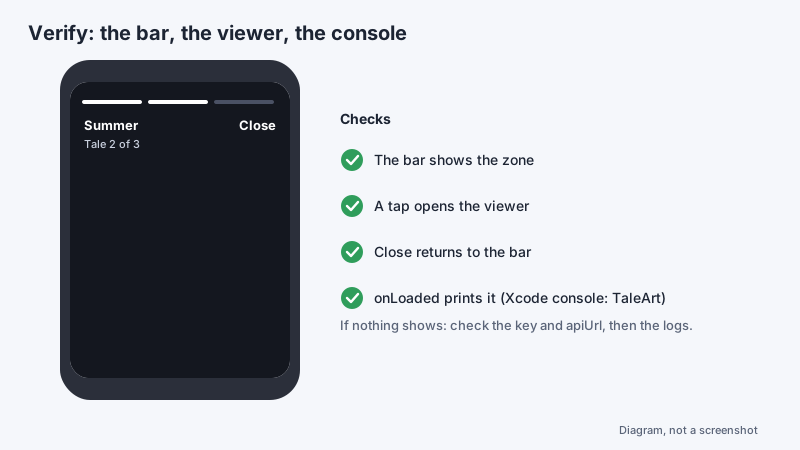
Diagram of the checks (not a screenshot). 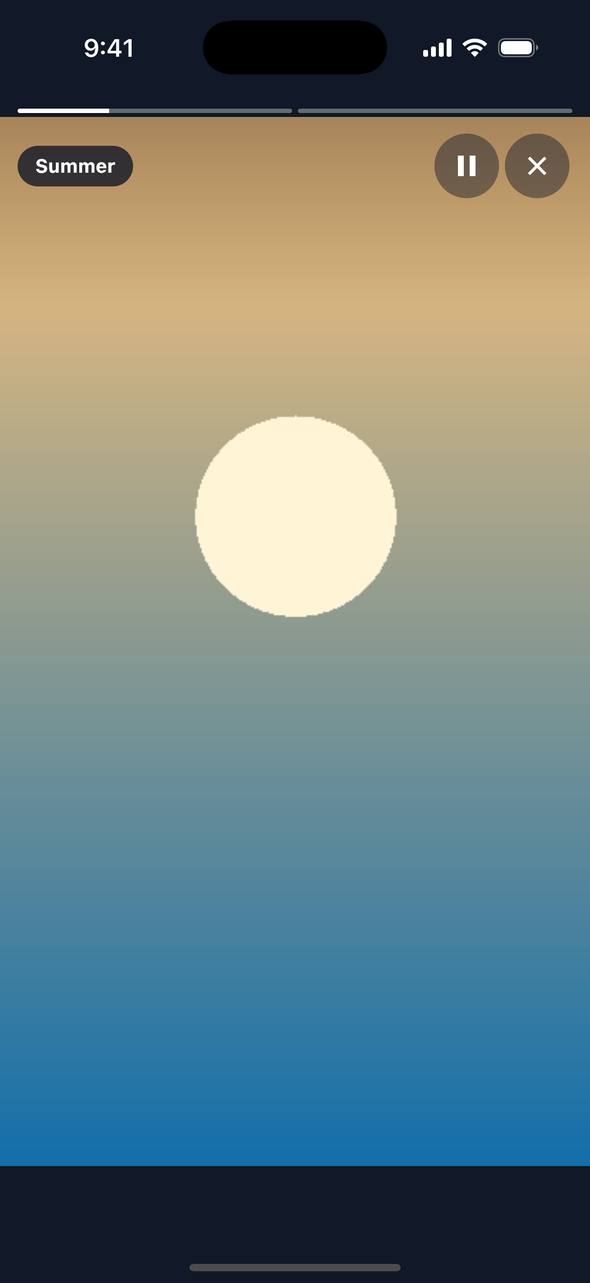
A tale open in the viewer, a real screenshot taken in the simulator. The viewer is running (the Pause button shows, not Play), and the first of the group's two progress bars is filling. The tale is 9:16 and this phone is taller, so the dark ground shows above and below it. 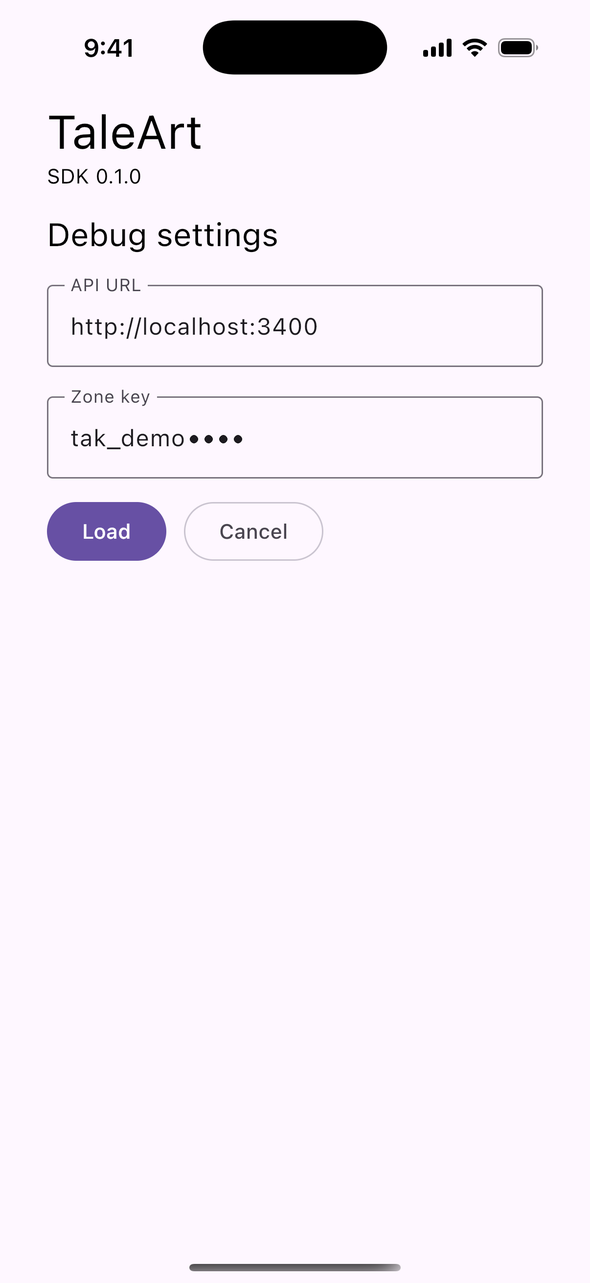
The settings screen of the TaleArt sample app (taller), not an SDK screen. It is where the sample app takes its API URL and zone key. The key is masked after its first eight characters in this picture.
Show a message when a zone fails
By default a zone that cannot be read shows nothing. Set fallback: FallbackMode.message in TaleartConfig to show the translated "Stories could not be loaded." text with a "Try again" button, which reads the zone again. A zone can show your own view controller instead with fallbackViewController, at fallbackHeight points (120 by default); it wins over the message.
let zone = TaleartZoneView(apiUrl: "https://api.example.com", zoneKey: "tak_YOUR_ZONE_KEY")
zone.fallbackViewController = myPlaceholder   // shown instead of the zone when the read fails
zone.fallbackHeight = 80                      // its height in points (default 120)
taller.zoneOnly debug option), so the message and the button are all there is. Cap how often a viewer sees a group
frequency hides a tale group after the viewer has seen enough of it. A view is one opening of the viewer on the group. The count stays on this device and is never sent to TaleArt. Groups over the cap leave the display, and when none are left nothing shows. The default is no cap: pass nil.
TaleartSdk.shared.doInit(config: TaleartConfig(
    apiUrl: "https://api.example.com",
    locale: "",
    strings: [:],
    stringsForEveryLocale: [:],
    listener: nil,
    externalUserId: nil,
    tags: [],
    properties: nil,
    fallback: FallbackMode.none,
    frequency: FrequencyRuleOnce.shared,    // or FrequencyRuleDaily.shared, FrequencyRuleWeekly.shared,
                                            // or FrequencyRuleCount(views: 3) for 1 to 50 views
    analytics: true,
    layoutDirection: nil                    // or "rtl" / "ltr" to set the direction; nil follows the device
))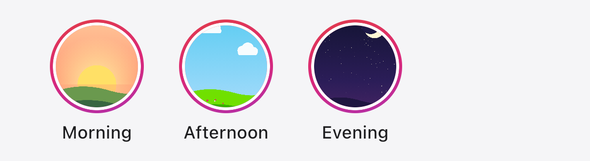
taller.frequency in the sample app), a real screenshot taken in the simulator. 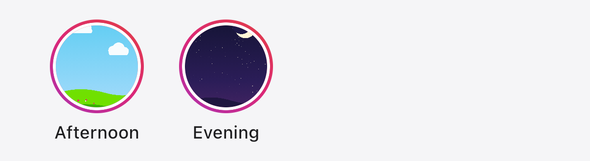
Bar layouts
A bar zone draws its groups in one of four layouts, set by the bar's layout setting in the dashboard. Ring is the default. The other bar settings (shape, size, titles, alignment and gap) apply where the table says so, and the rest are ignored. While the zone is read, the bar shows a loading skeleton in the footprint it had last, so the page does not move when the groups arrive. The skeleton is announced as busy, and it stands still under reduced motion.
| Layout | Use | Ignored settings |
|---|---|---|
ring | The default. Each cover sits in a gradient ring with its title under it; the ring turns while a group is unseen and stays grey once it is seen. | None. |
chip | A pill per group: a round cover, its title, and a dot while the group is unseen (the seen pill is muted and has no dot). The pills wrap onto more rows. | shape. The size sets the cover (28, 32 or 40 dp). |
poster | A portrait card per group: the cover fills it, with the title and the tale count under a dark scrim, and a segment for each tale along the top. | shape and size. The card is 112 by 188 dp and has a fixed corner radius. |
stack | The groups overlap in one collapsed pill: up to four round covers and a +N bubble for the rest, with the count of unseen groups beside them. The pill opens the first unseen group. | shape, showTitles, alignment and gap. The size sets the covers (40, 48 or 56 dp). |
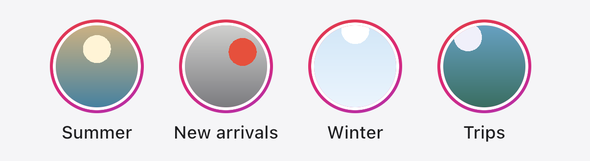
taller.barLayout debug option and shows only the zone; a real screenshot taken in the simulator. Its zone has six groups, and the row scrolls sideways. 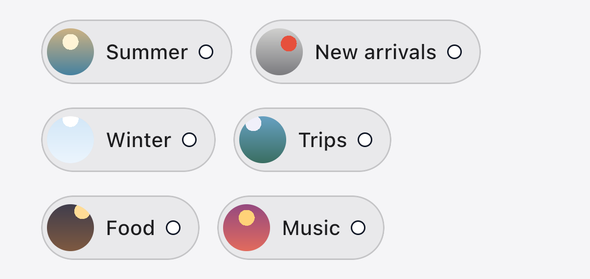
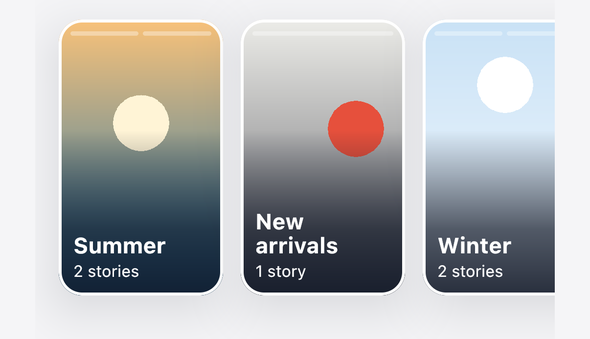
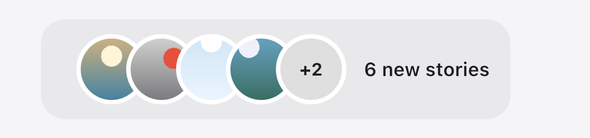

taller.zoneOnly and taller.autoOpenItem debug options; the swipe and the Close are mouse gestures on the simulator. It is under 8 seconds. Banner variants
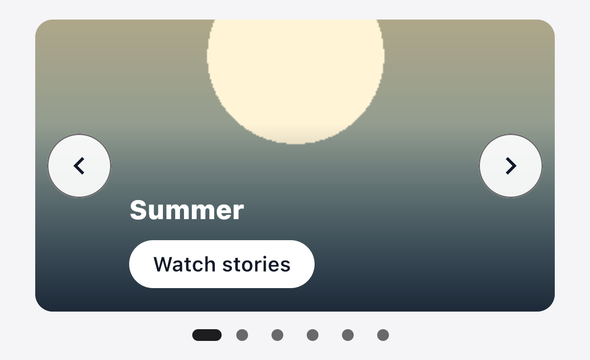
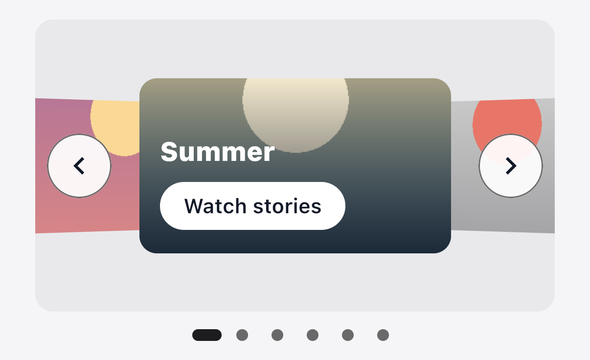
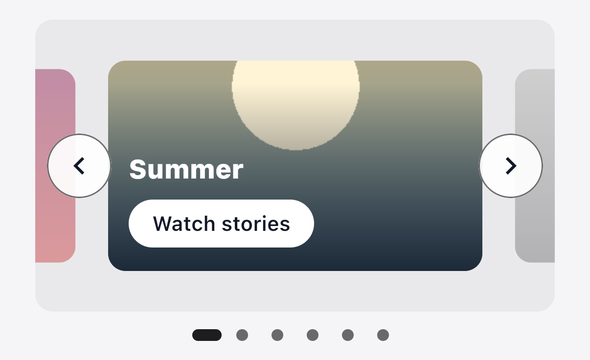
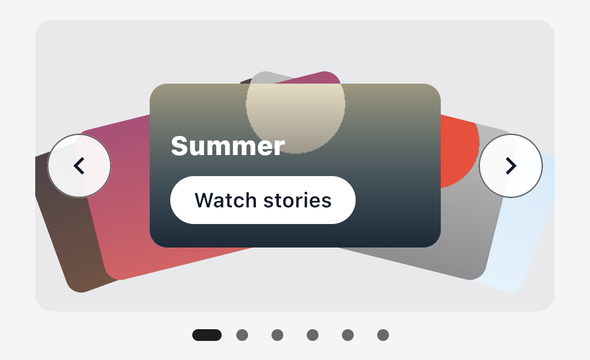
A banner zone shows its groups one at a time, or in one of five other variants: the frame's variant setting in the dashboard picks it. A missing or unknown value is the carousel. Each variant ignores the settings the table names, and the rest apply. The carousel has been restyled: each slide shows the group's name and a Watch stories button on a scrim, and its previous and next buttons are 48 dp, so they are easy to touch. Right to left, the line of slides, the turn of the coverflow and the fan of the deck, and the marquee run the other way, and the buttons sit on the other edge.
| Variant | Use | Ignored settings |
|---|---|---|
carousel | The default. One slide at a time, with the group’s name and a Watch stories button on a scrim, previous and next buttons, dots and autoplay. | None. |
coverflow | The current slide in front, its neighbours turned away at the sides, the far ones smaller and fainter. Swipe, or tap a neighbour. | None. |
peek | The current slide in the middle with the neighbours showing at the edges, like a pager with padding. | None. |
deck | The slides fanned out like a hand of cards. The front card opens its group; a tap on a card behind it brings that card forward. | None. |
sticky | A full-width bar on the card colour, pinned to the bottom of the space its host gives it and clear of the system’s bottom bar: previous and next buttons, the current slide’s round cover and name, and a dismiss button (all 44 dp, 48 dp to touch). Dismissed, it stays hidden until the app restarts. | aspectRatio, showDots and loop. It always loops. |
strip | A continuous marquee of the groups’ covers and names, scrolling at a fixed speed (about 18 seconds a loop) toward the start of the line. A press pauses it; under reduced motion it stops and can be scrolled sideways. | aspectRatio, showDots, loop, autoplay and intervalSeconds. |


Analytics events
The SDK sends impression, open, view and click events for each zone, in batches and in the background, so the app never waits on them. Turn them off for the whole app with analytics: false in the configuration, or for one zone with zone.analytics; a zone's setting wins, and nil follows the configuration. On native, an impression is a group's bar item first rendered, or a banner slide first shown: the SDK does not measure whether it is on screen.
let zone = TaleartZoneView(apiUrl: "https://api.example.com", zoneKey: "tak_YOUR_ZONE_KEY")
zone.analytics = false    // this zone sends no events; nil (the default) follows TaleartConfig.analytics
Countdowns and promo codes
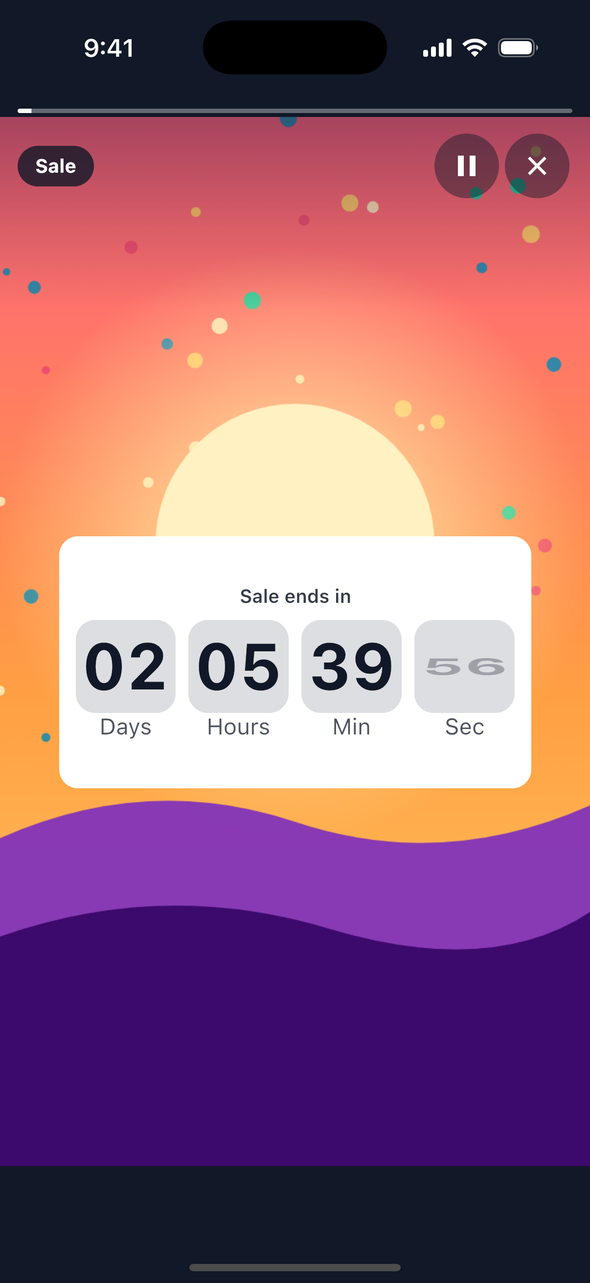
A tale can hold a countdown: the days, hours, minutes and seconds left to a moment in UTC, then its ended text. A tale can also hold a promo code: the code on a ticket, with a Copy stub beside it. Add either in the dashboard, as you add any element of a tale; the SDK draws it as the web SDK does. The countdown counts on the device's clock, so a visitor with a wrong clock sees a wrong time. A promo code is visible to every visitor, so it is not a secret.
Countdown
Set the end as an instant in UTC, such as 2026-12-31T21:00:00Z. The units read Days, Hours, Min and Sec, and from the end on the ended text shows (Ended, unless you set your own). The end reaches your listener once, as onComponentEvent with event.action "ended" and the countdown as event.component.
Promo code
Set the code: 1 to 32 letters, digits, _ or -. Copy puts it on the clipboard and a toast over the card's top corner says Copied for four seconds; when the clipboard refuses, it says Could not copy. A copy reaches your listener as onComponentEvent with event.action "copied" and the code as event.component.value.
import TaleartSDK

final class ComponentTaleartHooks: TaleartListenerBase {
    // A countdown's end and a promo code's copy reach the listener as componentEvent.
    override func onComponentEvent(event: TaleartEvent) {
        switch event.action {
        // A countdown reached its end, once; component.type is "countdown".
        case "ended": print("Countdown \(event.component?.id ?? "") ended")
        // A promo code was copied; the code is the component's value.
        case "copied": print("Copied \(event.component?.value ?? "")")
        default: break
        }
    }
}
taller.autoOpenItem debug option. 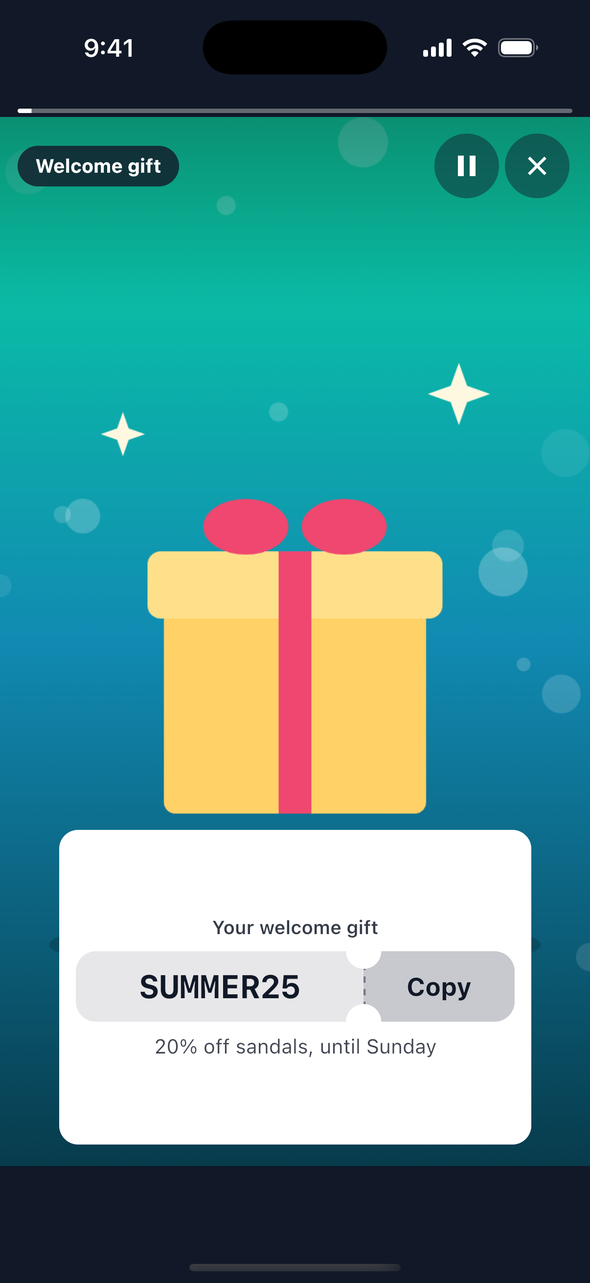
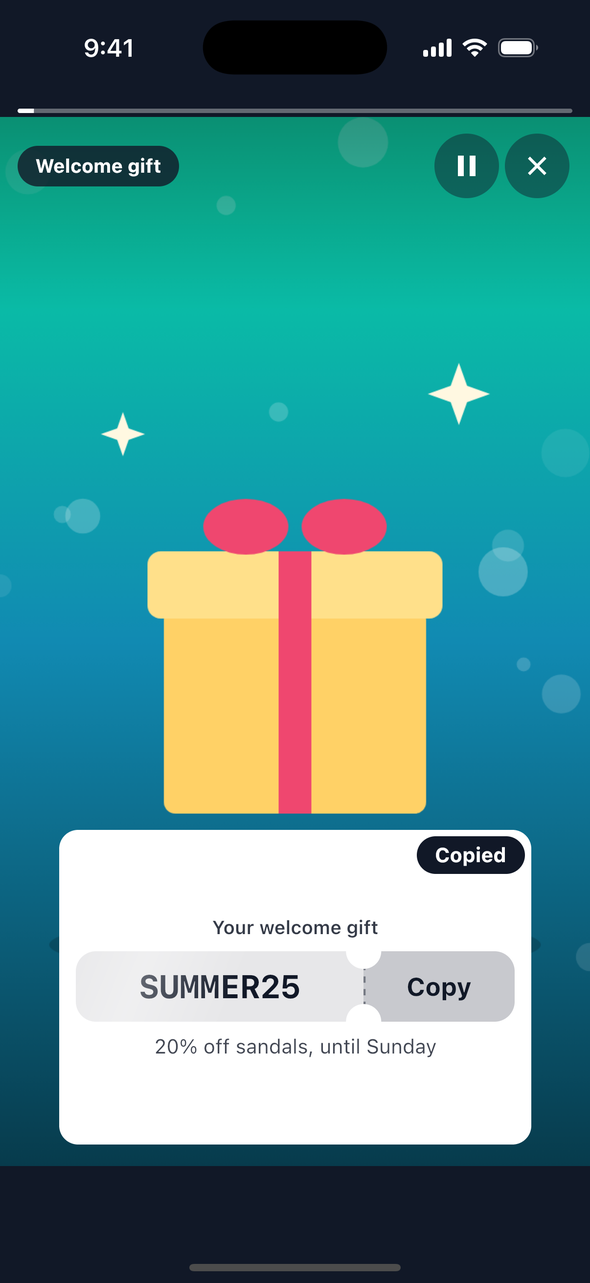
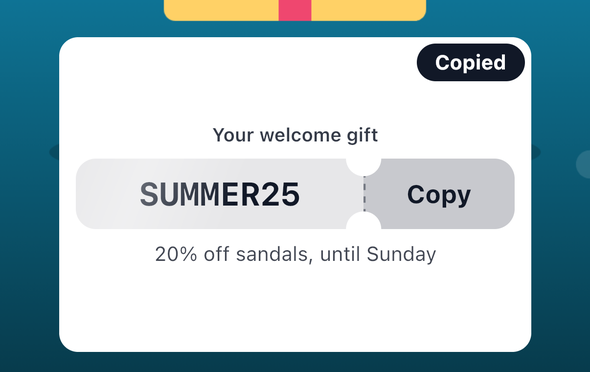
taller.autoCopy debug option, cropped to the card. Polls, quizzes, ratings and reactions
A tale can hold one poll, one quiz, one rating and one reaction, each added in the dashboard as any element of a tale. A visitor answers each once: the answer is kept on the device, so a tale opened again shows the result at once. The server counts the answers and the SDK draws the counts it returns. In a preview nothing is sent or kept.
Poll
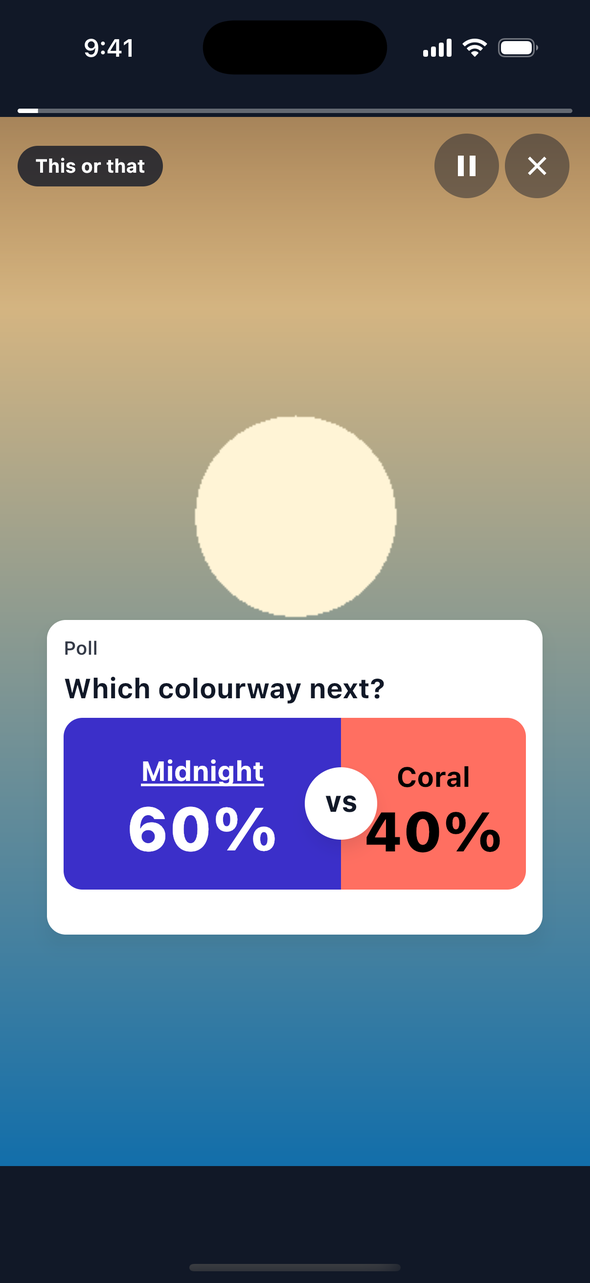
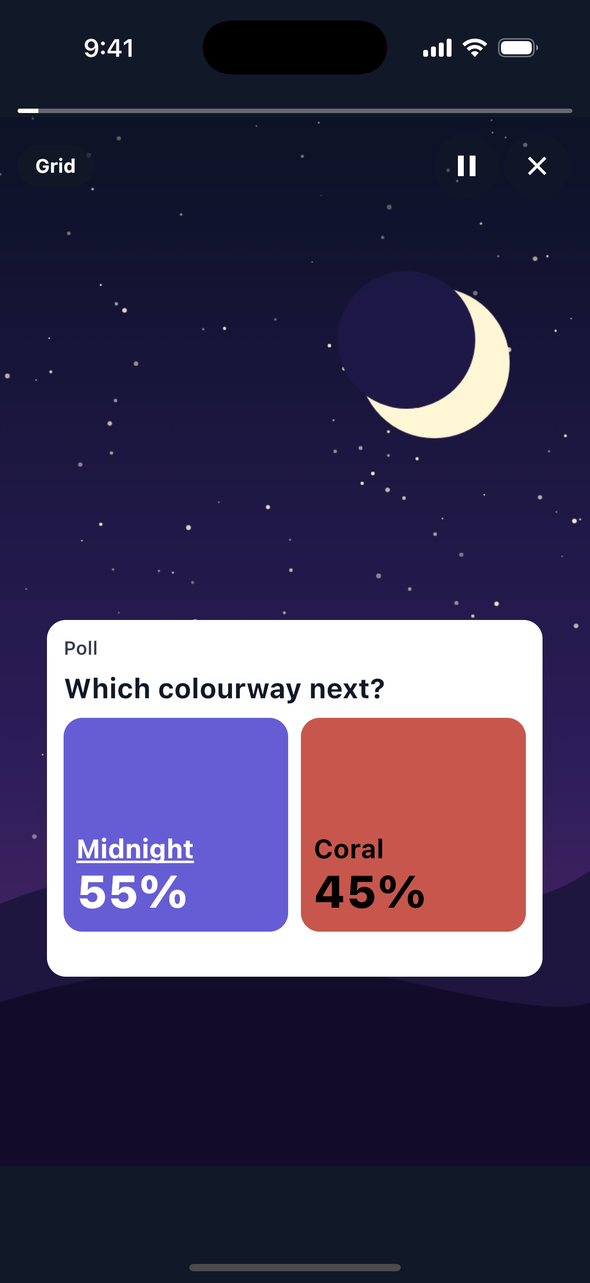
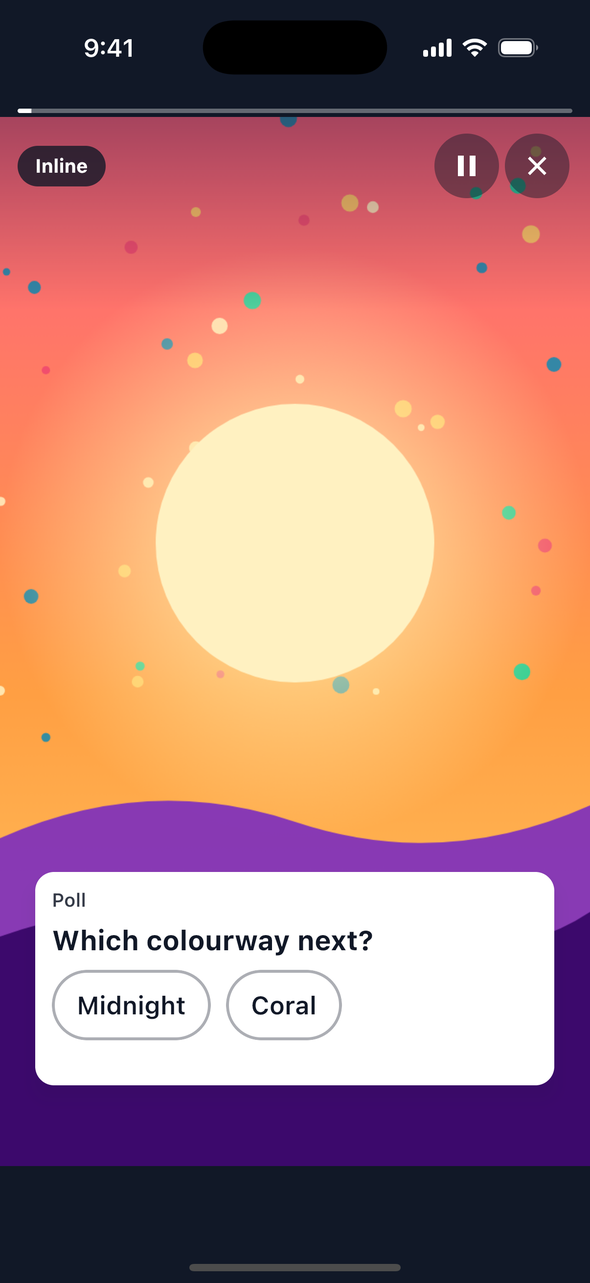
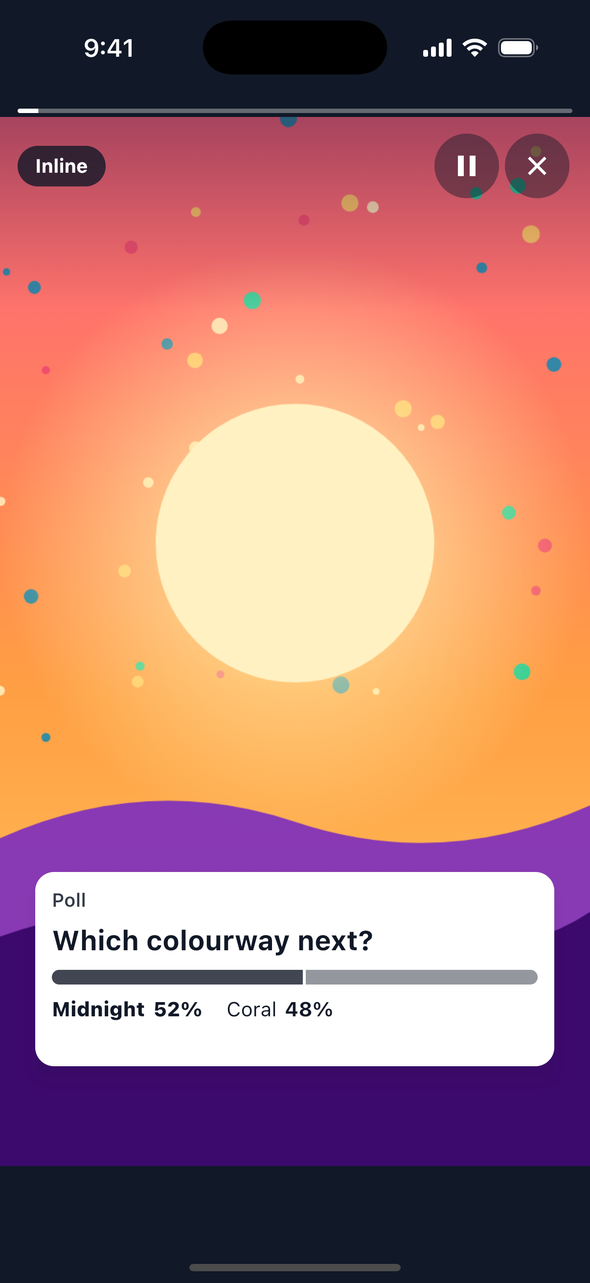
Two options as buttons. A vote shows each option's share, with the vote selected, and the result is read to VoiceOver.
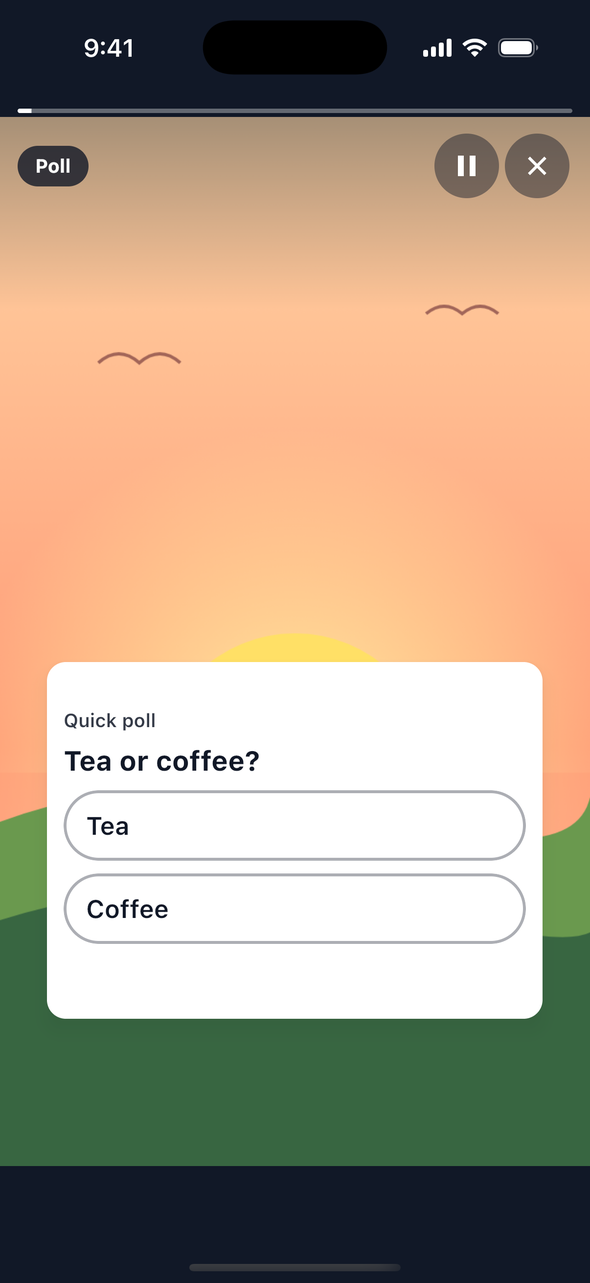
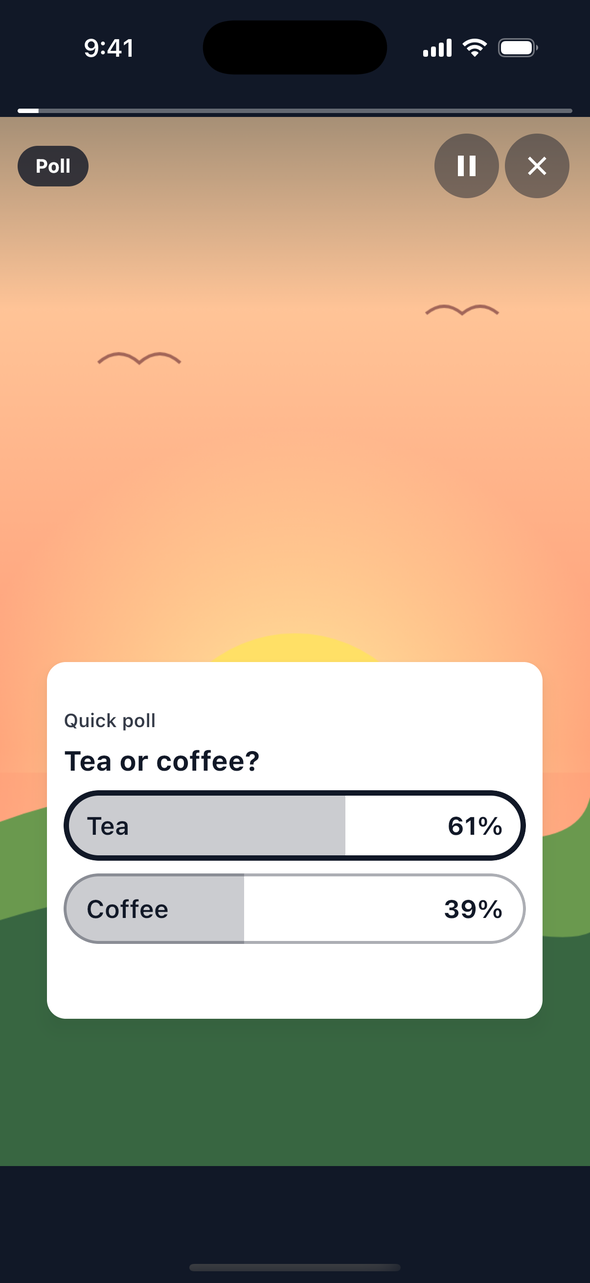
Poll views
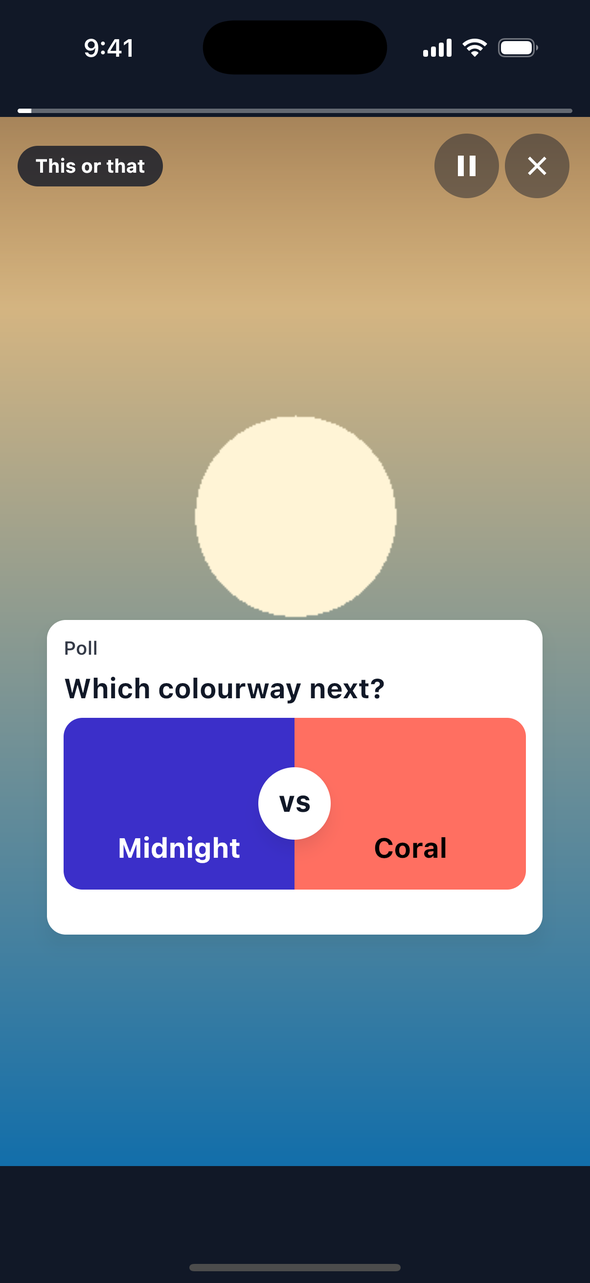
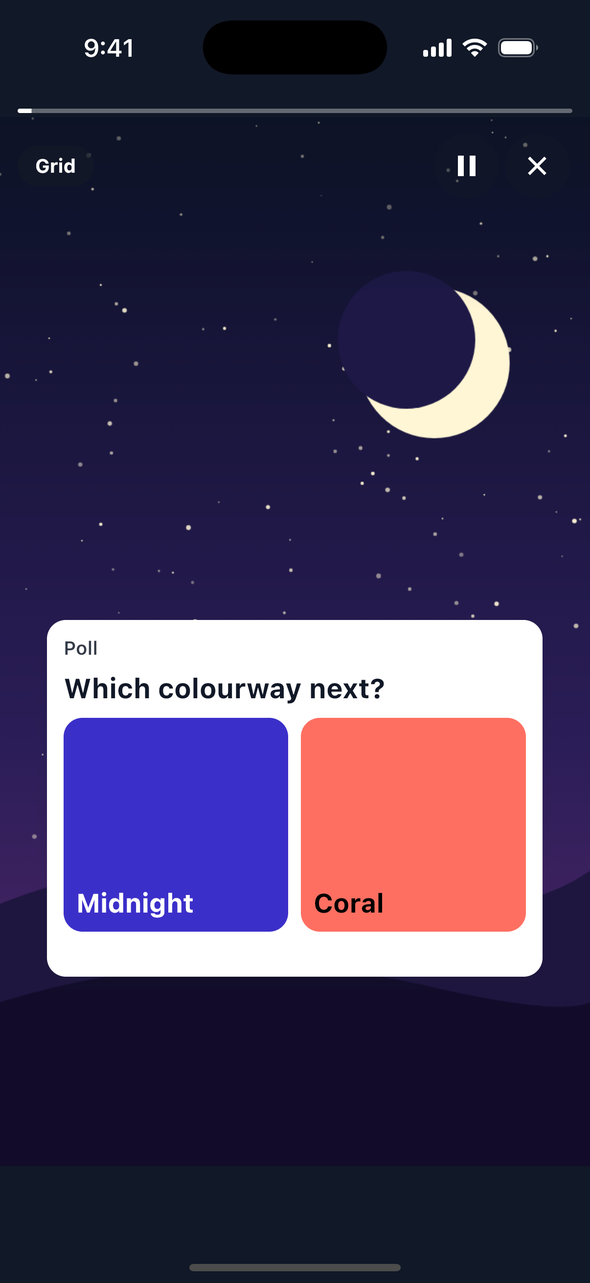
A poll is drawn in one of five views, chosen by the poll's view. The sticker is the default, and a poll without a view, or with one the SDK does not know, is a sticker. The view changes how the poll looks, not what it records. Two options can carry a colour (options[].color, #rrggbb); only this-or-that and grid use it, and without one the theme's colours are used.
| View | Use | Option colour |
|---|---|---|
sticker (default) | A small card over the tale, for a quick question. | Not used: the theme's colours. |
embed | A full-width card with its own results header: the vote total once voted, else the line that results appear after a vote. | Not used: the theme's colours. |
this-or-that | Two halves that fill the card. Once voted they split at the vote's share and a VS mark sits on the seam; mirrored in right to left. | Each half takes its option's colour, else the theme's; the text on it is white or black, whichever reads better. |
grid | Two large tiles side by side, each with its label and, once voted, its share. | Each tile takes its option's colour, else the theme's; the text on it is white or black, whichever reads better. |
inline | Compact rows, for a poll in the flow of a page. | Not used: the theme's colours. |
The embed, this-or-that, grid and inline views are shown before a vote and after one. The voted images are real votes in the sample app: a vote for Midnight in each view.
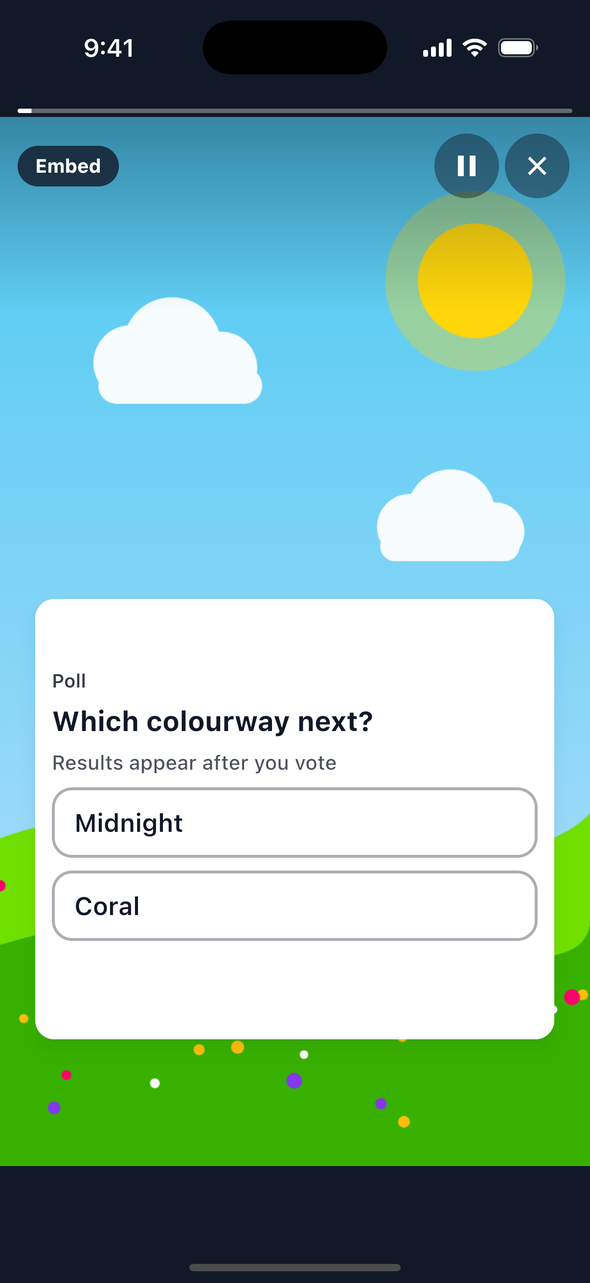
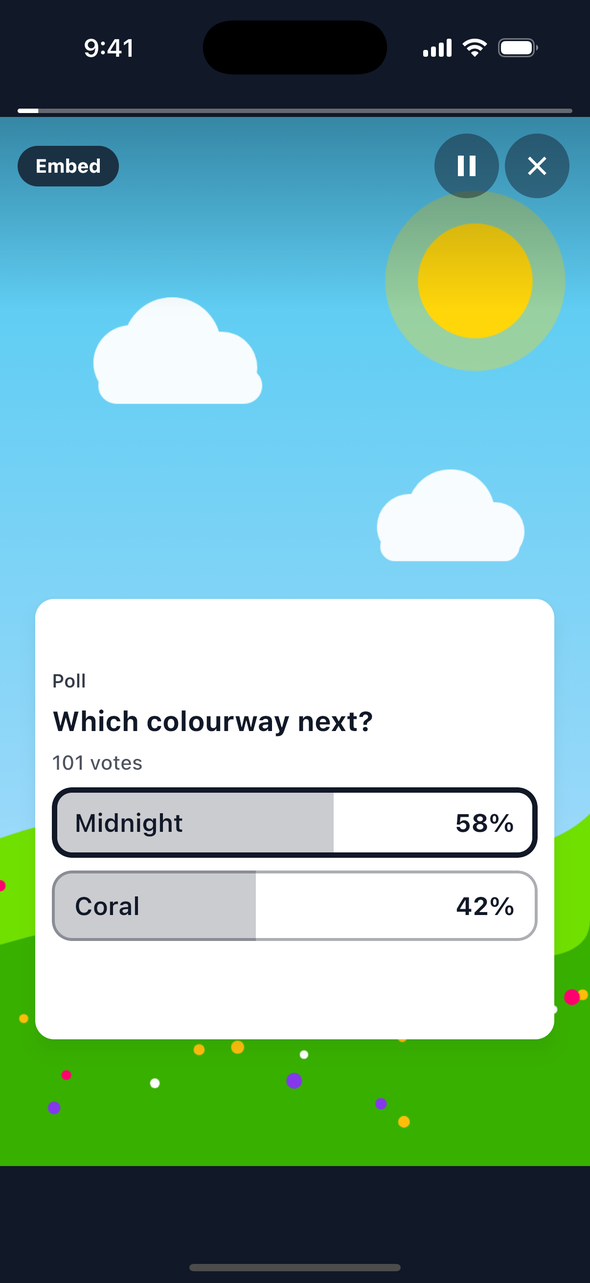
taller.autoOpenItem and taller.autoVote debug options. Quiz
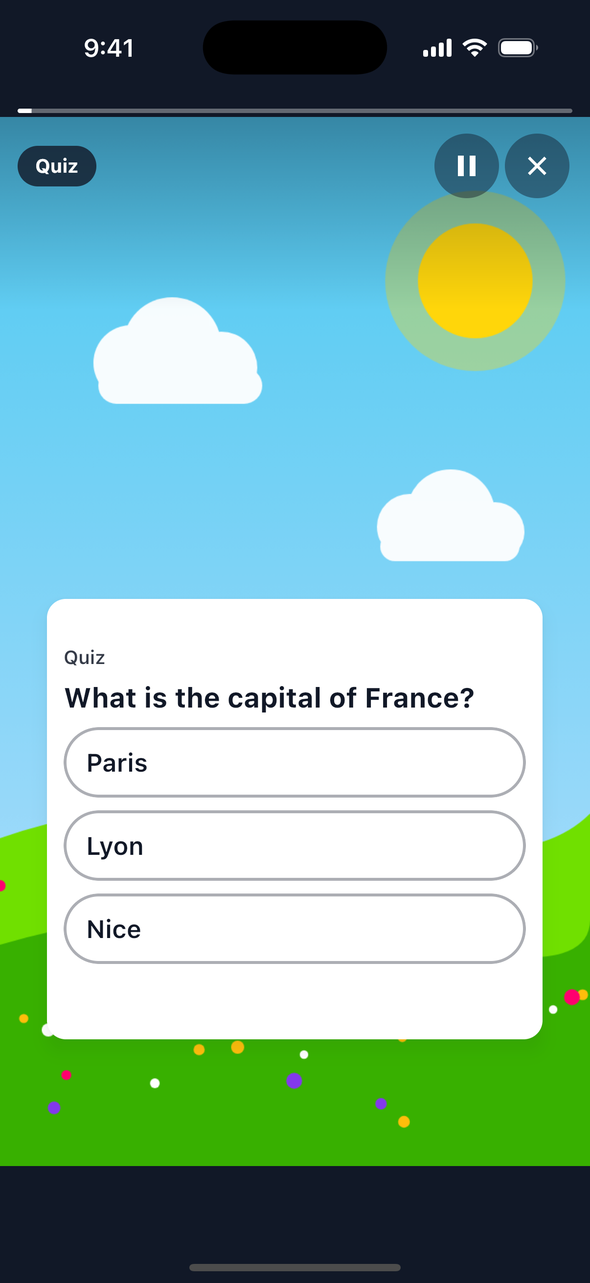
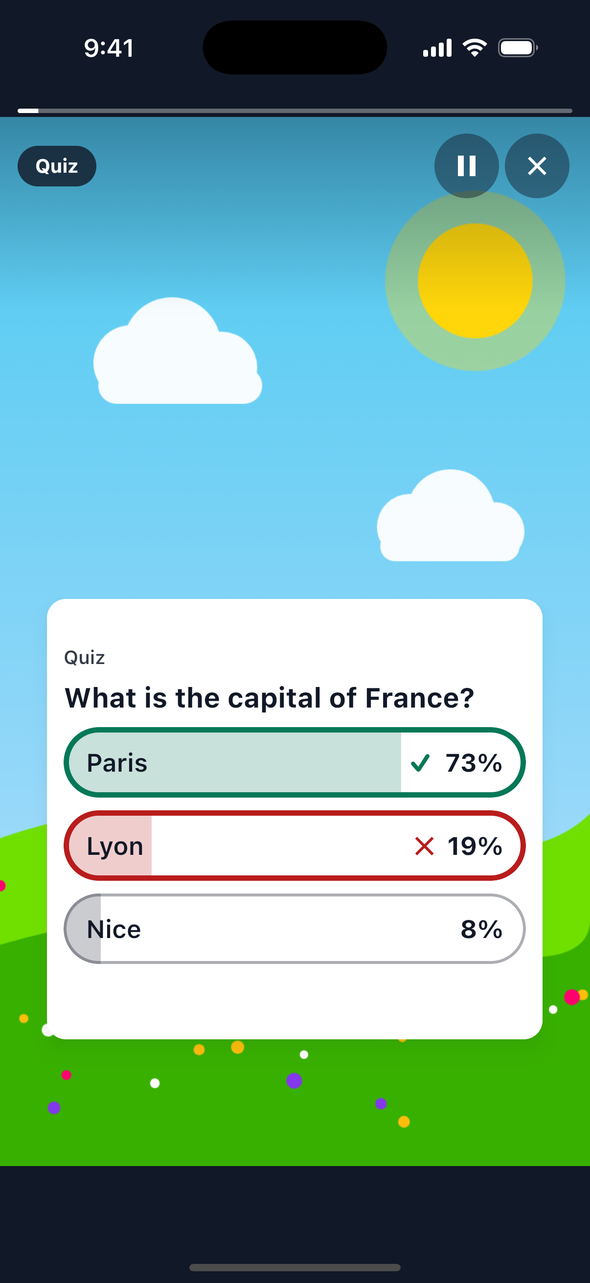
Two to four answers. Once answered, the quiz says whether the answer was right: the correct answer is marked with a tick and a wrong one with a cross, as words too. Without a correct answer the quiz works as a survey and shows only the shares. The correct answer comes with the tale, so a quiz is not a secure test.
taller.autoVote debug option. Rating
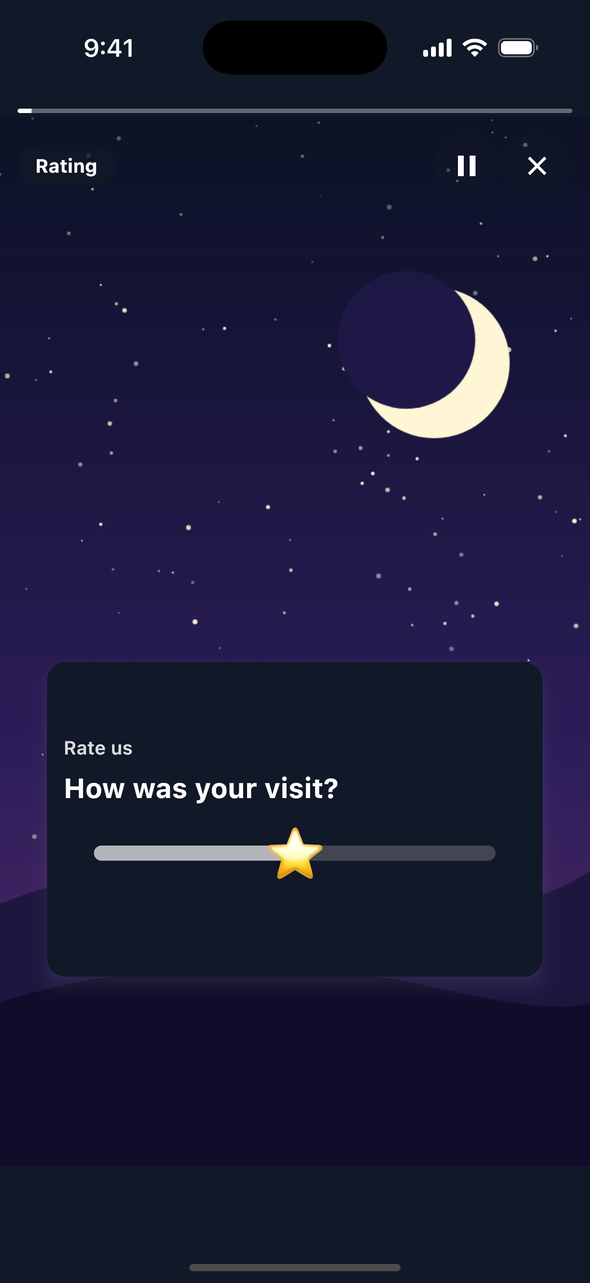
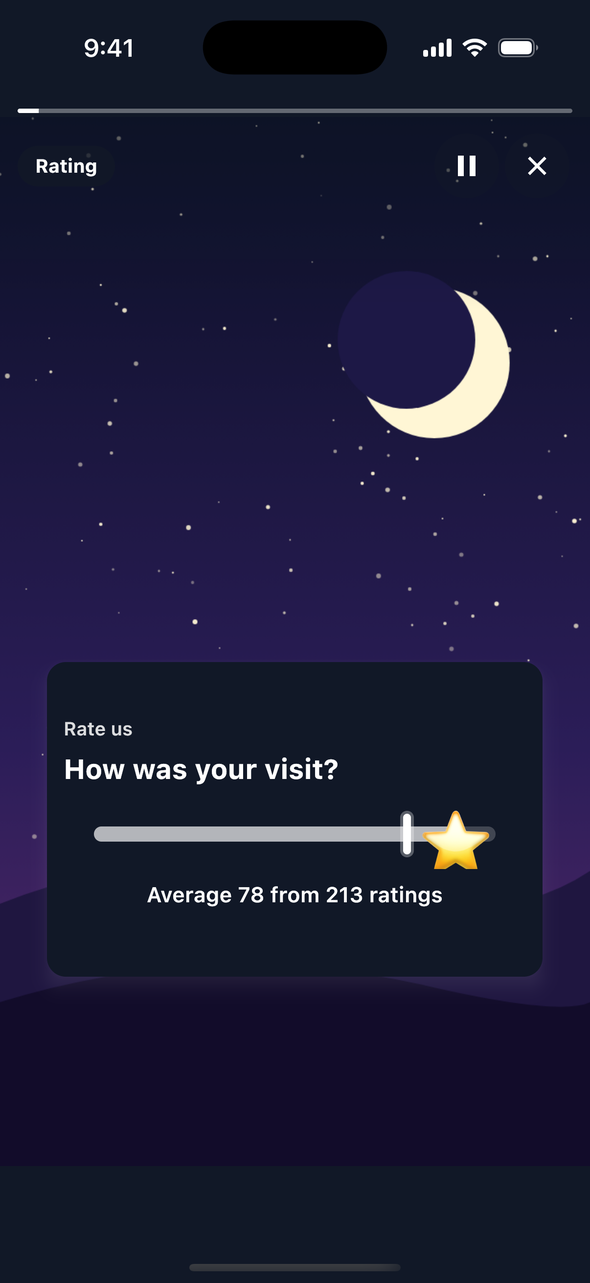
A slider from 0 to 100 whose thumb is an emoji you choose. The visitor drags it or taps the track, and the rating is sent when they let go. Once rated, the count and the average show.
Reaction
Two to six different emoji. A tap sends that emoji; every emoji then shows its count, and the tapped one is selected.
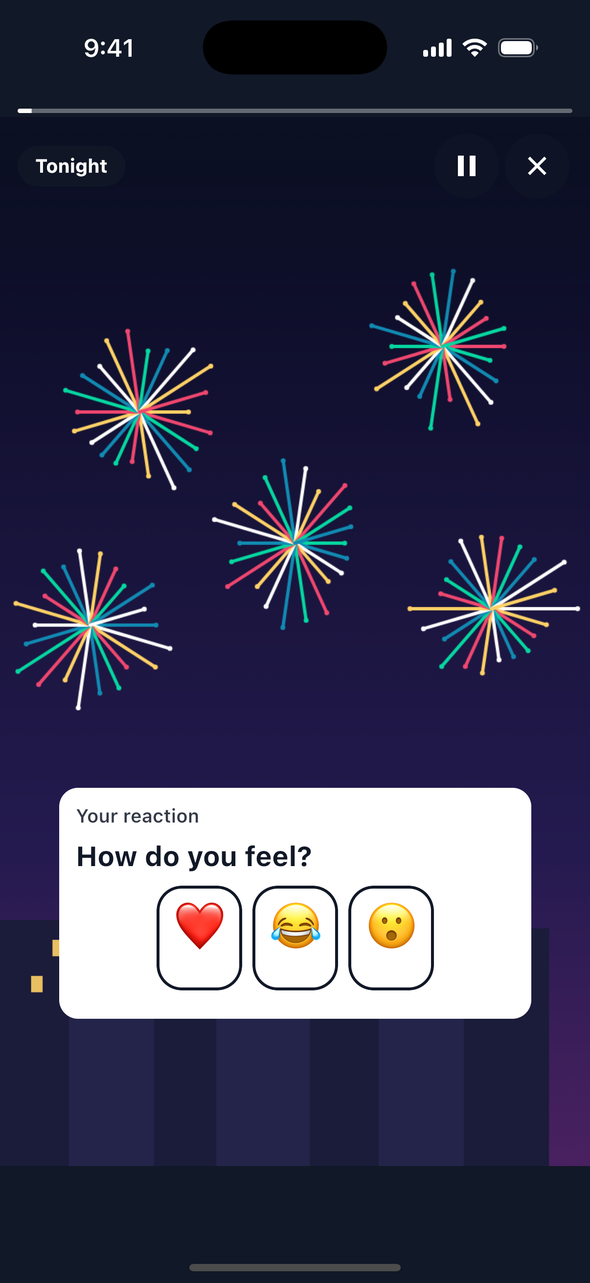
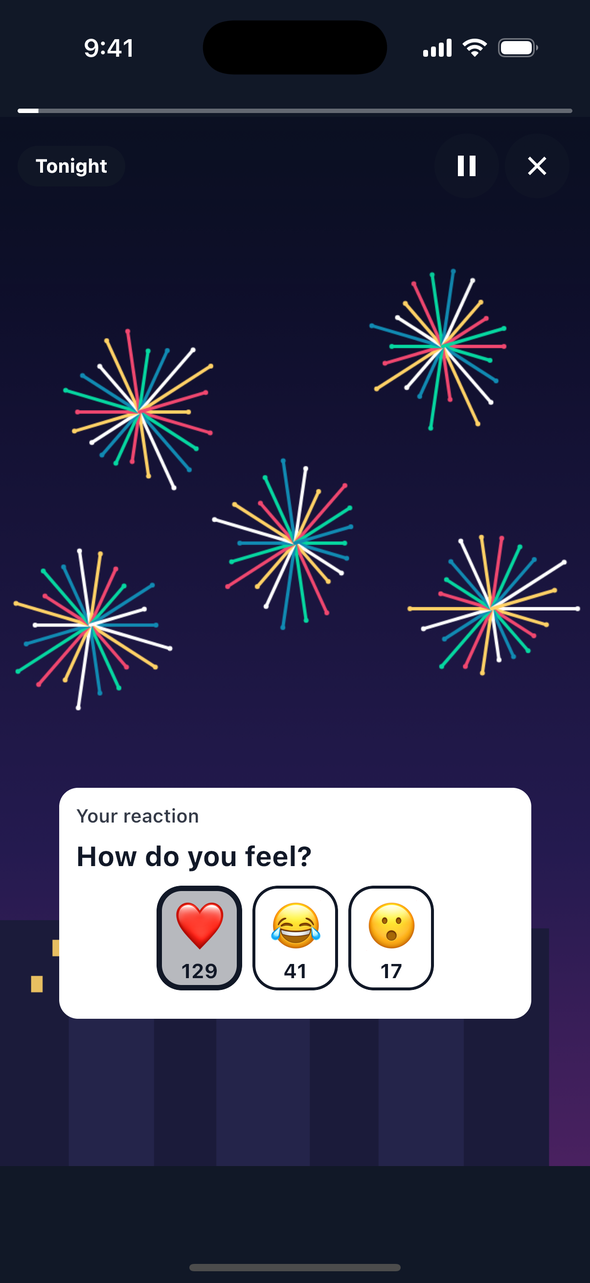
taller.autoPress debug option. Each accepted answer reaches your listener as onUserInteracted, with the element in event.component and the answer as its value, and as onComponentEvent with event.action "selected". An answer kept from an earlier visit is not reported again. When an answer fails, the SDK says so on screen and the visitor can answer again.
Right to left
The SDK's views lay out in the device's direction: Hebrew and Arabic are right to left, so the bar starts on the right, a viewer's progress fills from the right, Previous is the right third of the tale, and the poll and rating layouts follow. Numbers, promo codes and a countdown's digits stay left to right. To set the direction yourself, pass layoutDirection: "rtl" or "ltr"; nil, or any other value, follows the device.
// The layoutDirection argument of TaleartConfig(...) in doInit. Swift needs every argument,
// so pass nil to follow the device's language.
layoutDirection: "rtl",             // or "ltr"; nil (the default) follows the device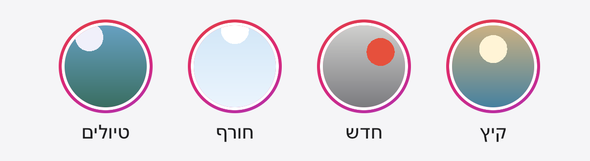
layoutDirection set to rtl, a real screenshot taken in the simulator. The first group is on the right. 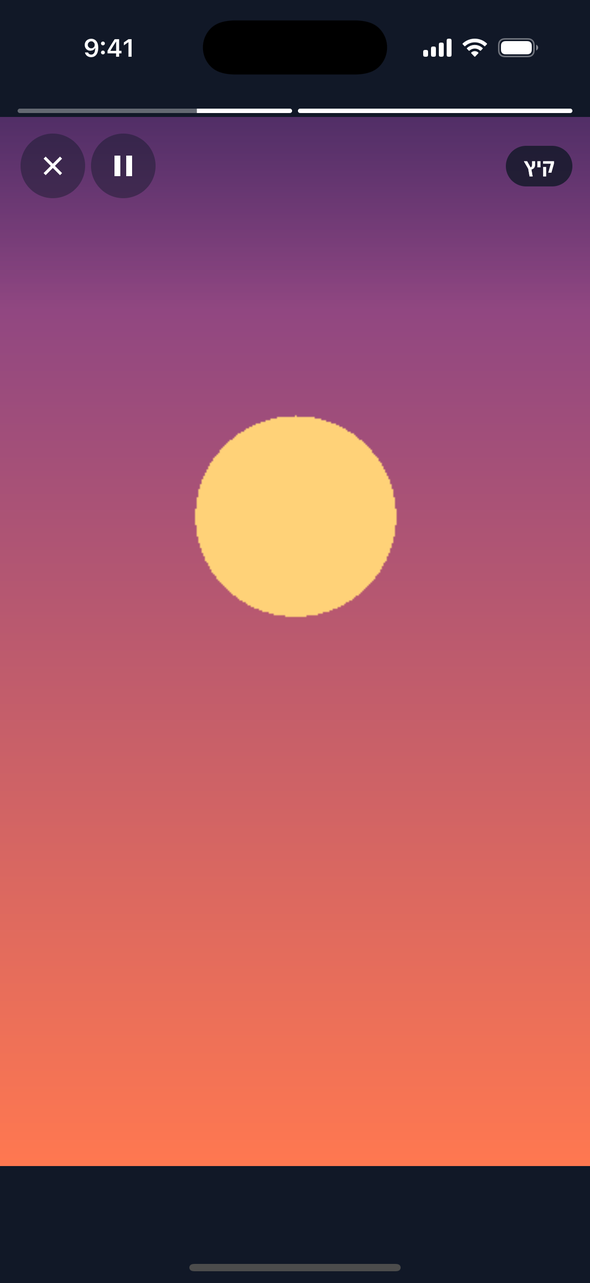
Backups and the visitor id
The SDK makes a visitor id once and keeps it in its own store on the device: the taleart-sdk NSUserDefaults suite, under the key taleart.visitor. It is random, not derived from the person or the device, and tied to no account. It is still a stable identifier of an app install, so cover it in your privacy notice and your consent setup. Deleting the app makes a new one. iOS backups restore that store too, so a restored device keeps its id. The SDK does not exclude the store from backups, and iOS has no backup rule for a single defaults key. To start fresh after a restore, remove the key once, in the app, when it first runs after the restore: UserDefaults(suiteName: "taleart-sdk")?.removeObject(forKey: "taleart.visitor"). The SDK makes a new id the next time the app starts. Do not remove it on every launch, or every launch gets a new id.
Not available natively yet
- onGroupImpression counts a group when it is first shown in a render, not when it is on screen: the native SDK does not measure visibility yet.
- The Compose TaleartZone has no properties parameter: a composable uses the SDK’s viewer properties from TaleartConfig, and cannot set its own for one zone.
The Install a zone page covers the Web SDK, which draws the same elements.